PayrollX Employer App — full feature reference
Document title: PayrollX Employer App feature guide.
Product: PayrollX Employer Android application.
Audience: Employers, business owners, HR managers, and office admins in India.
Related products: PayrollX Employer Web portal, PayrollX Employee Android App.
Download: Google Play package com.payrollx.payroll — https://play.google.com/store/apps/details?id=com.payrollx.payroll.
The PayrollX Employer App is an Android mobile app for business owners and HR managers. You can manage employees, attendance, leaves, holidays, expenses, staff chat, announcements, departments, designations, shifts, and settings from your phone. Data syncs with the PayrollX employer web portal.
Who uses it: Employers, company owners, HR managers, and office admins who use PayrollX.
Platform: Android (Google Play)
Login: Employers sign in with email OTP (one-time code). No password required for login on the portal; the app uses secure employer login.
Q&A
Q: What is the PayrollX Employer App?
A: It is the official Android app for employers to manage HR work on the go — staff, attendance, leaves, expenses, staff chat, and company settings.
Q: Who should use this app?
A: Business owners, HR managers, and admins who already have a PayrollX employer account.
Q: Does it work with the website?
A: Yes. Changes in the employer app sync with the PayrollX employer web dashboard in real time.
Q: Is there a separate Employee App?
A: Yes. Employees use a different Android app to punch attendance and apply for leave. Employers use this Employer App to manage and approve everything.
Q: Where can I download it?
A: Download from Google Play: PayrollX Employer app (package com.payrollx.payroll).
Q: Can I chat with employees in the app?
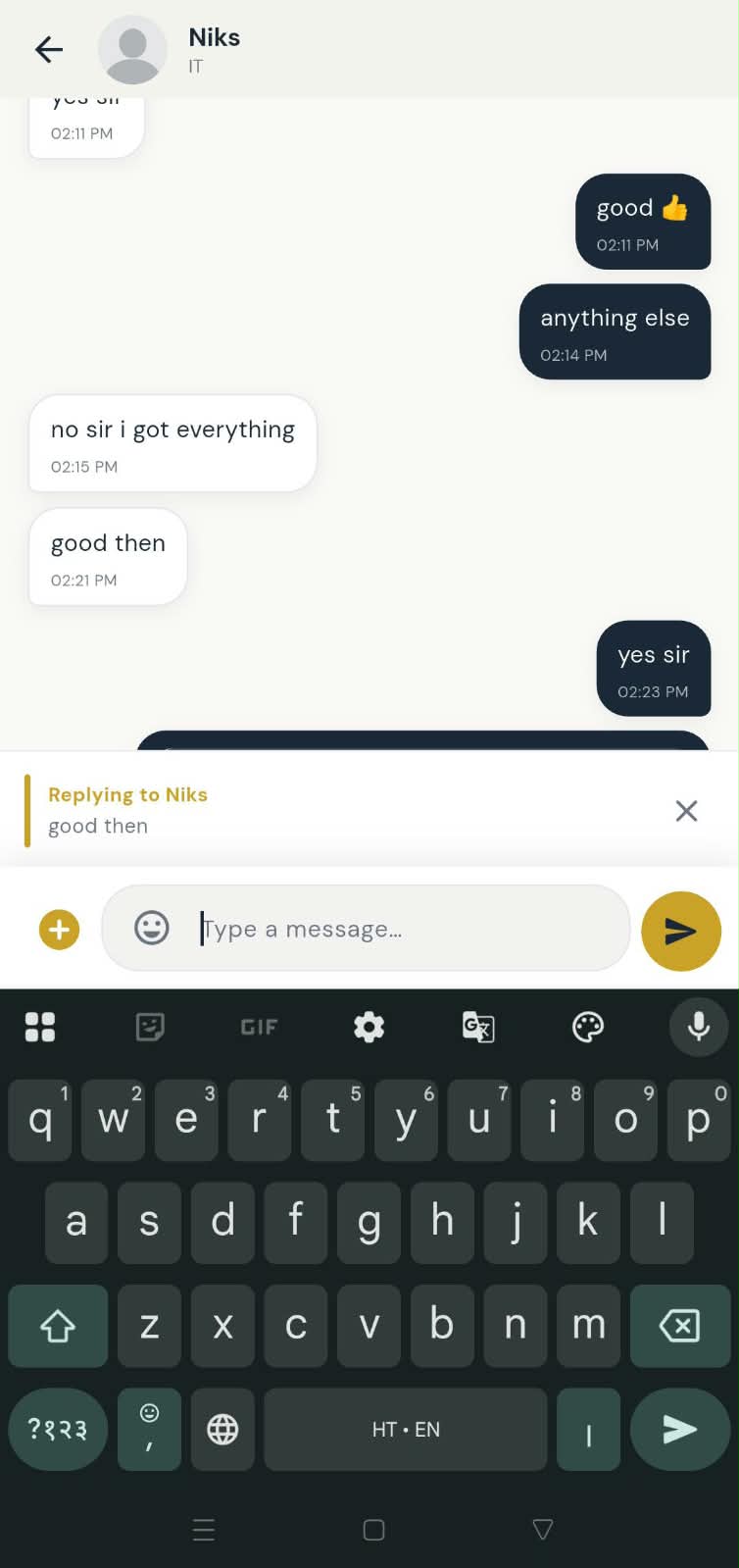
A: Yes. Open Chat from Home to message any employee — send text or photos, reply to messages, and edit or delete your own messages within 24 hours. Employees reply in the Employee App.
Q: How do I start a chat with an employee?
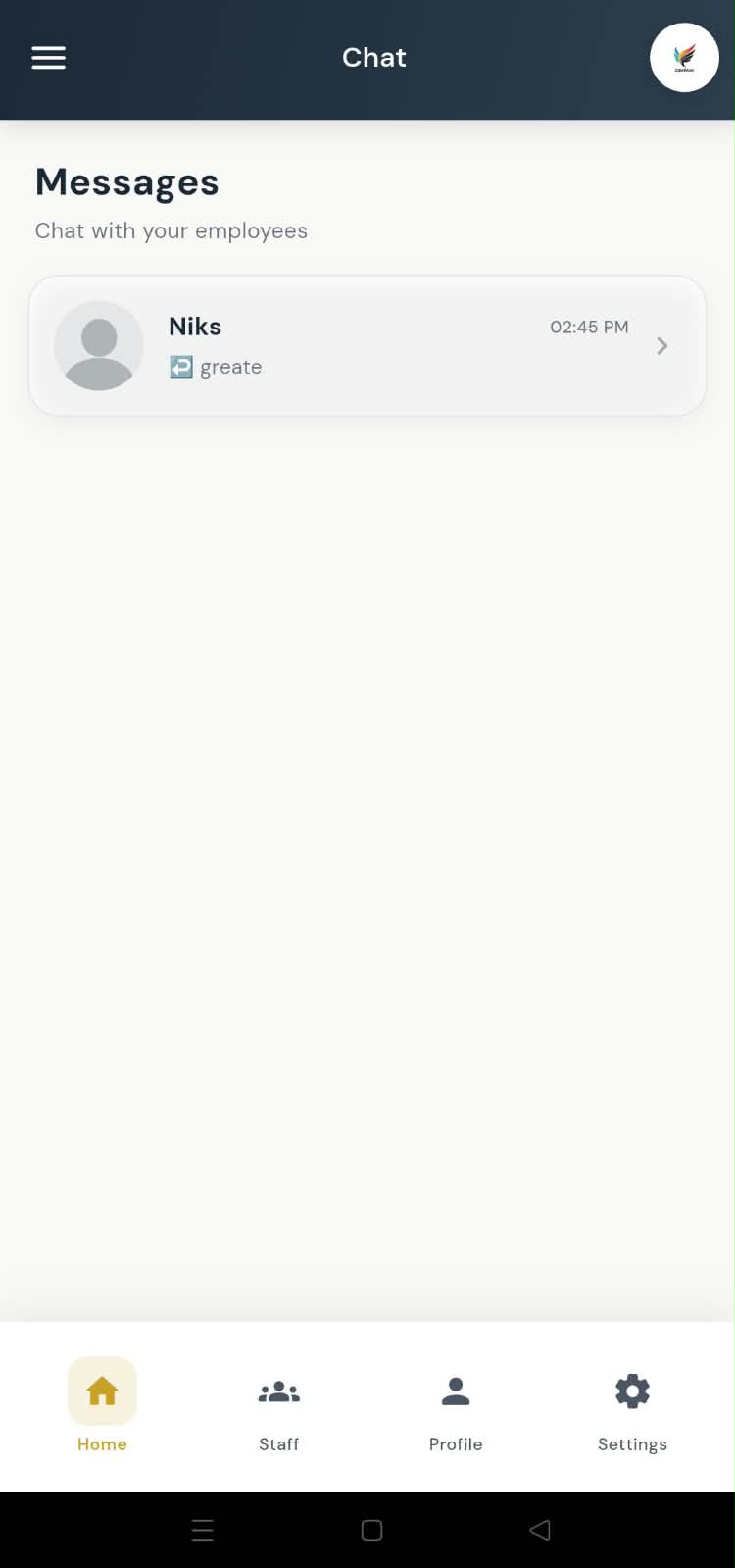
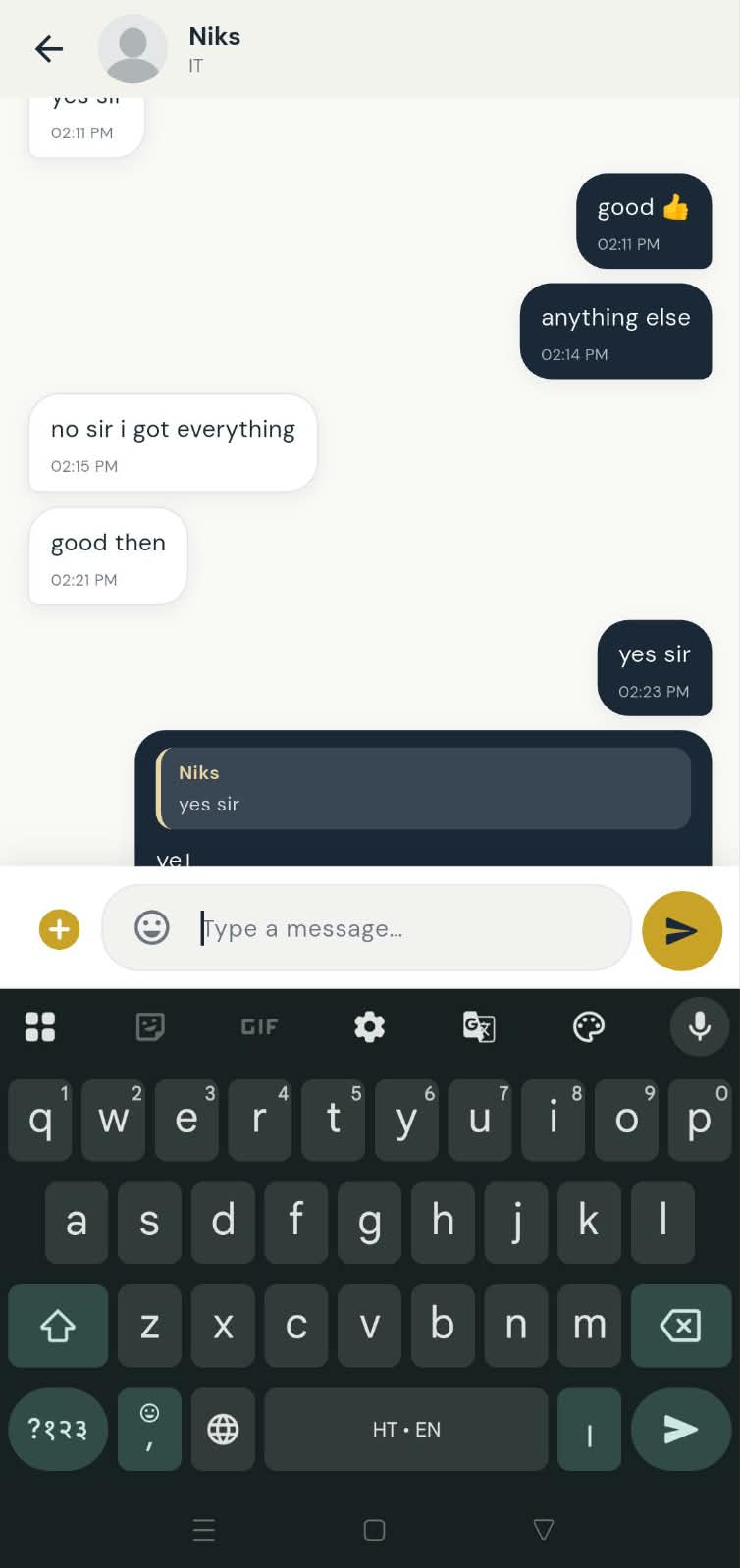
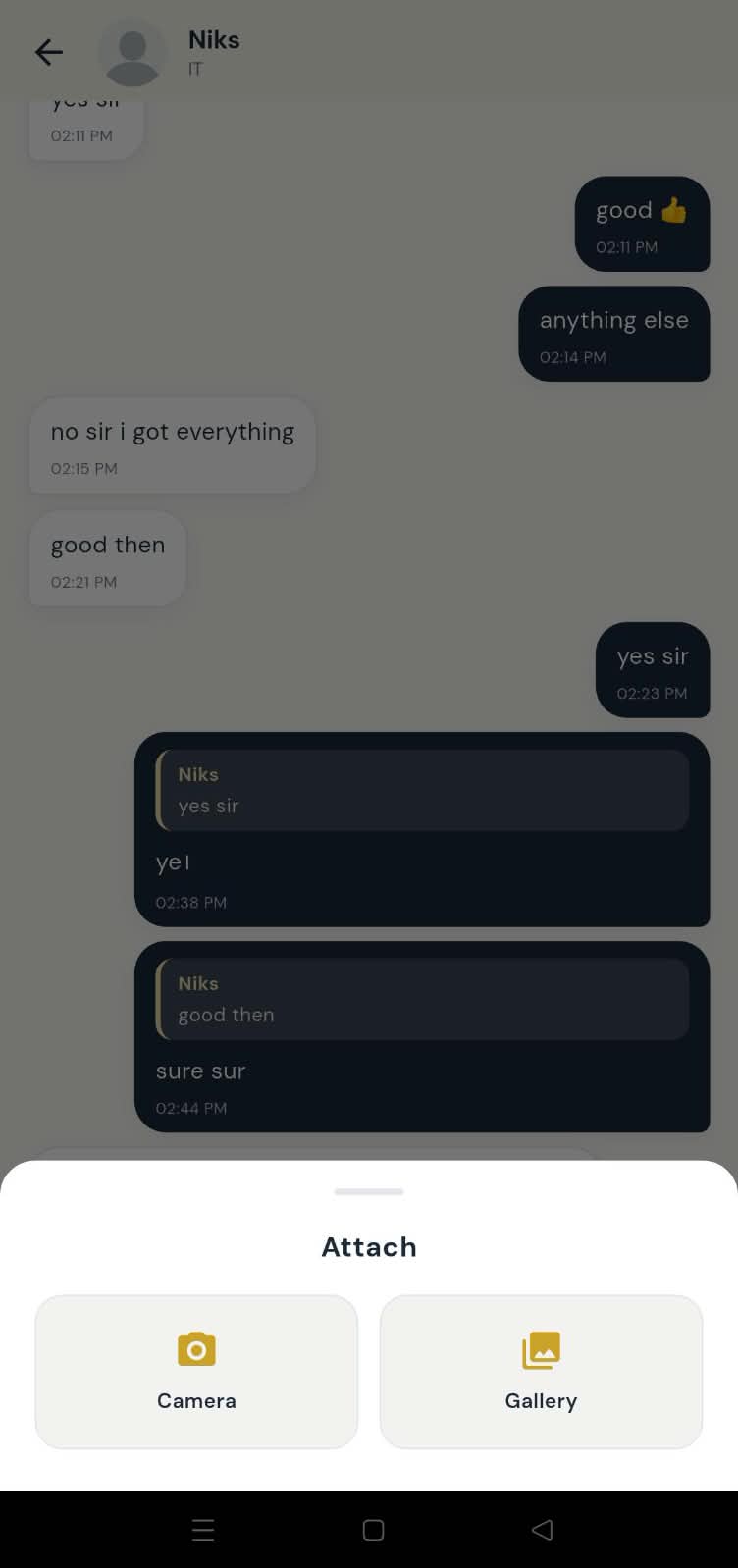
A: On Home, tap Chat. Pick an employee from the list. Type a message and tap Send, or tap + to attach a photo from camera or gallery.
Q: Can I reply to a specific message?
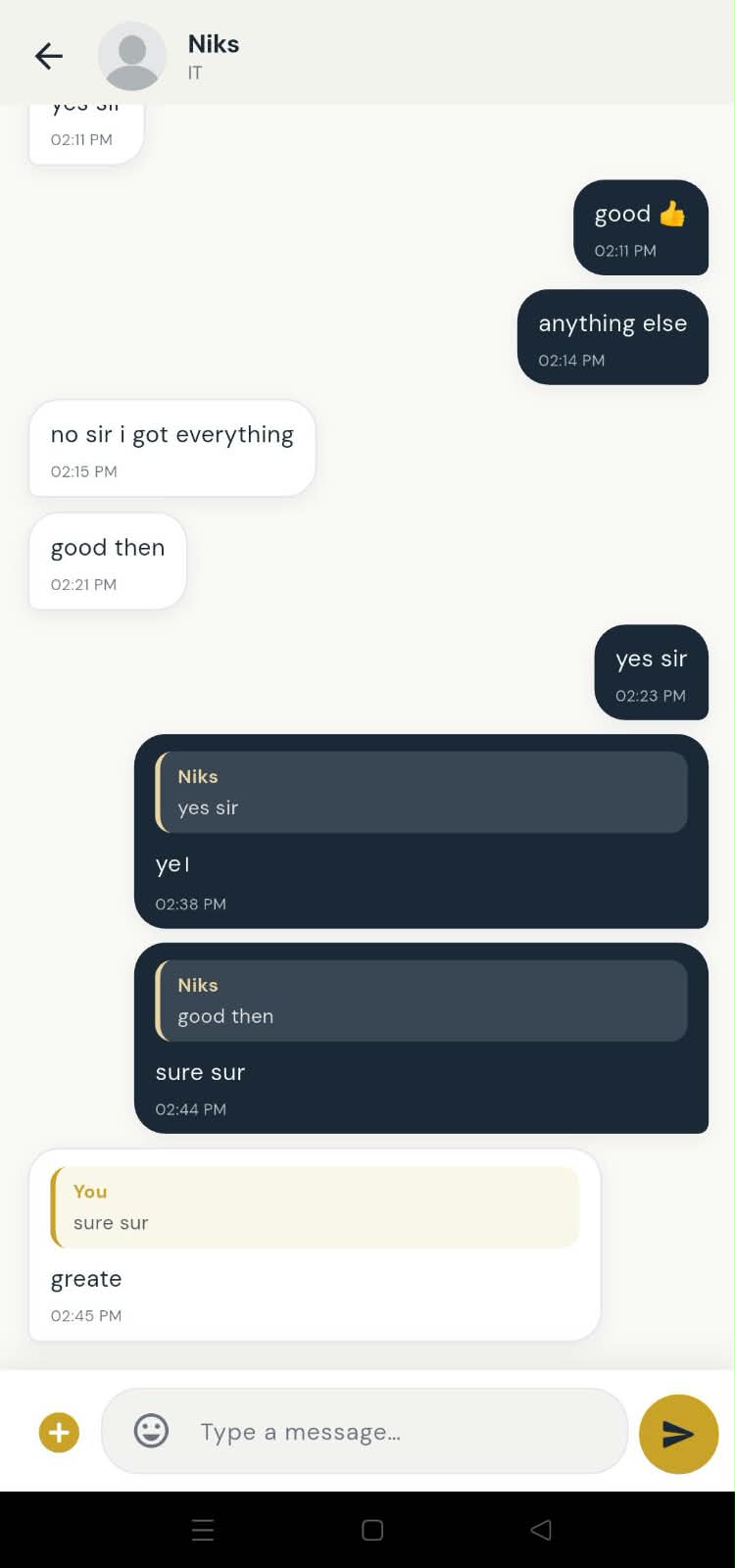
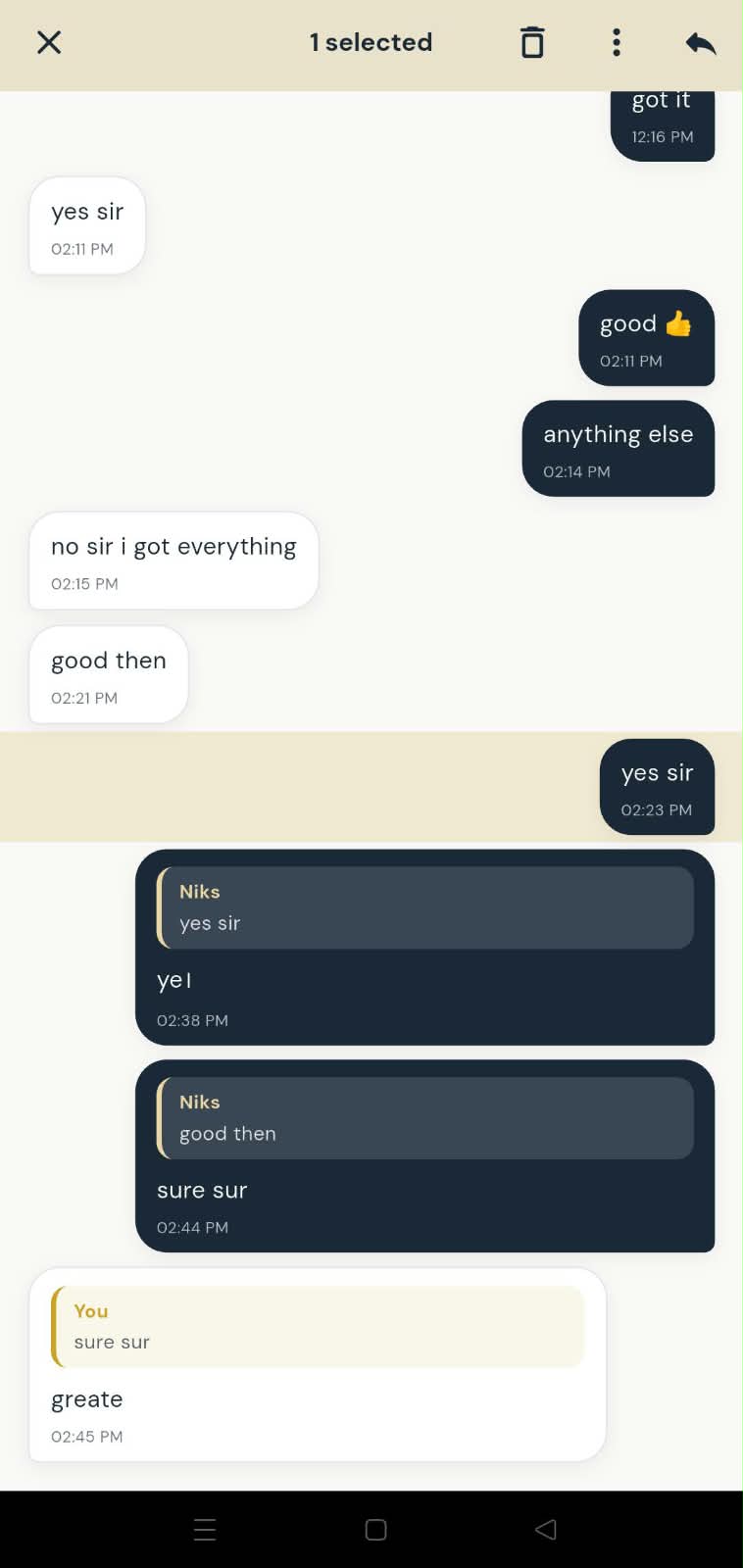
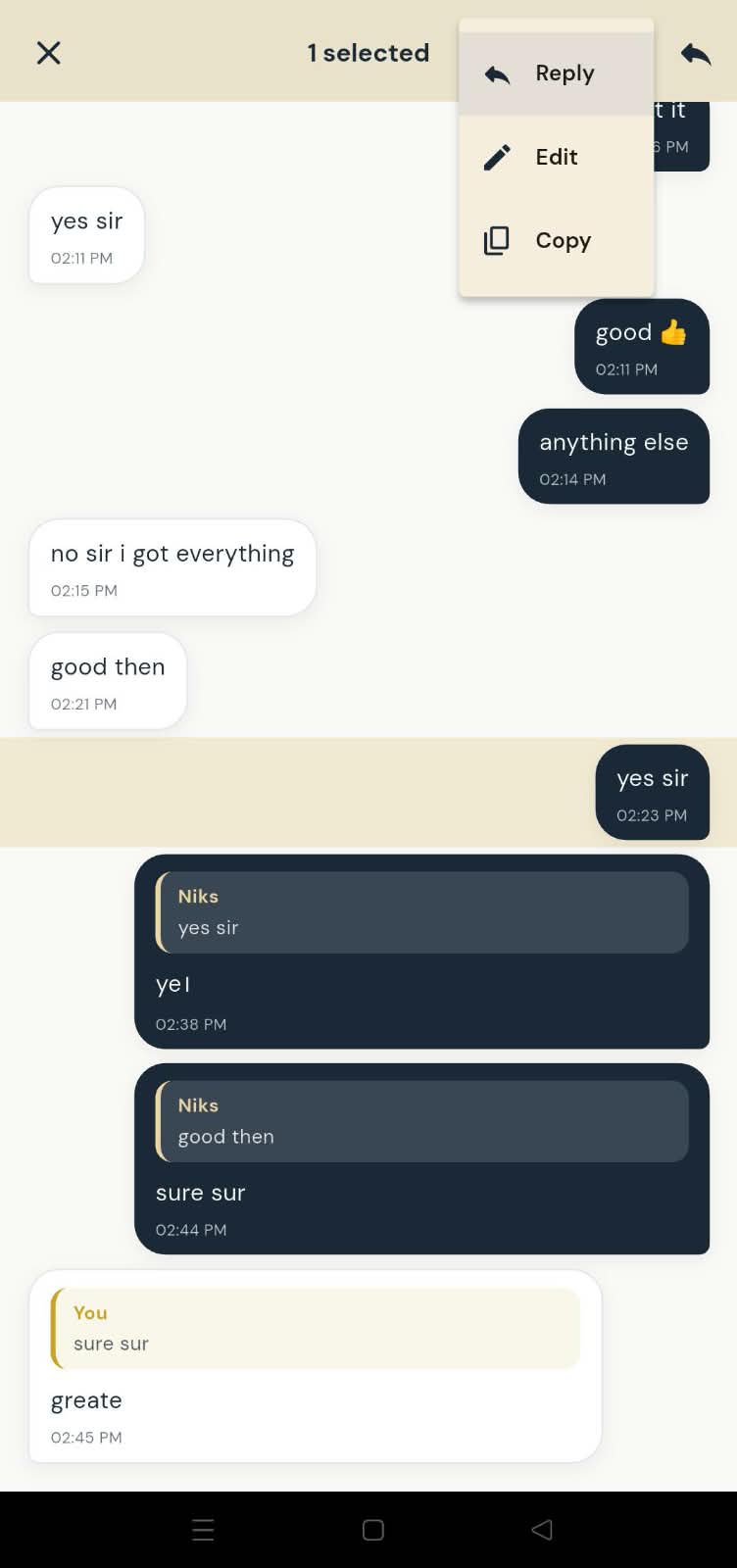
A: Yes. Swipe the message right, or long-press it and choose Reply. Tap the reply quote later to jump back to the original message.
Q: Can I edit or delete a chat message?
A: You can edit or delete your own messages within 24 hours. Long-press your message and choose Edit or Delete. Older messages stay as sent.
Q: Will I get a notification for new chat messages?
A: Yes. When an employee sends a message, you receive a push notification even if the app is in the background. Tap it to open that chat.
Q: Can employees chat with each other?
A: No. Staff chat is one-to-one between the employer and each employee. Employees message you from the Employee App; they do not chat with other staff in this module.
Q: What is Home dashboard in the Employer App?
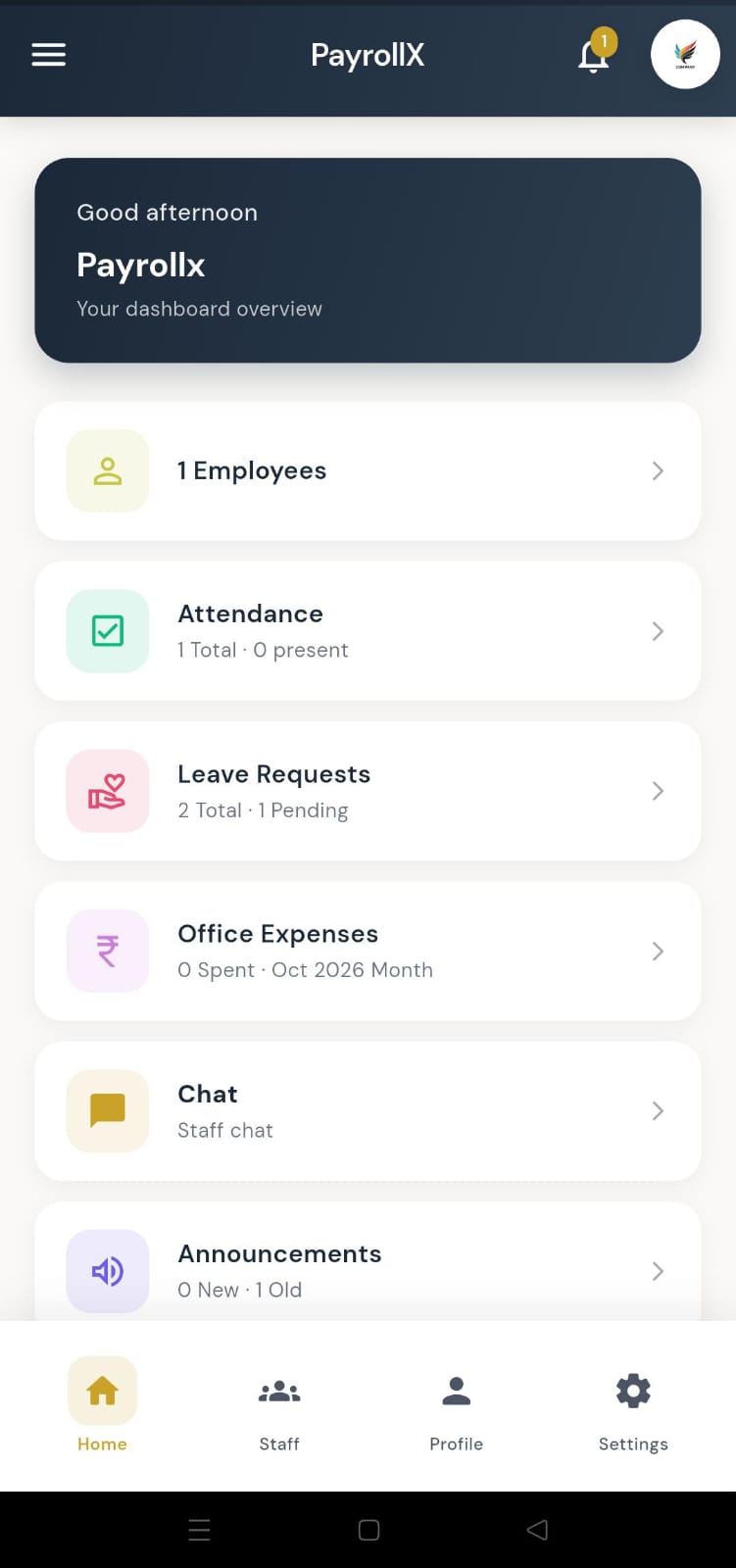
A: The home screen is your daily overview. It shows how many employees you have, today’s attendance, leave requests, expenses, and announcements. You can: See total employees and quick HR shortcuts.; Check how many people are present today.; Open leave requests, expenses, and announcements fast.; Jump to common tasks without searching menus..
Q: How do I use Home dashboard?
A: Open the app after login. The first screen is Home. Tap any card to open that module.
Q: What is Company profile in the Employer App?
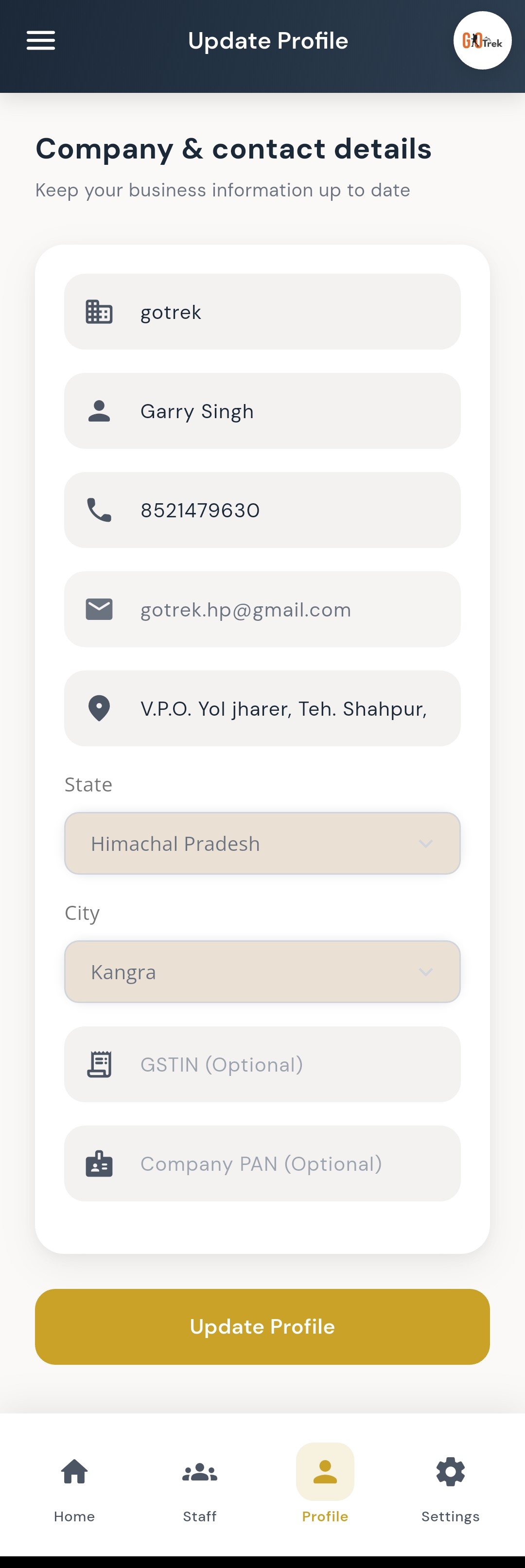
A: Your company profile shows business name, contact person, phone, email, and address details used across PayrollX. You can: View company name and your full name.; Check phone, email, state, city, PIN, and address.; Keep employer details up to date for HR records..
Q: How do I use Company profile?
A: Open Profile from the bottom menu or sidebar. Review details and update them when needed from the linked profile screens.
Q: What is Employee management in the Employer App?
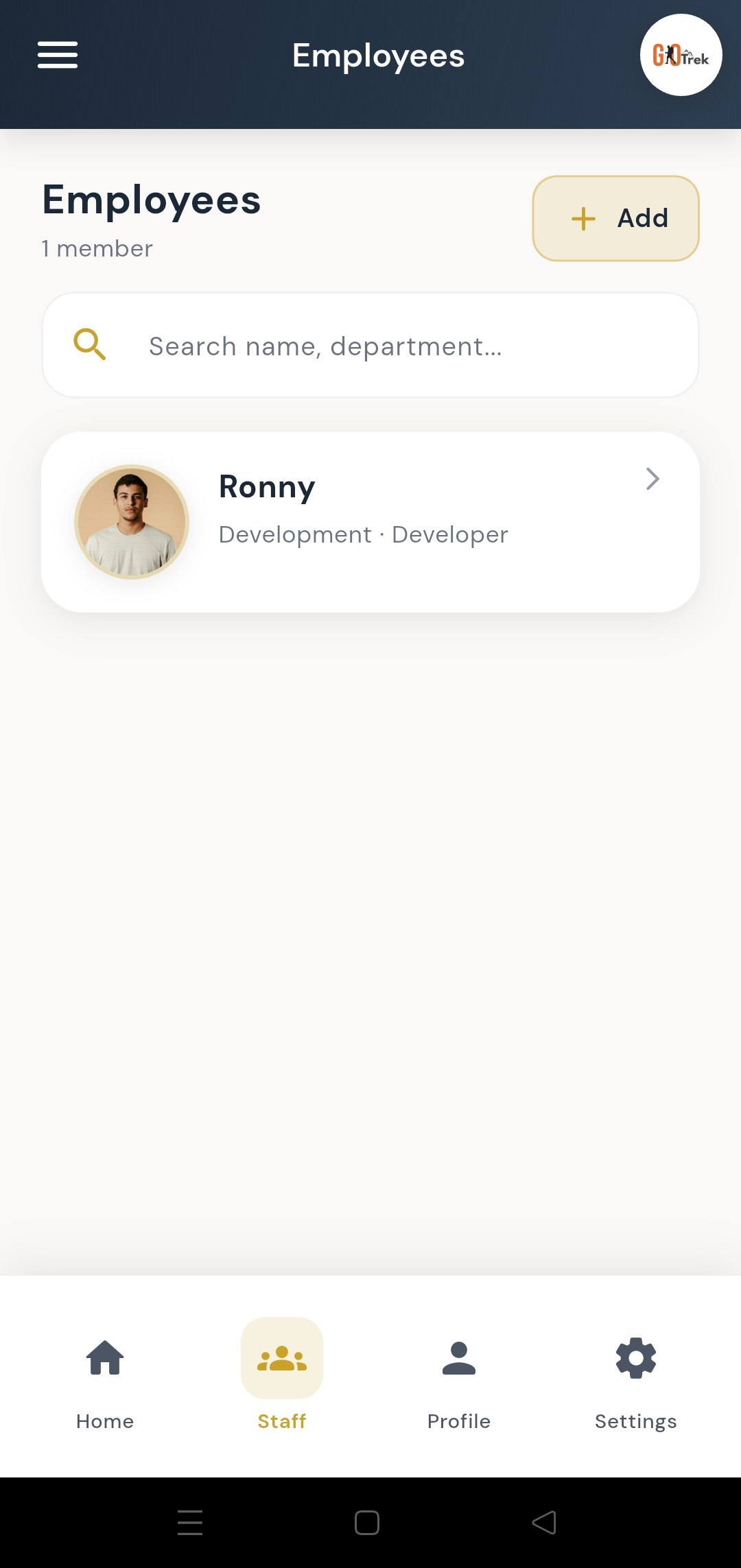
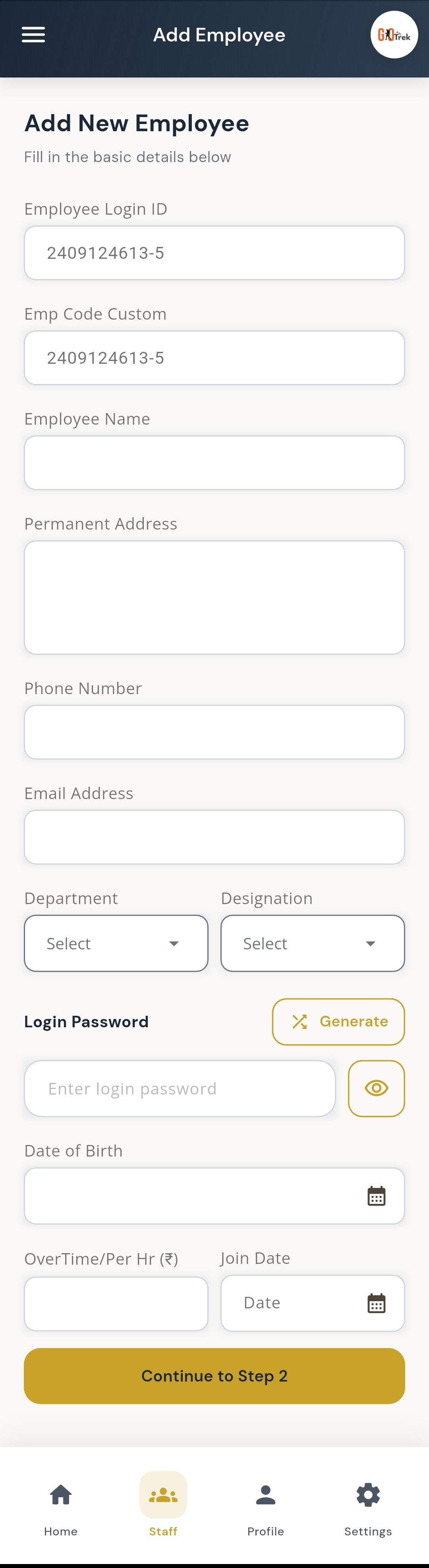
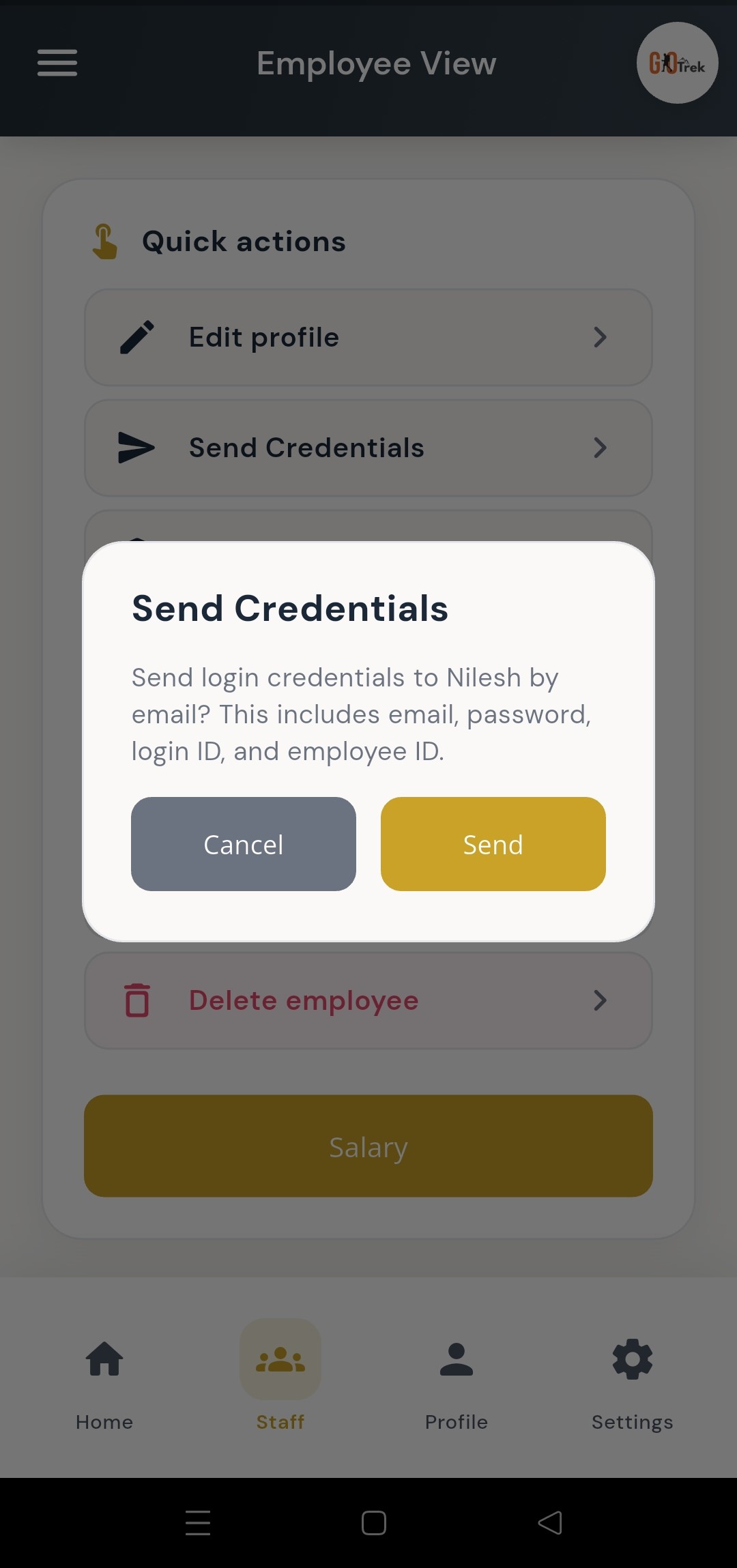
A: Employee management lets you create staff records, edit details, filter the list, and send login details so employees can open the Employee App. You can: Add a new employee in simple steps (basic details, job details, and more).; Edit an existing employee profile.; View all employees in one list.; Filter employees to find someone quickly.; Send login details to the employee by email..
Q: How do I use Employee management?
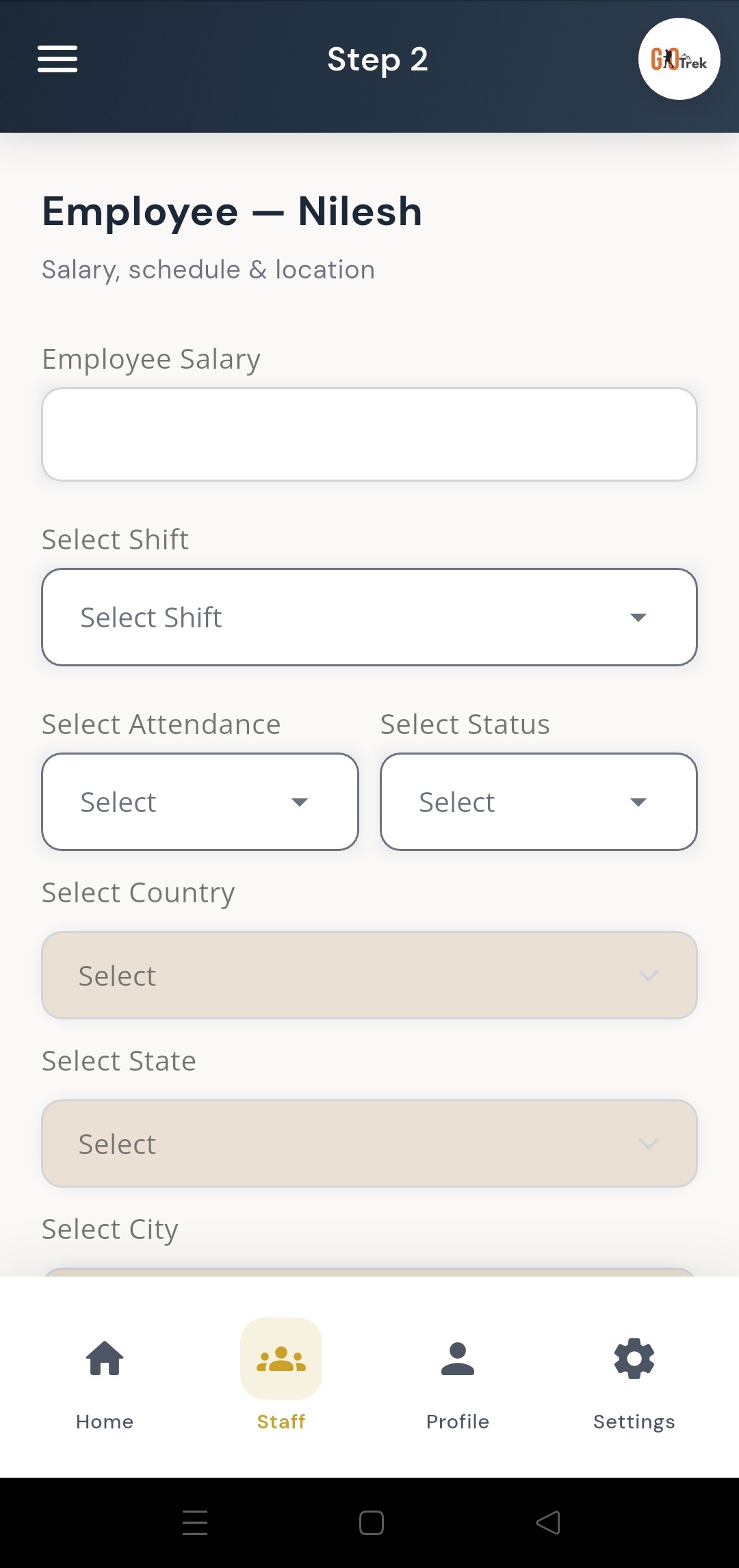
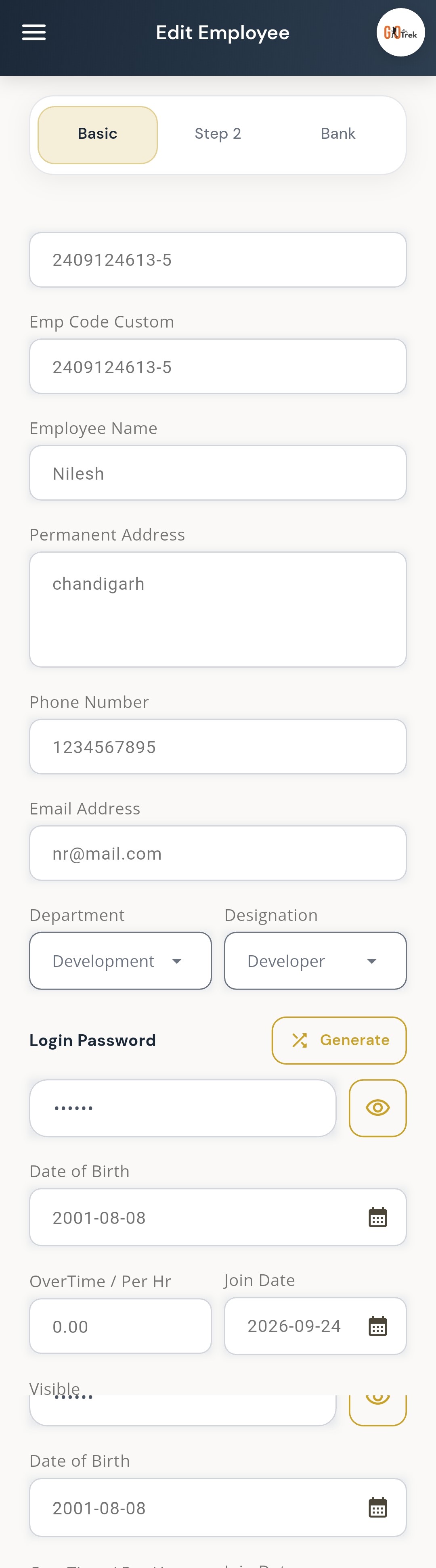
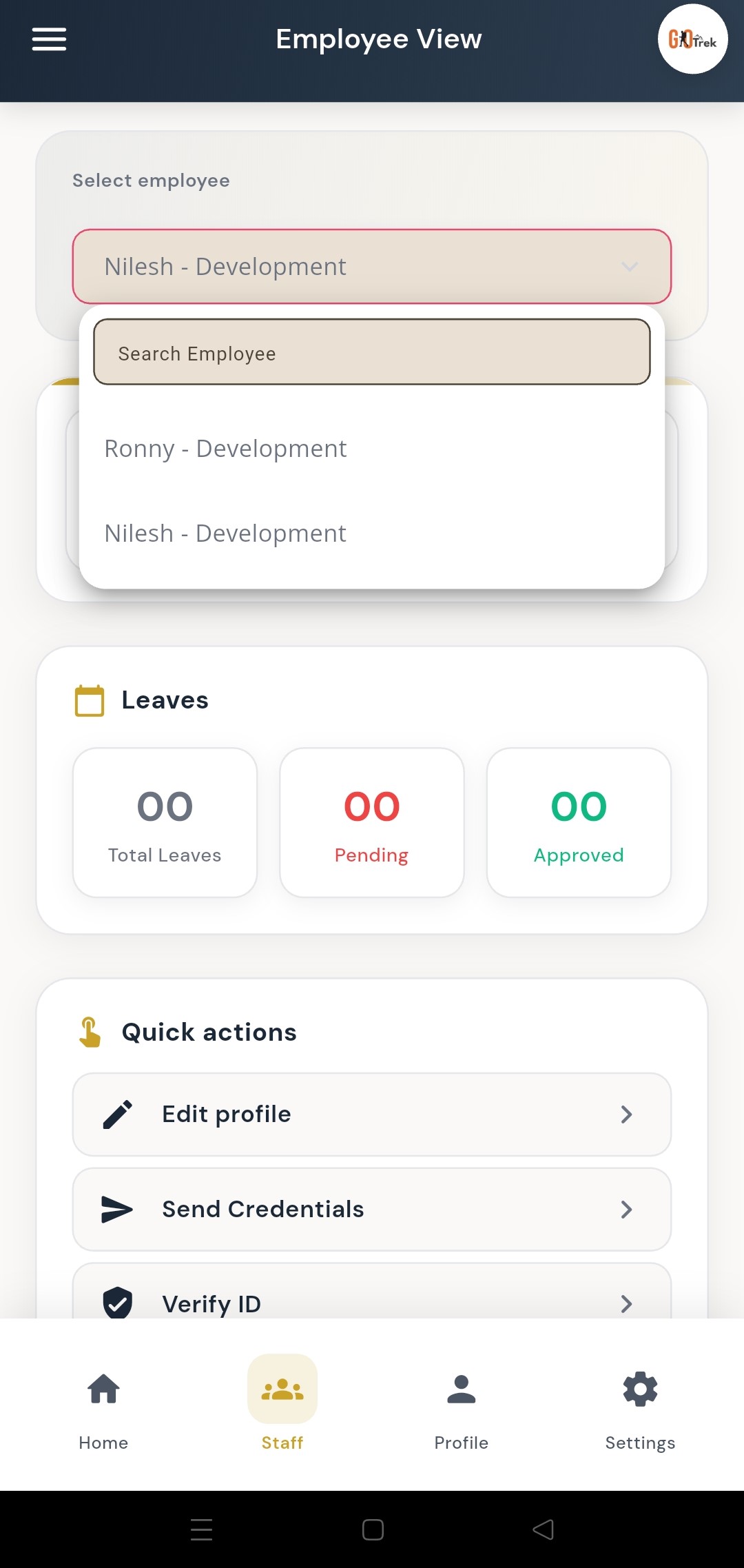
A: Go to Staff / Employees. Tap Add Employee and fill step 1 and step 2. Save. To change details later, open the employee and tap Edit. Use filter to search by name or department.
Q: What is Attendance management in the Employer App?
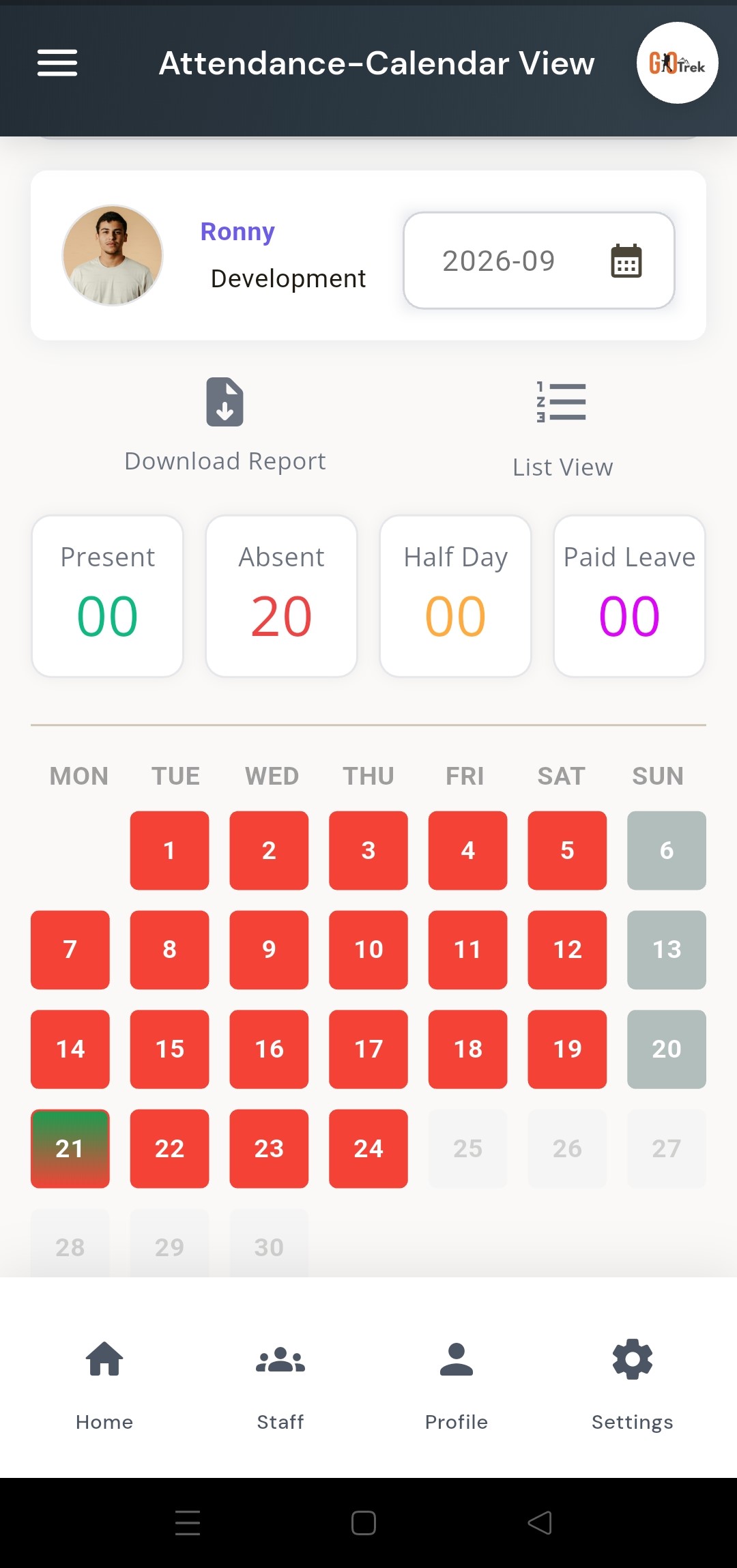
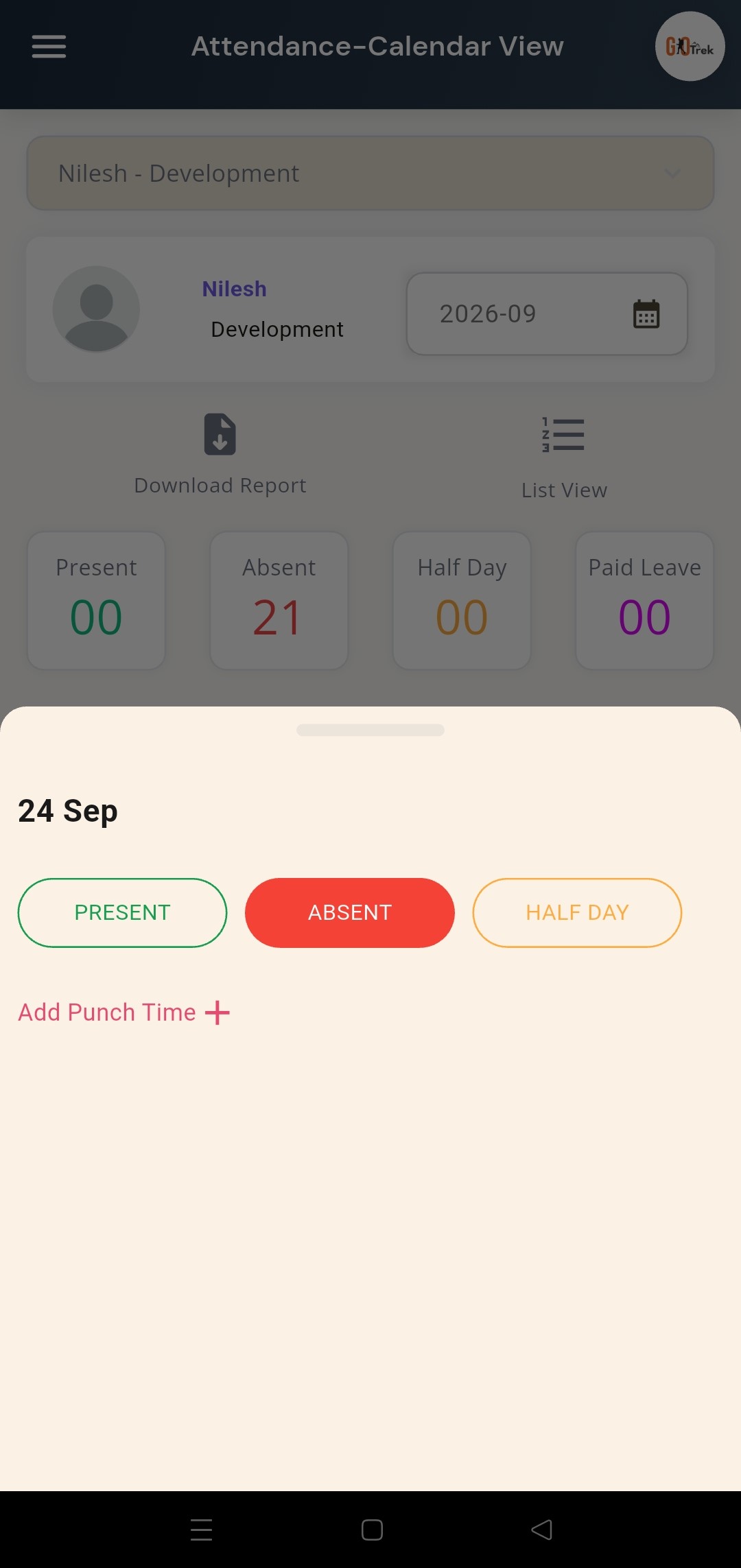
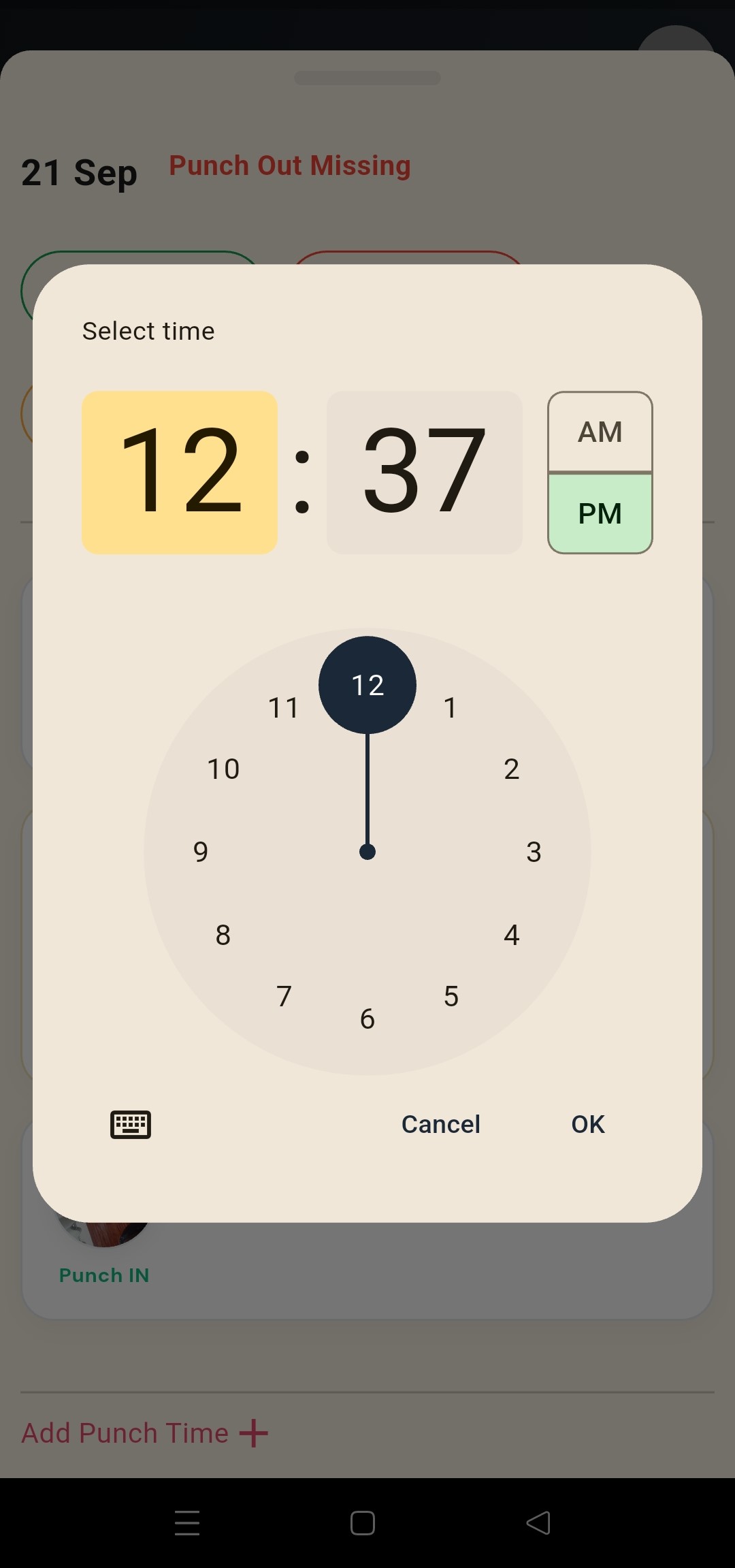
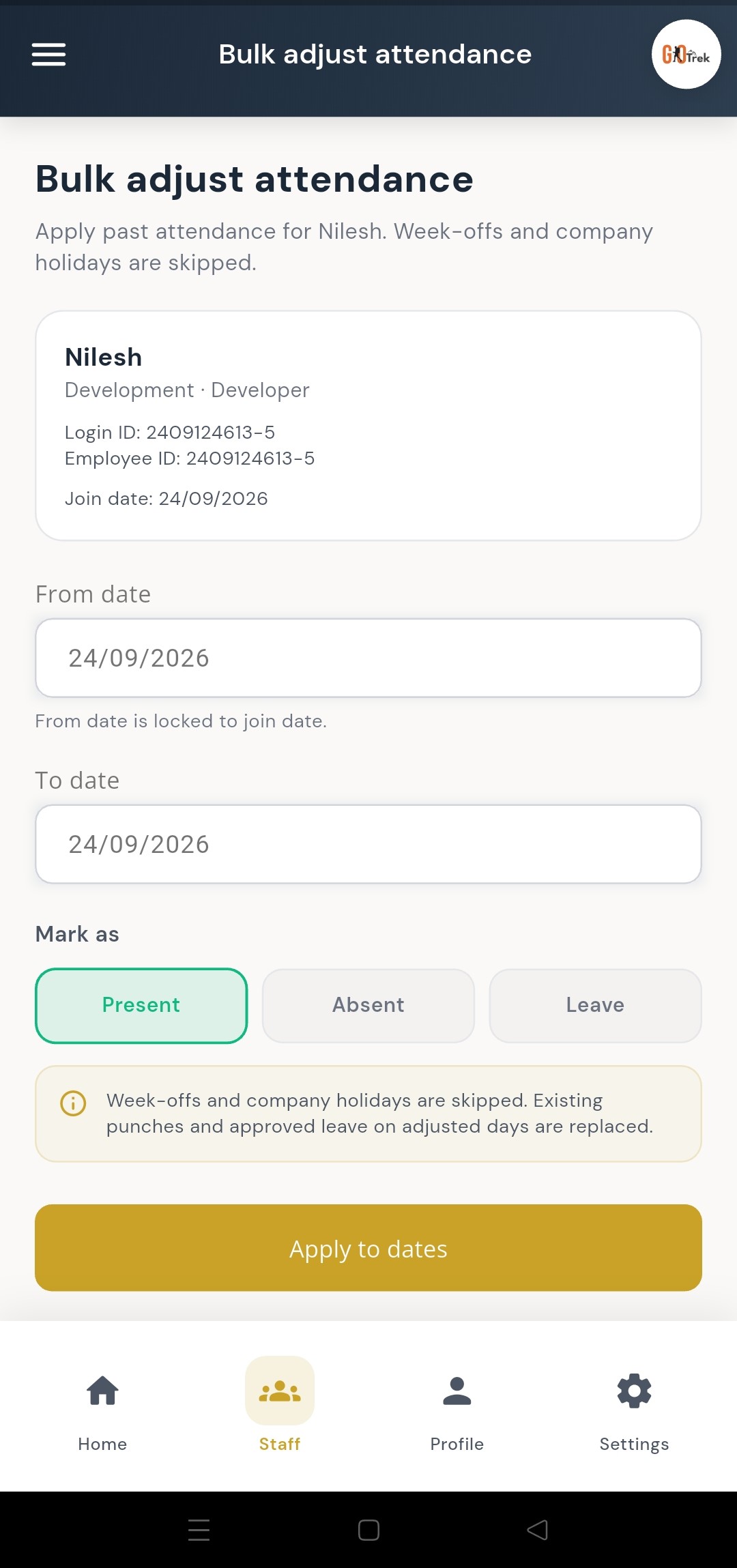
A: Attendance shows when employees punched in and out. You can open a calendar, check any date, add or edit punch times, and adjust attendance in bulk when needed. You can: Open an employee attendance calendar month view.; Tap a date to see punch in / punch out times.; Add punch time if a punch is missing.; See present, absent, half day, and leave status.; Use bulk attendance tools for many employees at once..
Q: How do I use Attendance management?
A: Open Employees, choose a person, then Attendance. Use Calendar View to pick a date. If punch out is missing, add the correct time. For many staff at once, use Bulk Attendance.
Q: What is Leave requests in the Employer App?
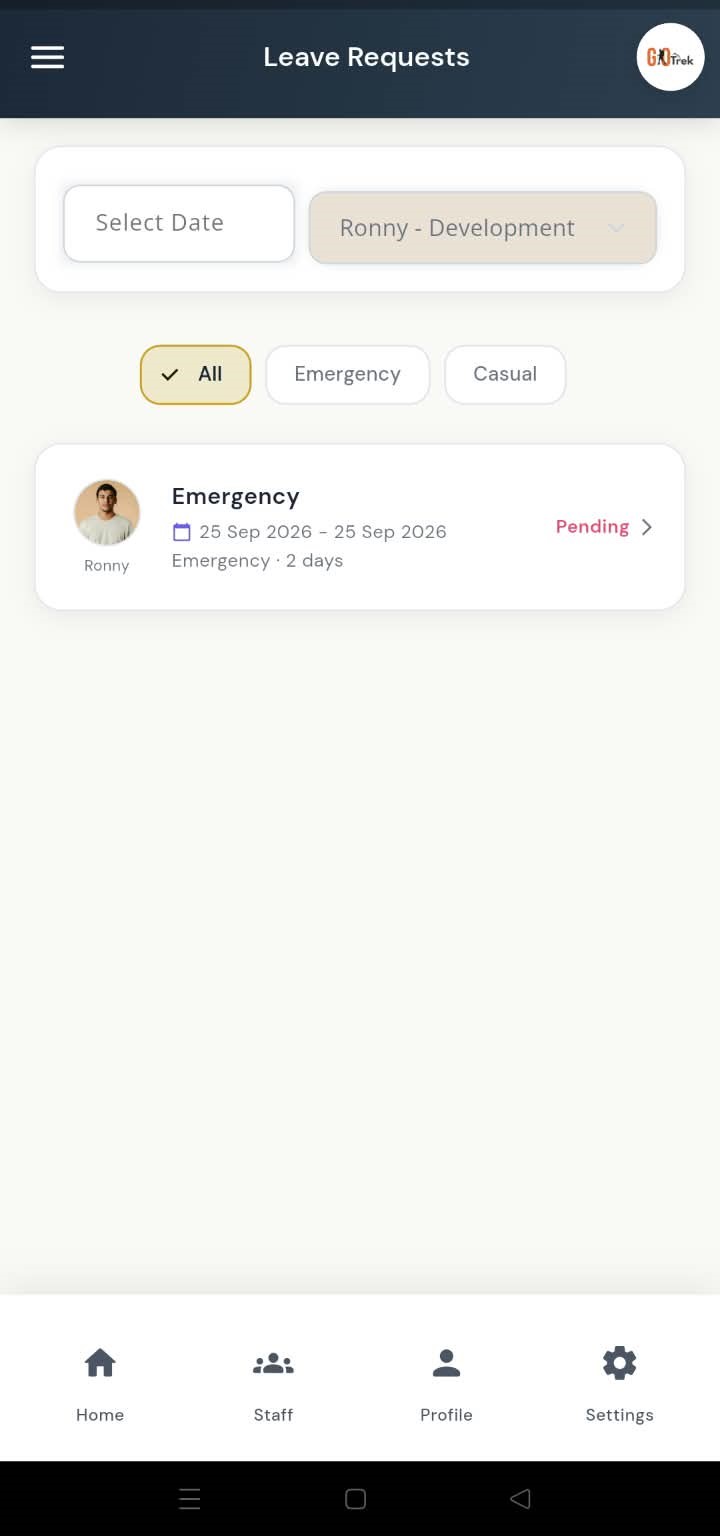
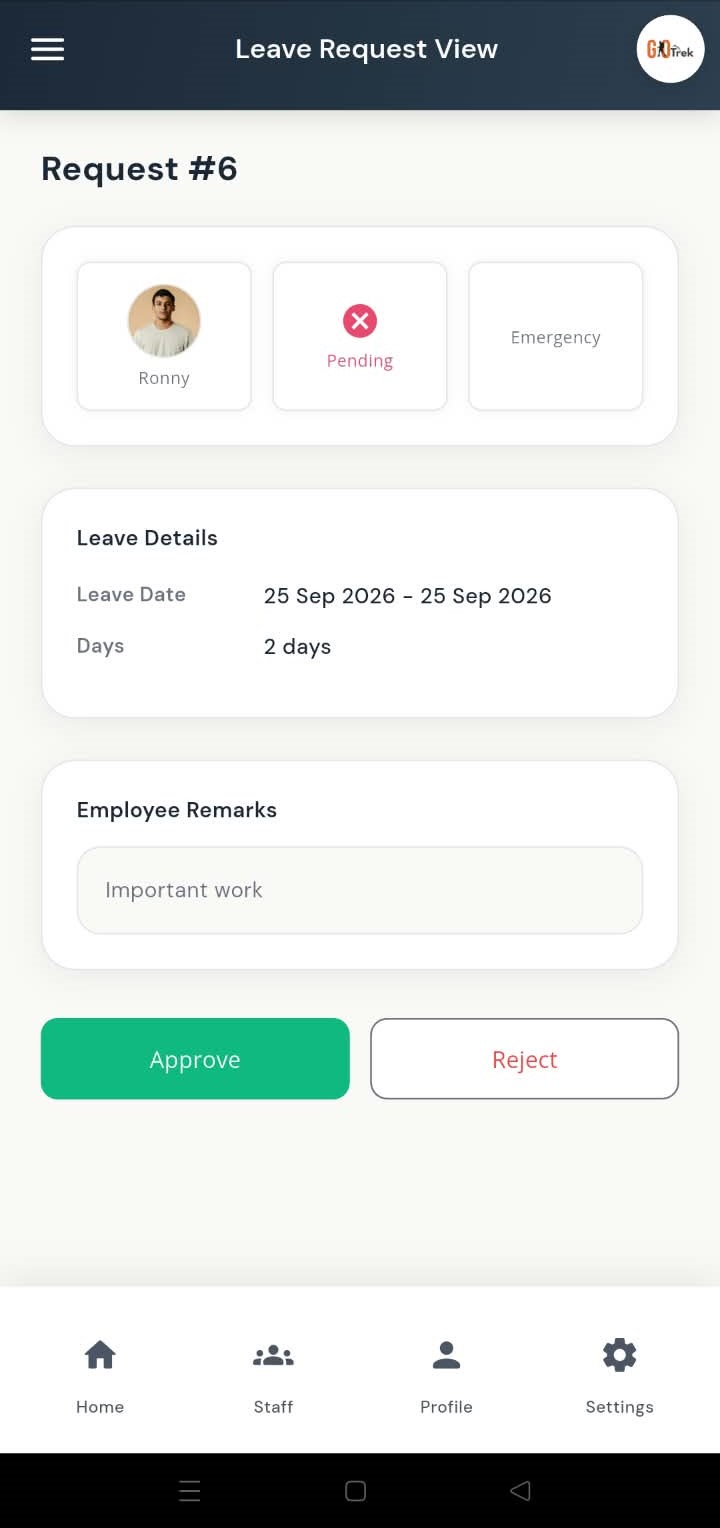
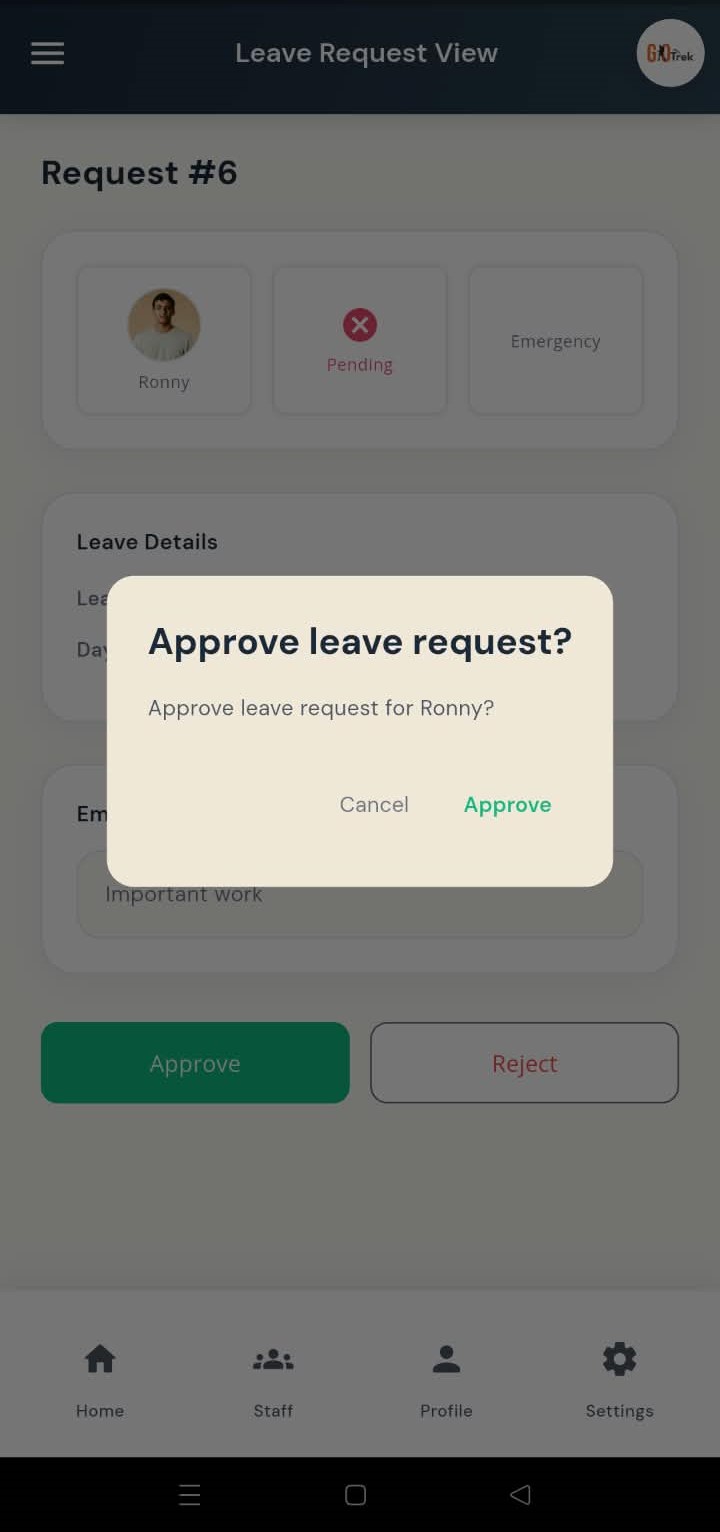
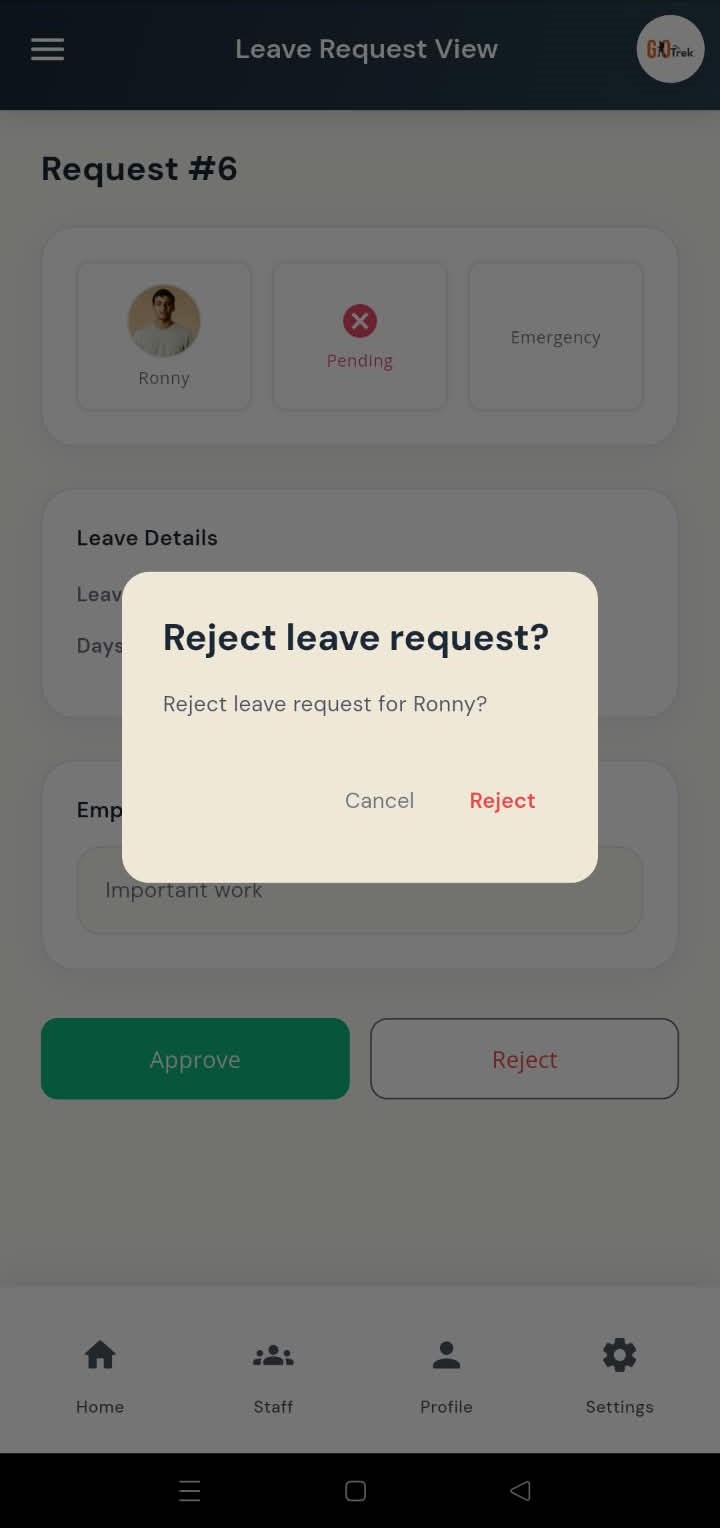
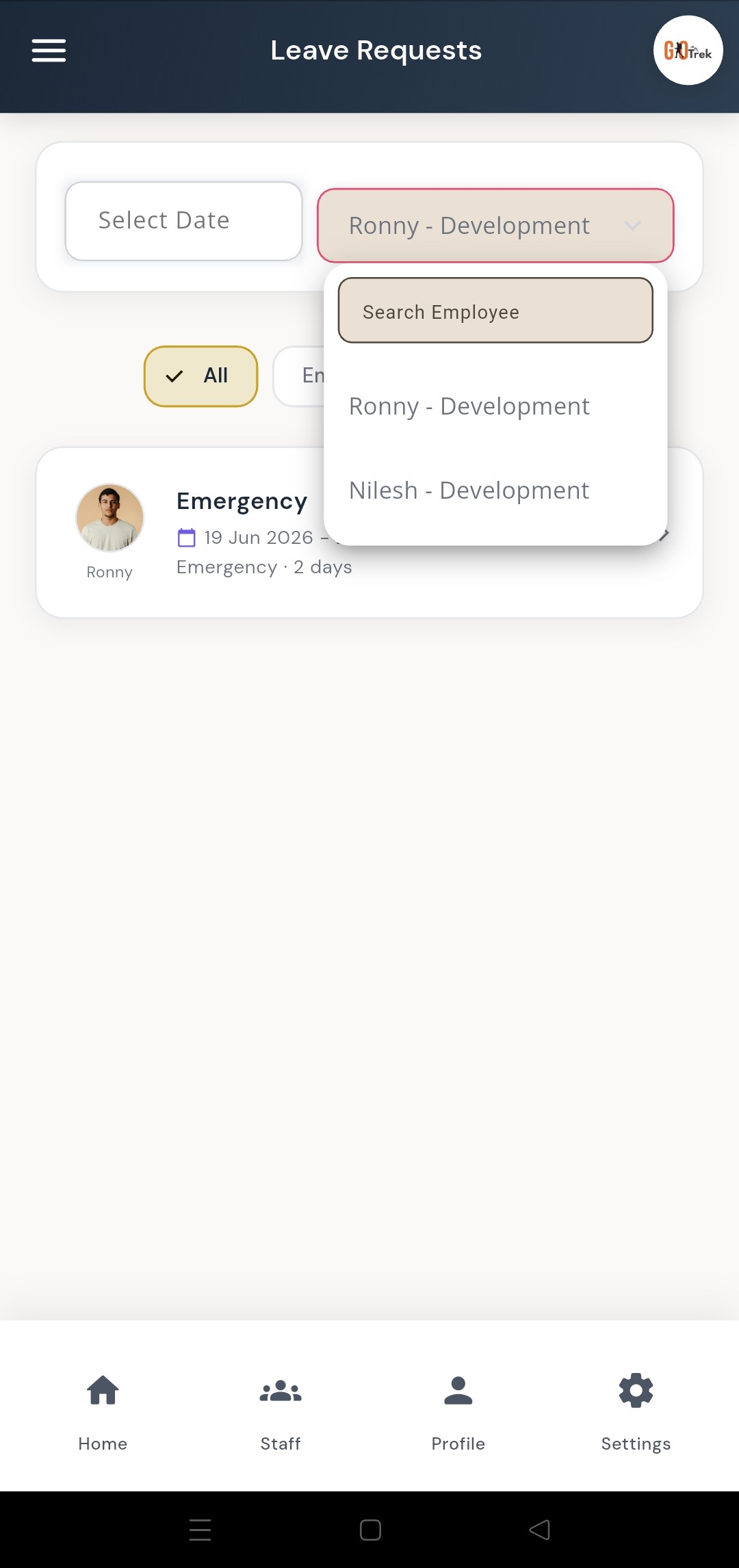
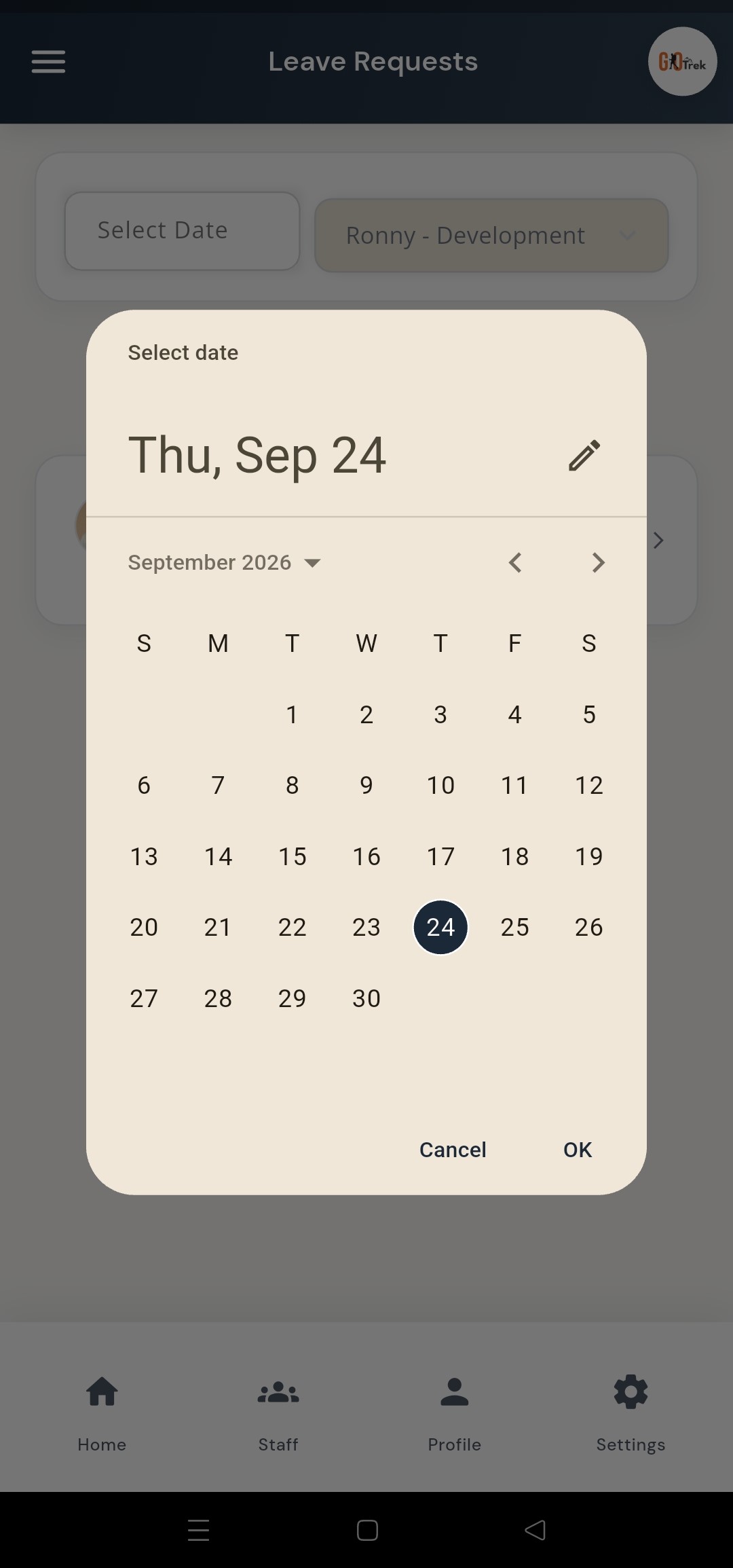
A: When an employee applies for leave in the Employee App, you see the request here. You can approve, reject, filter by date or employee, and check due or pending leaves. You can: View all leave requests in one list.; Approve leave.; Reject leave with a clear decision.; Filter leaves by date.; Filter leaves by employee name.; See leaves that are due or already approved..
Q: How do I use Leave requests?
A: Open Leave Requests from Home or menu. Tap a request to review details. Choose Approve or Reject. Use filters when the list is long.
Q: What is Holidays in the Employer App?
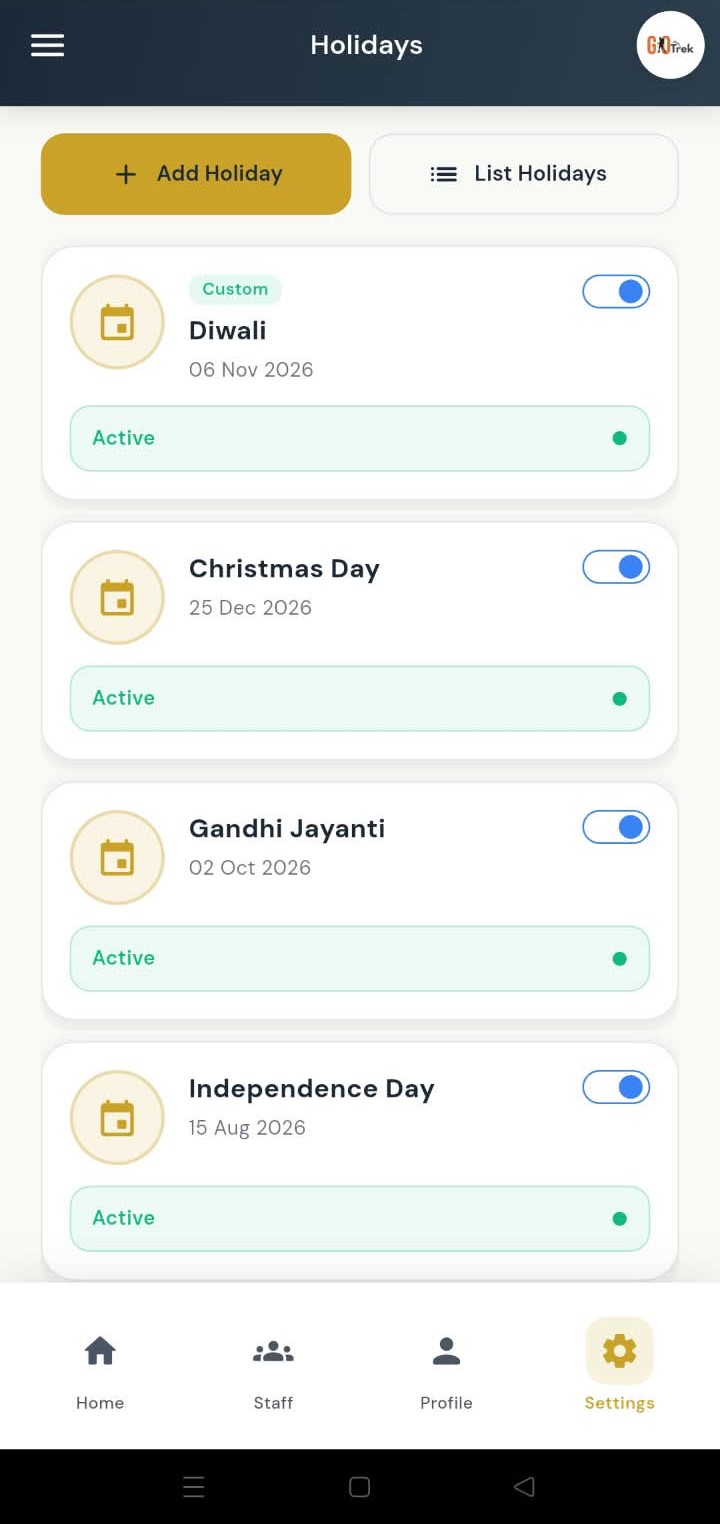
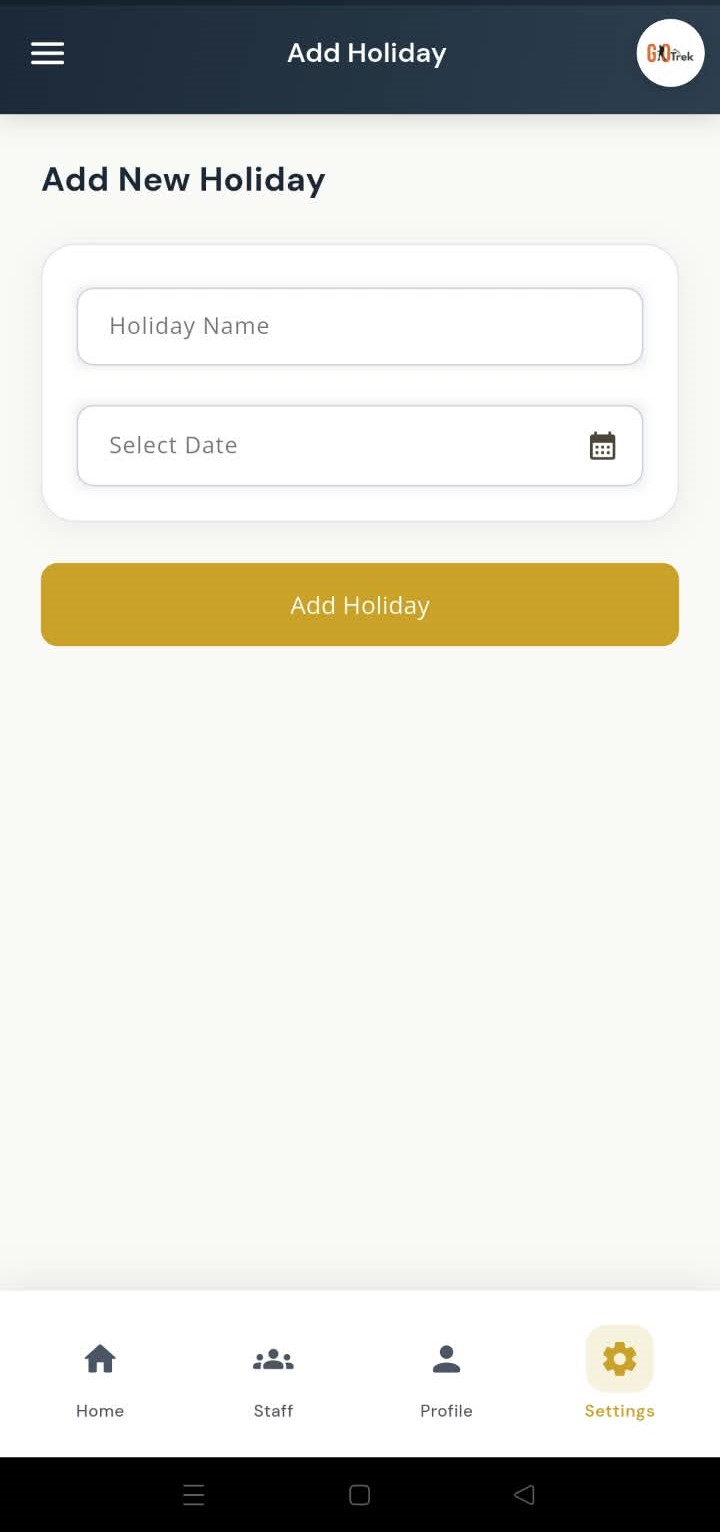
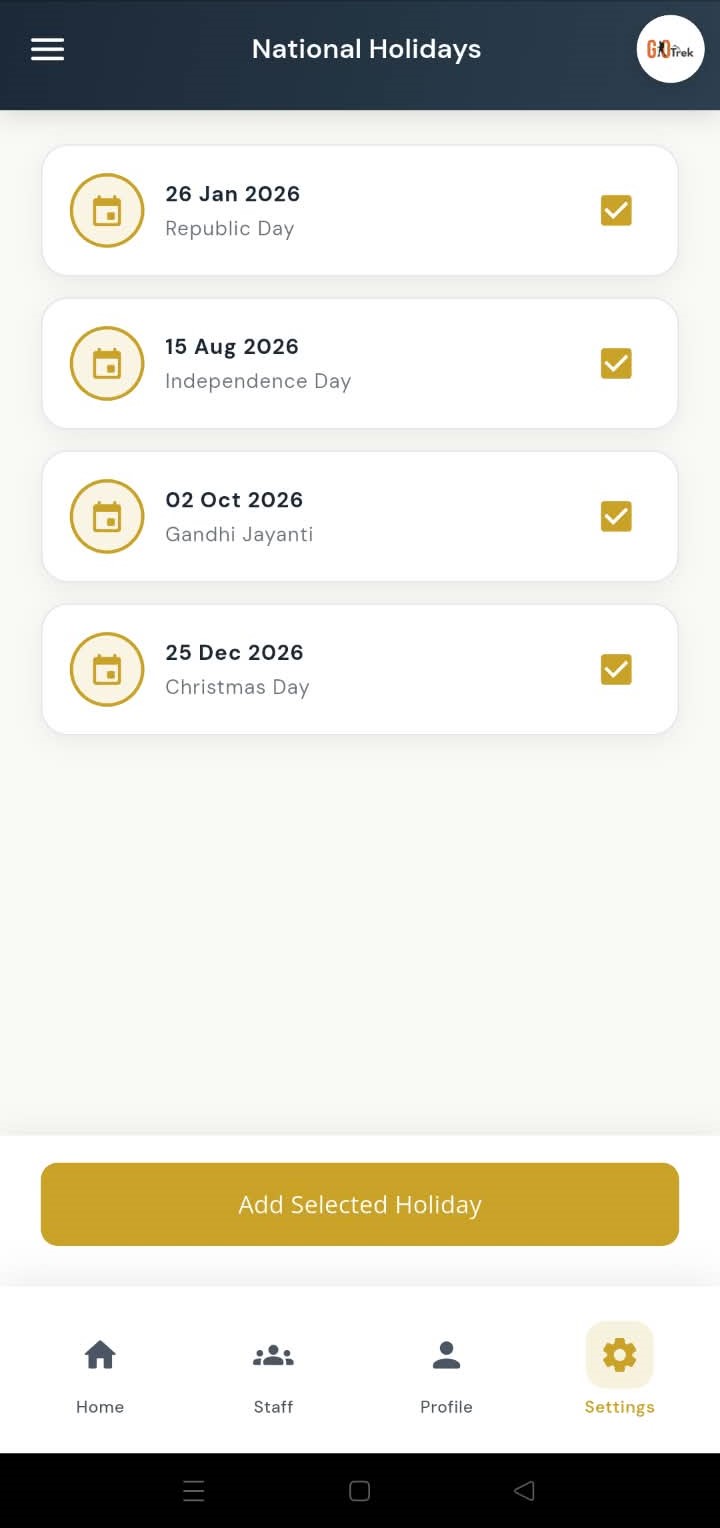
A: Holidays mark non-working days for attendance. You can add custom holidays (like Diwali) and also select national holidays that repeat every year. You can: Add a custom holiday with name and date.; View and manage your holiday list.; Turn holidays on or off.; Select national holidays (Republic Day, Independence Day, and more)..
Q: How do I use Holidays?
A: Open Settings → Holidays (or Holidays from menu). Tap Add Holiday for a custom date, or open National Holidays to select yearly public holidays.
Q: What is Departments in the Employer App?
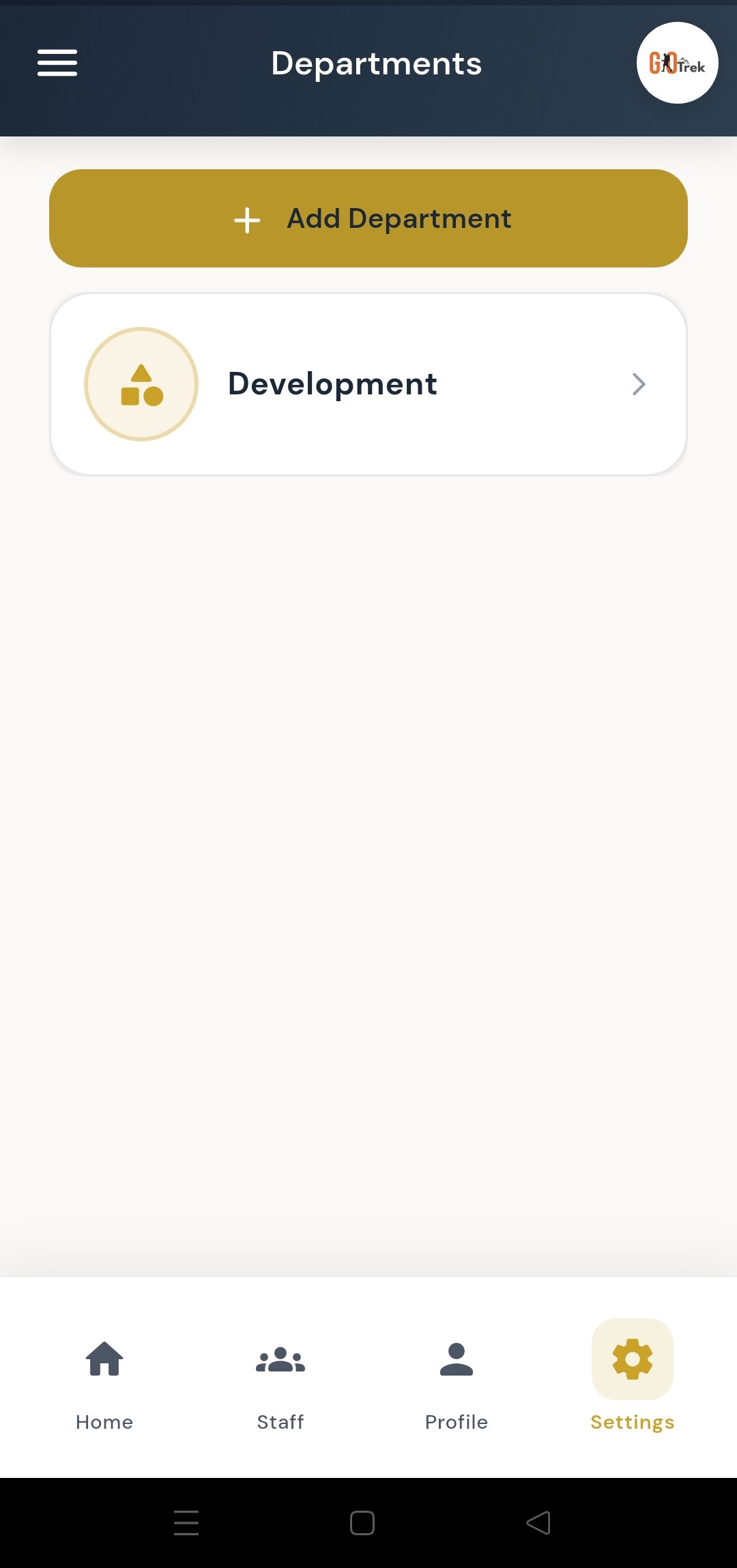
A: Departments organize employees into teams such as Sales, HR, or Development. Every employee can be linked to a department. You can: Add a new department.; Edit a department name.; View all departments..
Q: How do I use Departments?
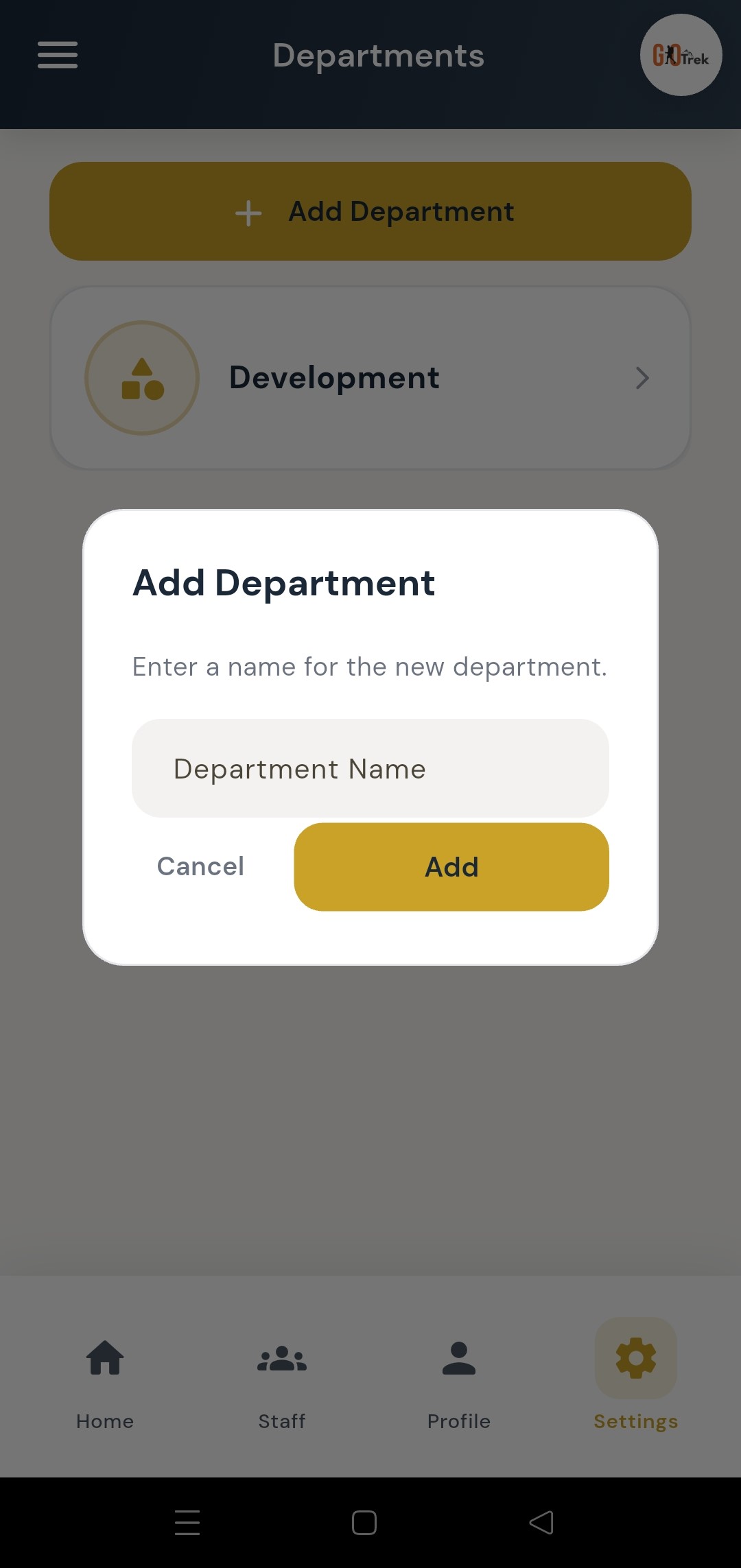
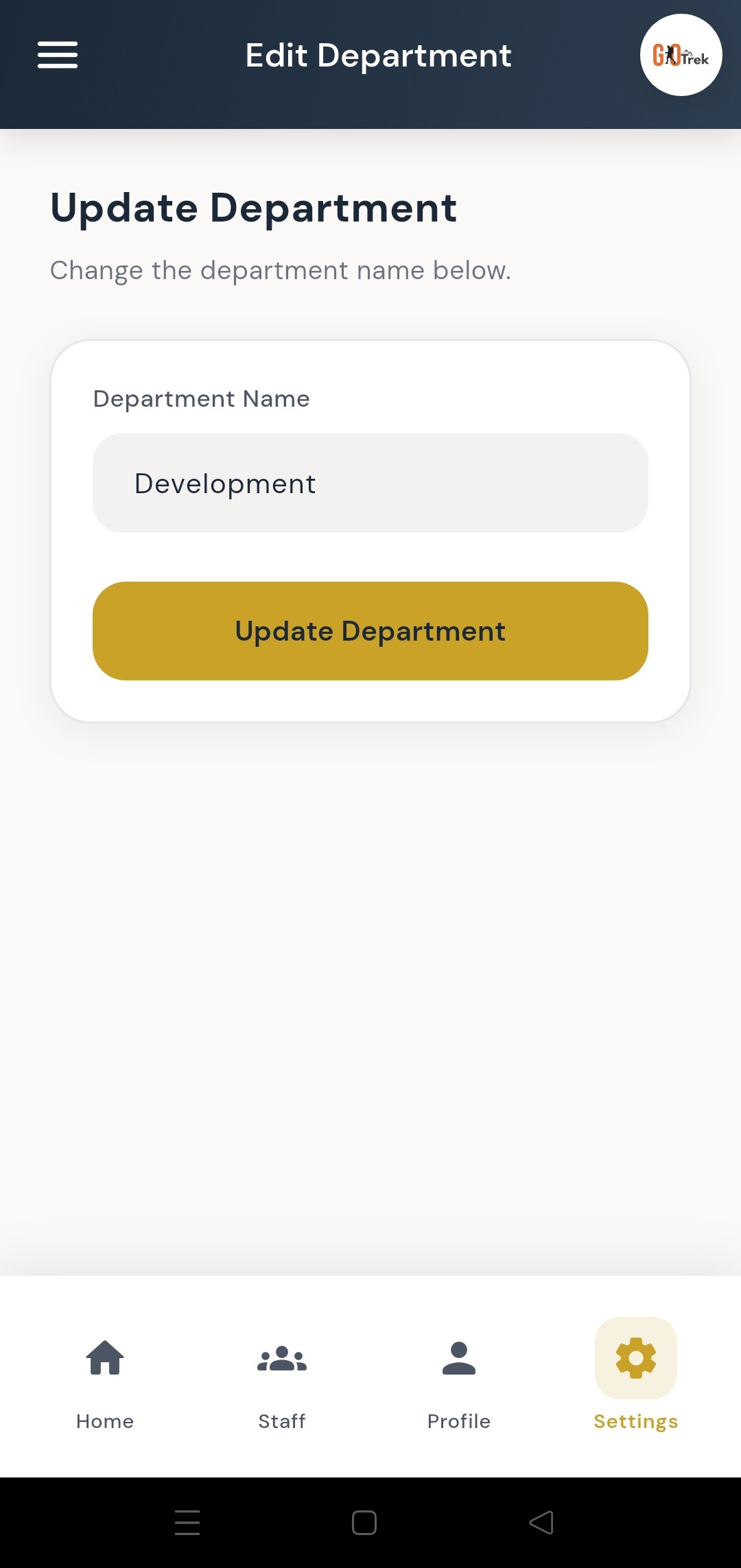
A: Open Departments from settings or menu. Tap Add, enter the name, and save. Use Edit to rename later.
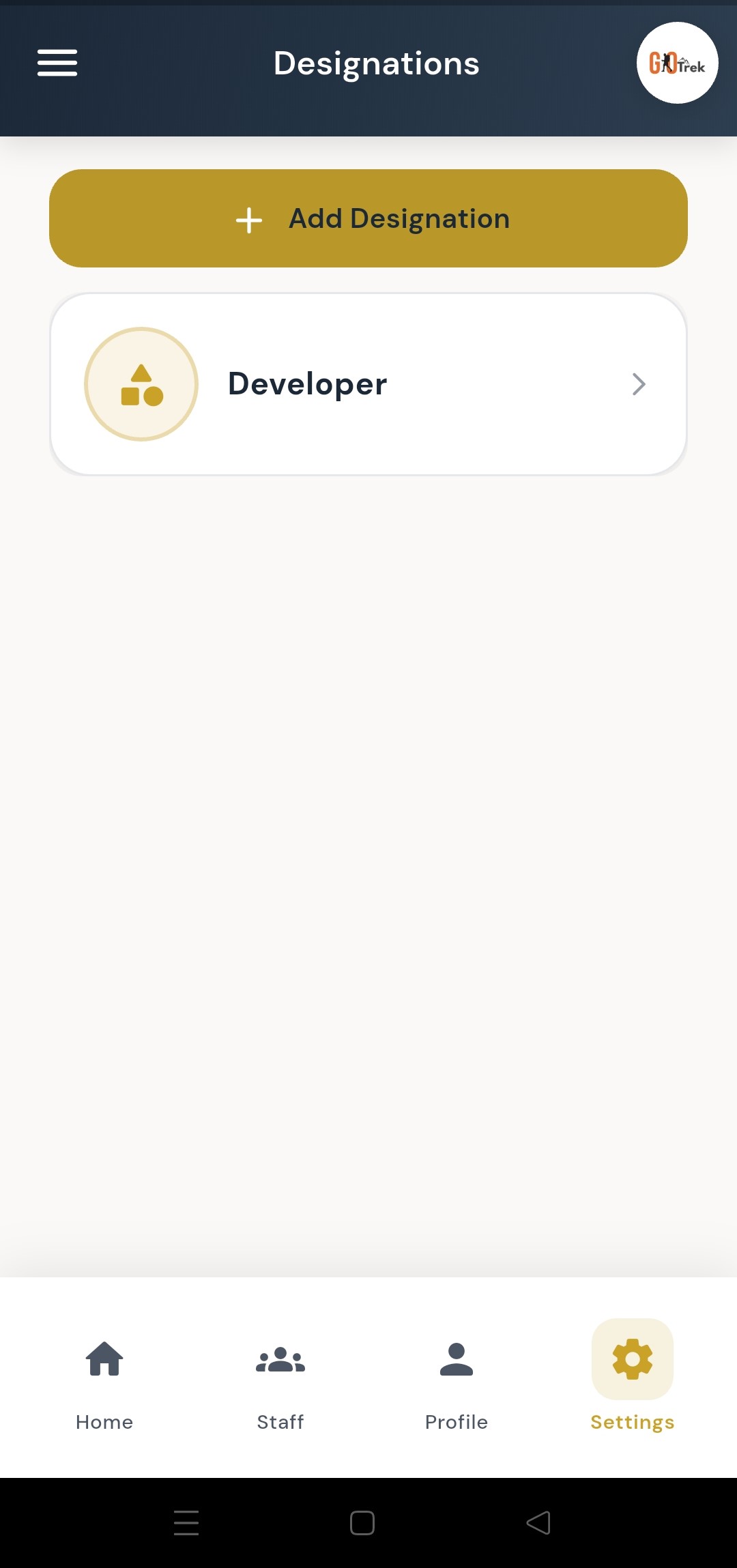
Q: What is Designations in the Employer App?
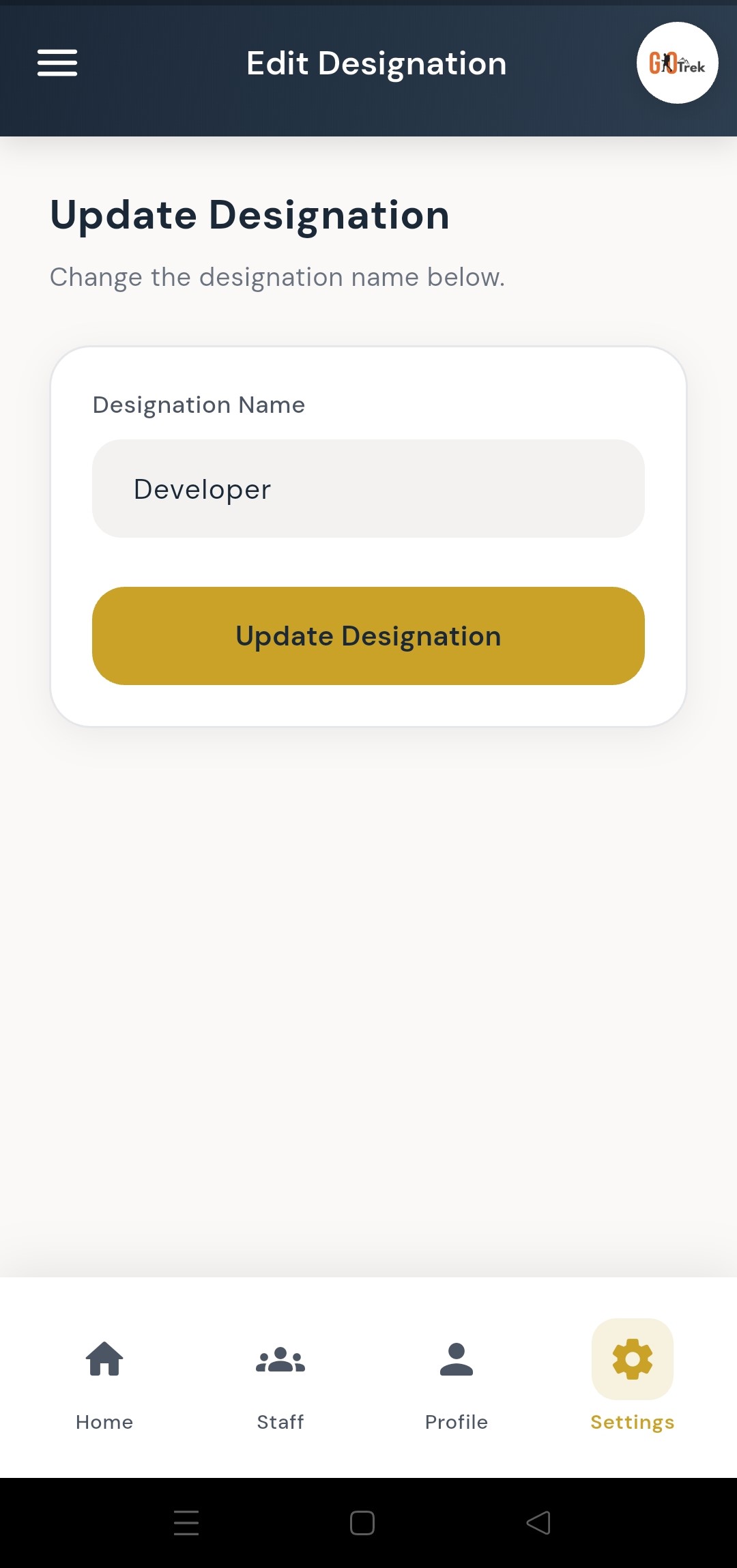
A: Designations are job titles like Manager, Executive, or Developer. They help you classify roles when adding employees. You can: Add a designation.; Edit a designation.; Manage the full designation list..
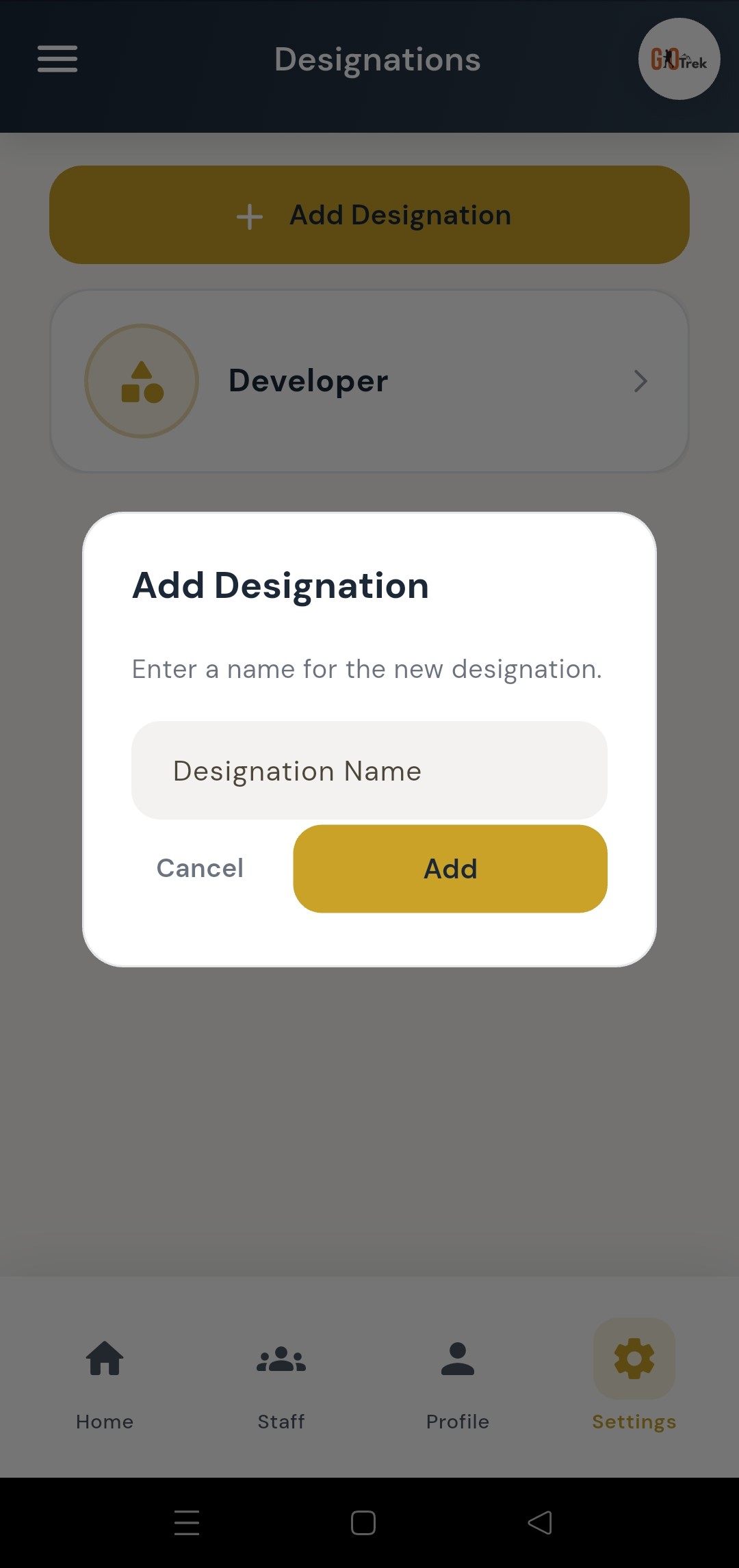
Q: How do I use Designations?
A: Open Designations. Tap Add, type the title, and save. Assign a designation when you create or edit an employee.
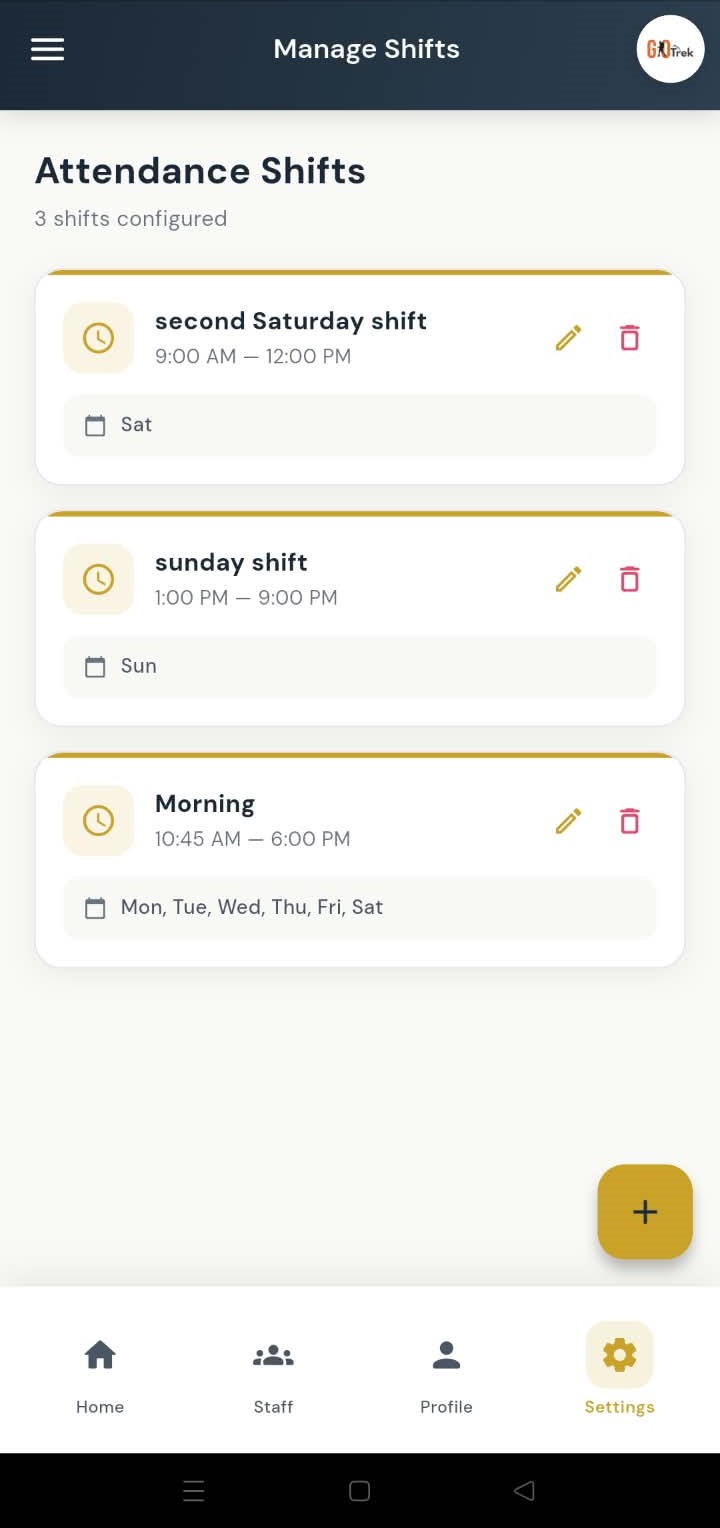
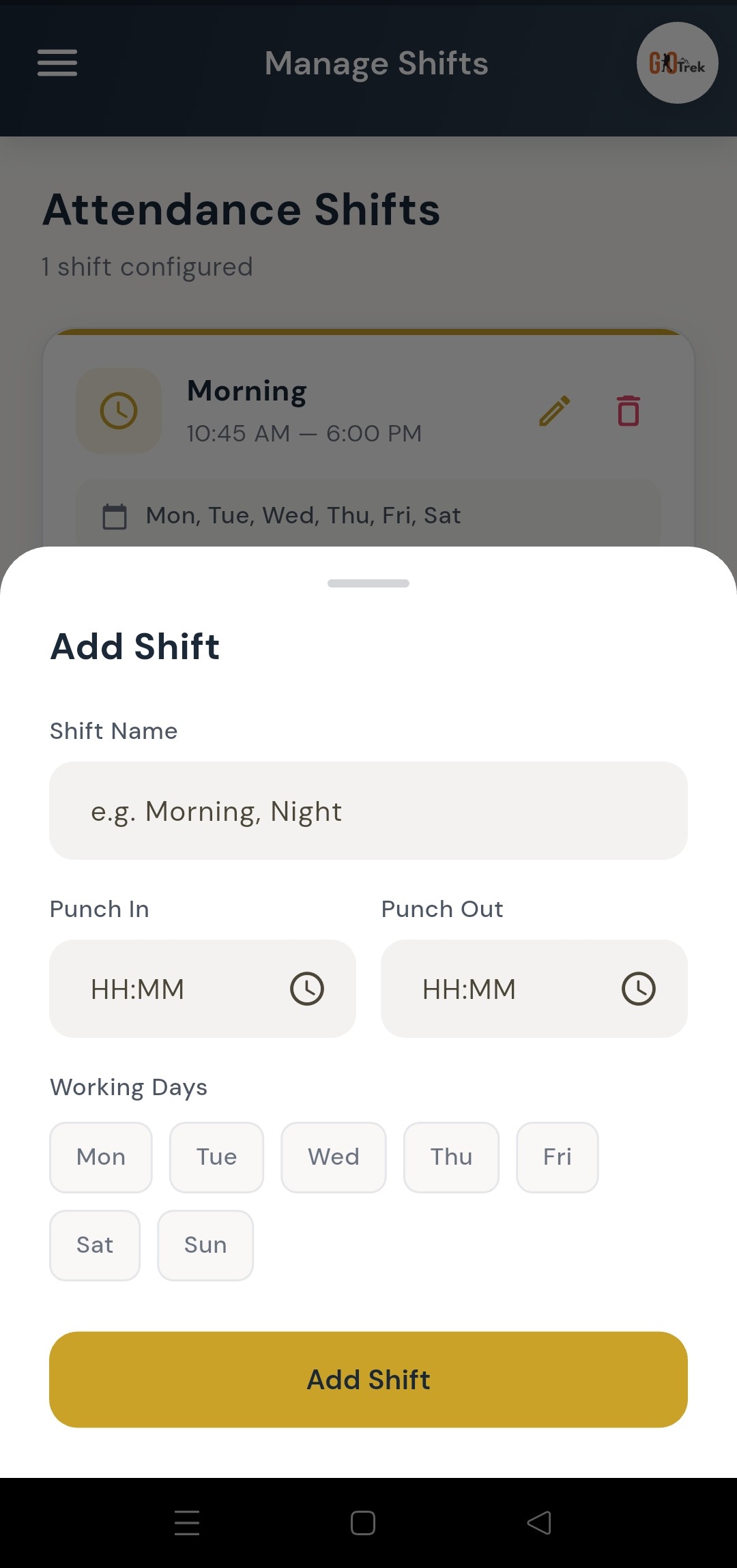
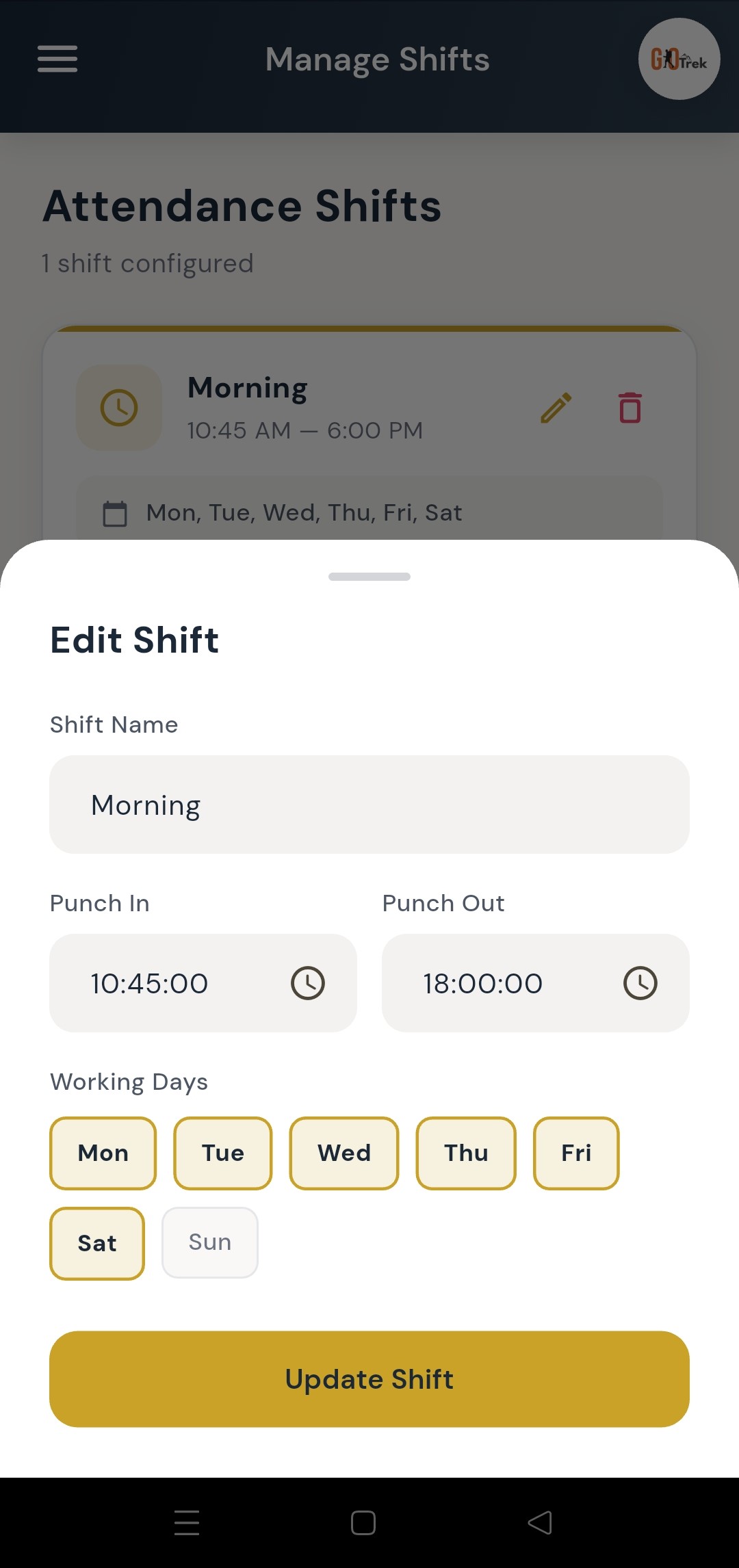
Q: What is Shifts in the Employer App?
A: Shifts define punch-in and punch-out windows (for example 9:00 AM to 6:00 PM). Attendance rules can use these shift times. You can: Add a new shift with start and end time.; Edit an existing shift.; Manage all company shifts..
Q: How do I use Shifts?
A: Open Shifts. Tap Add Shift, enter name and timings, then save. Edit anytime if office hours change.
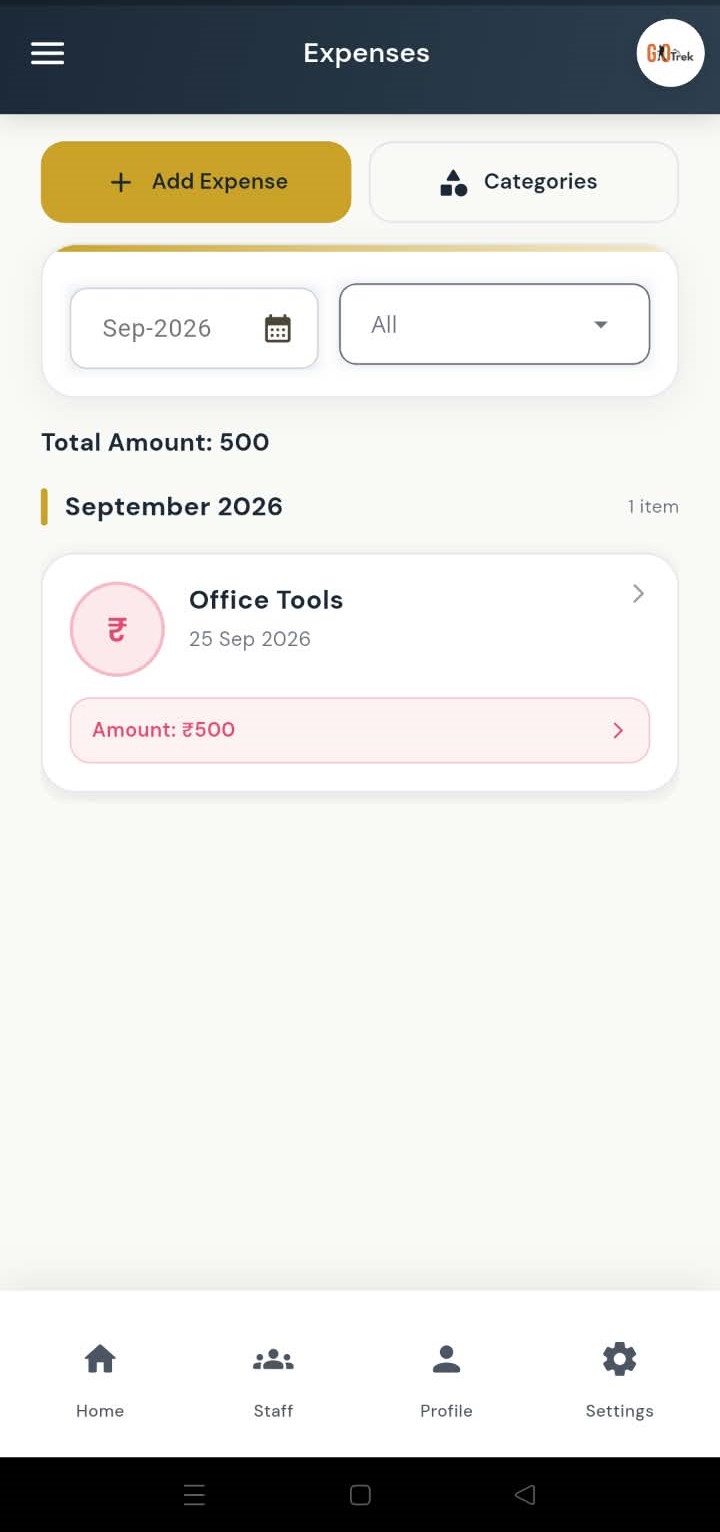
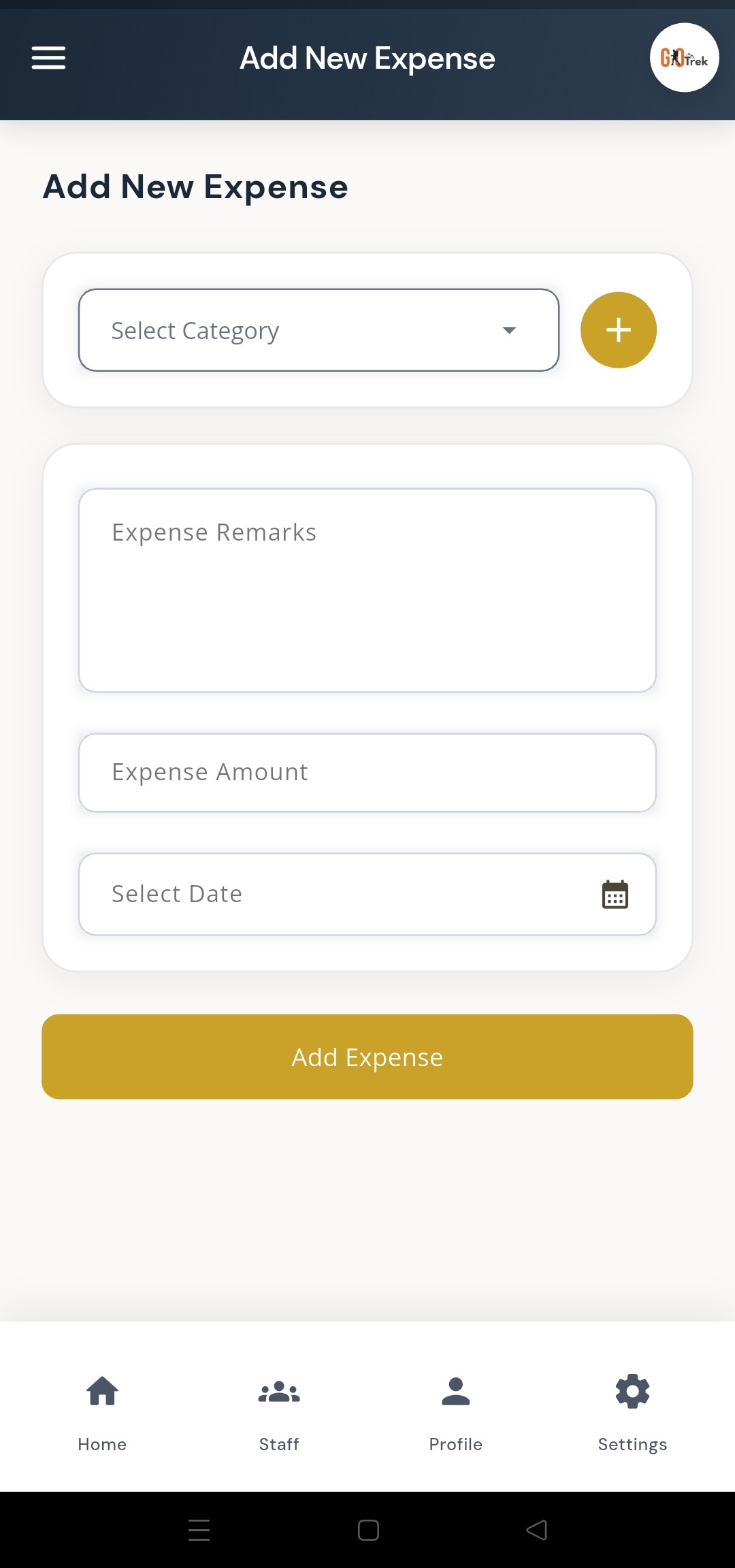
Q: What is Office expenses in the Employer App?
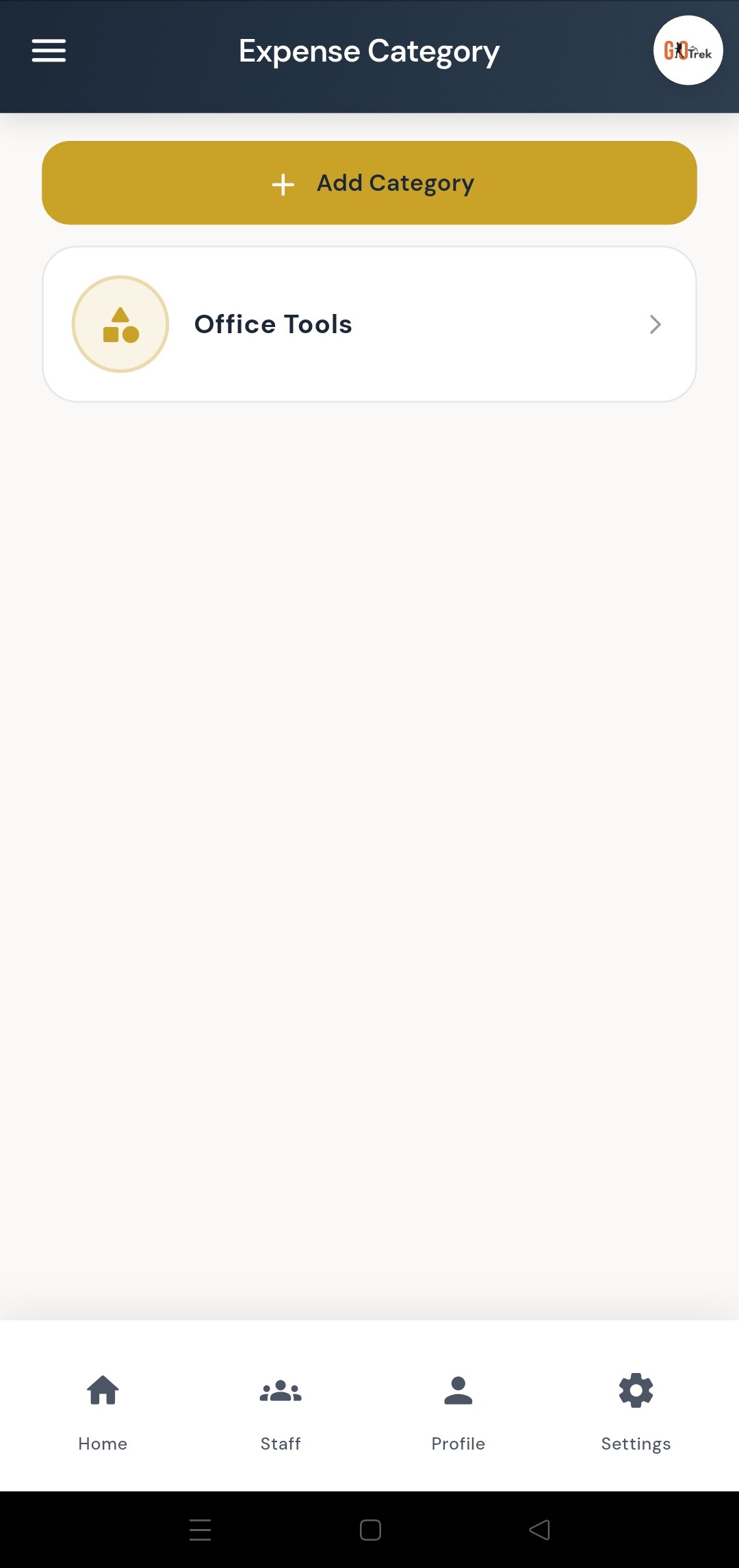
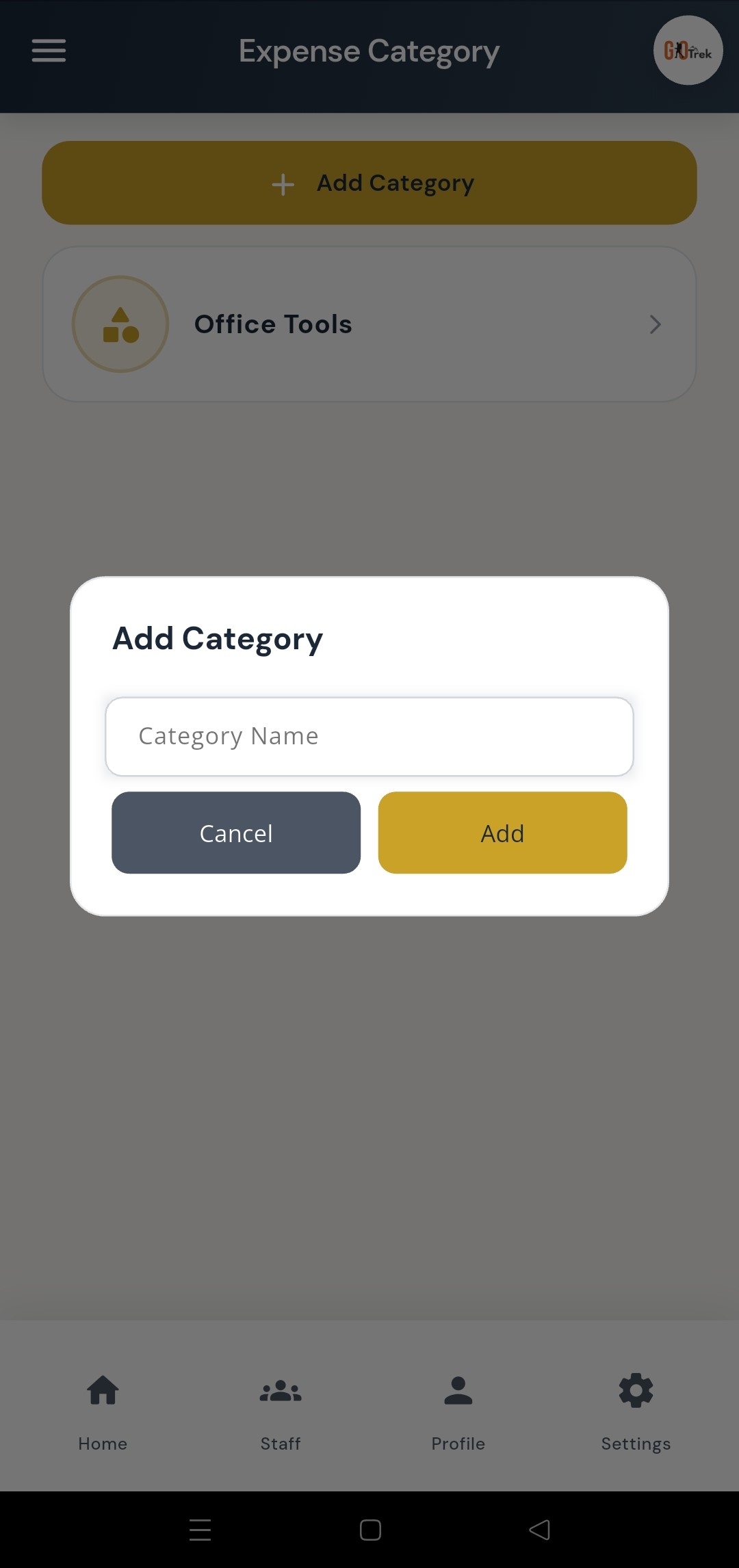
A: Expenses help you record office costs. You can create expense categories, add expense entries, and update them later. You can: Add expense categories (travel, food, office supplies, and more).; Add a new expense with amount and details.; Manage and update expenses.; Update category names when needed..
Q: How do I use Office expenses?
A: Open Office Expenses. First create categories if needed. Then add expenses under the right category. Use Manage to edit older entries.
Q: What is Staff chat in the Employer App?
A: Staff chat lets you talk one-to-one with any employee. Open Chat from Home, pick an employee, and send text or photos. You can reply to a message, long-press to edit or delete your own messages (within 24 hours), and get push notifications when an employee replies — even if the app is in the background. You can: See all employees in a chat list with last message and unread highlights.; Open a conversation and send text messages.; Attach photos from camera or gallery.; Swipe right (or long-press → Reply) to reply to a specific message.; Edit or delete your own messages within 24 hours.; Tap a reply quote to jump back to the original message.; Scroll up to load older messages; date chips show Today / Yesterday / full dates.; Get a push notification when an employee sends a new message..
Q: How do I use Staff chat?
A: On Home, tap Chat. Choose an employee from the list. Type a message and tap Send, or tap + to attach a photo. Swipe a message right to reply. Long-press your message for Edit, Delete, Copy, or Reply.
Q: What is Announcements in the Employer App?
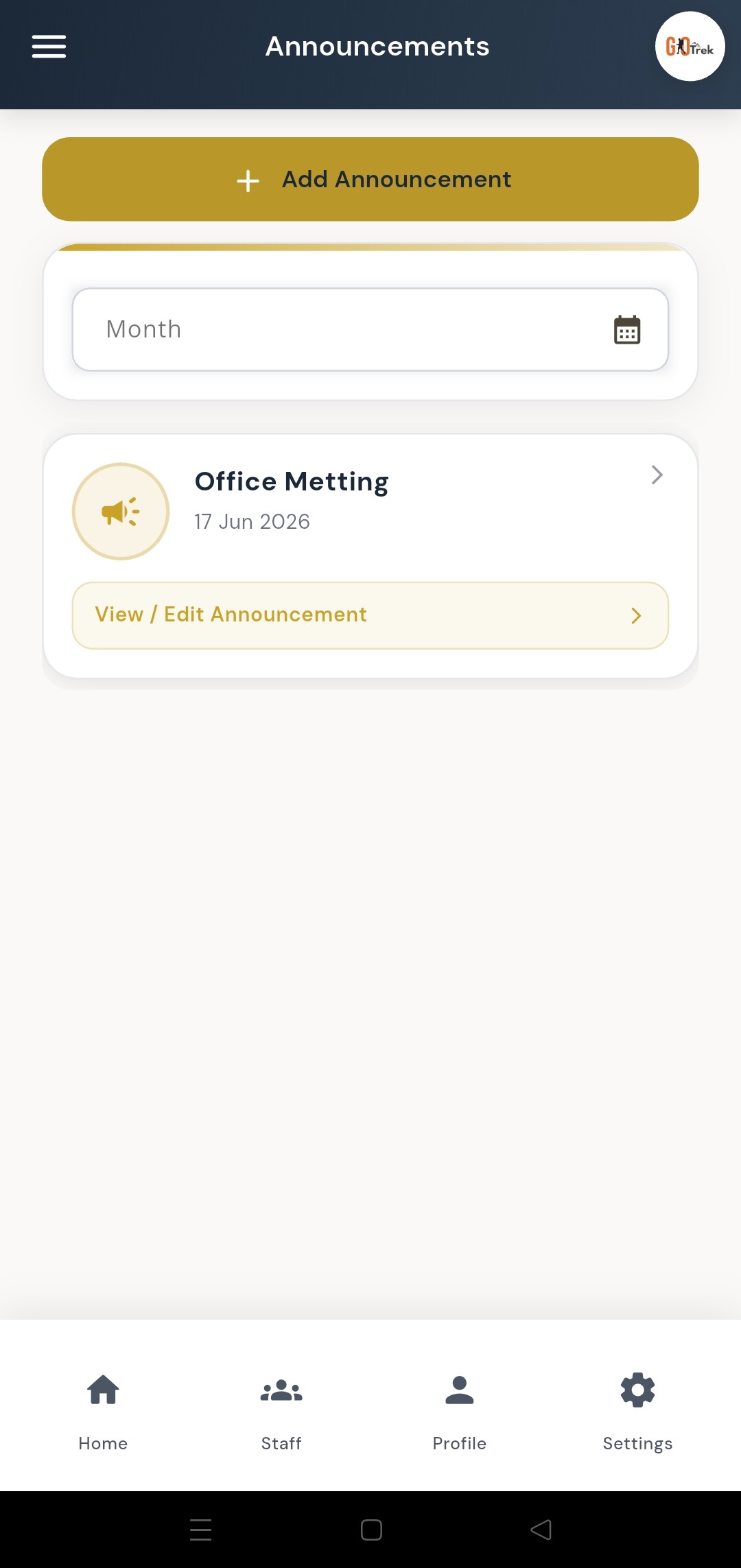
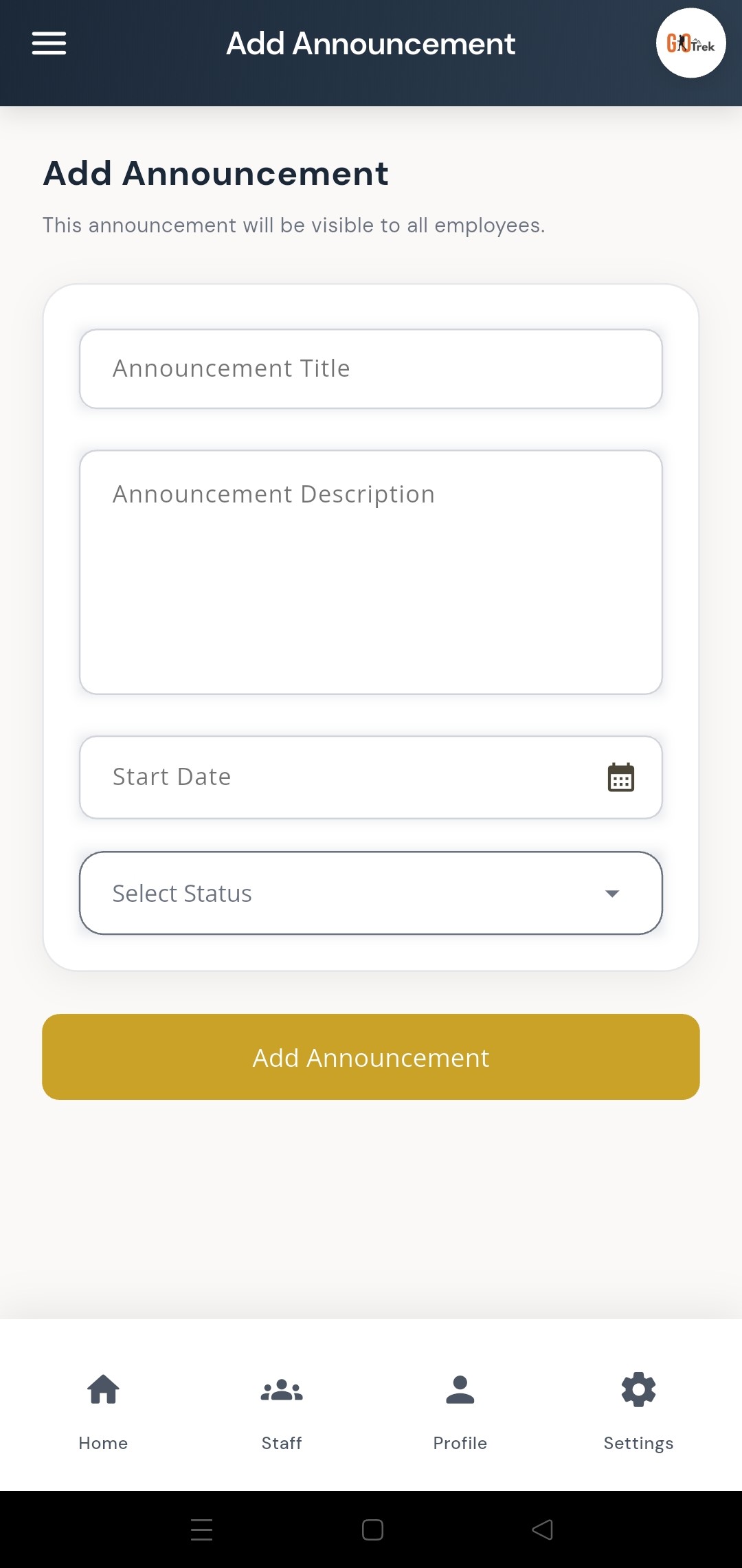
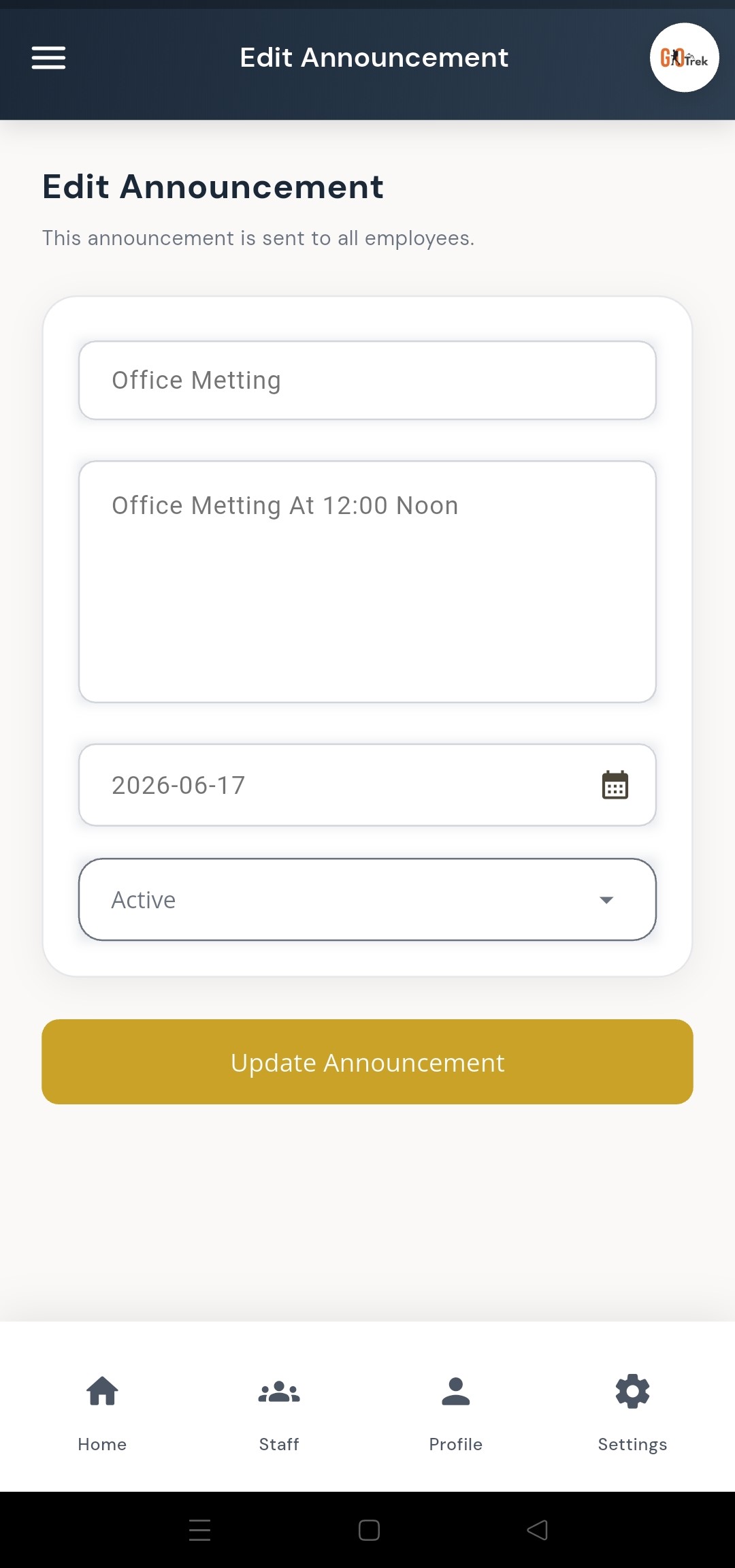
A: Announcements let you send messages to employees — holidays notice, policy updates, or meeting reminders. You can: Add a new announcement.; Manage existing announcements.; Update an announcement text later..
Q: How do I use Announcements?
A: Open Announcements. Tap Add, write a clear message, and save. Employees can see it in their app.
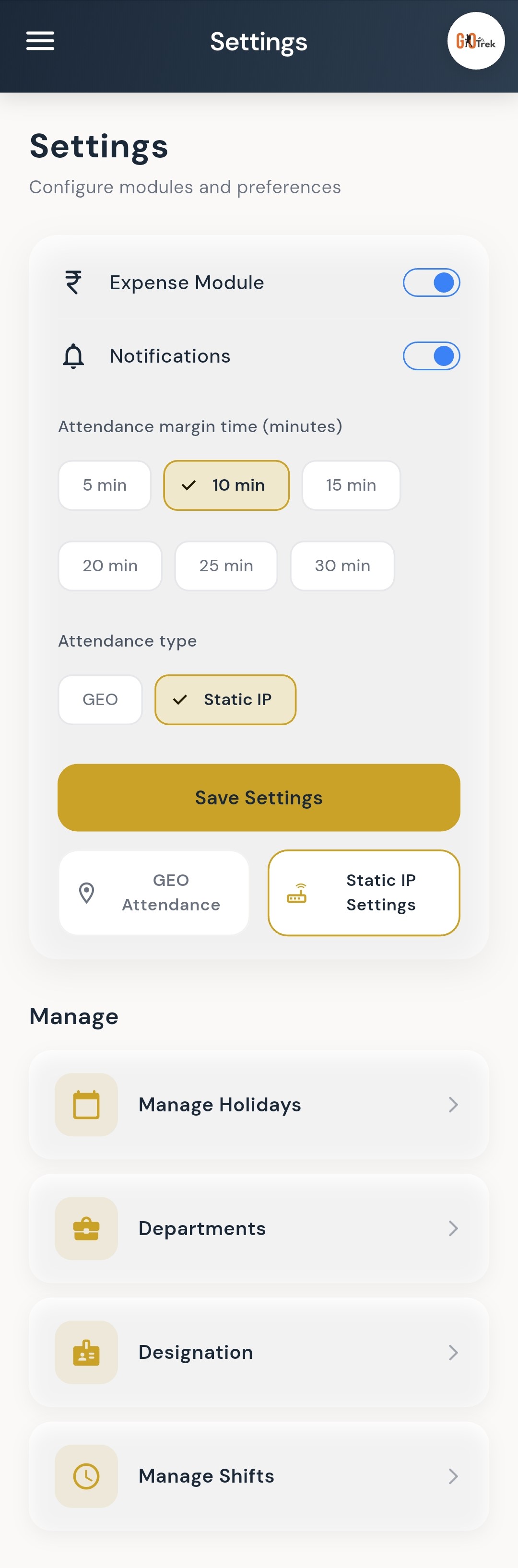
Q: What is Settings — GEO & IP attendance in the Employer App?
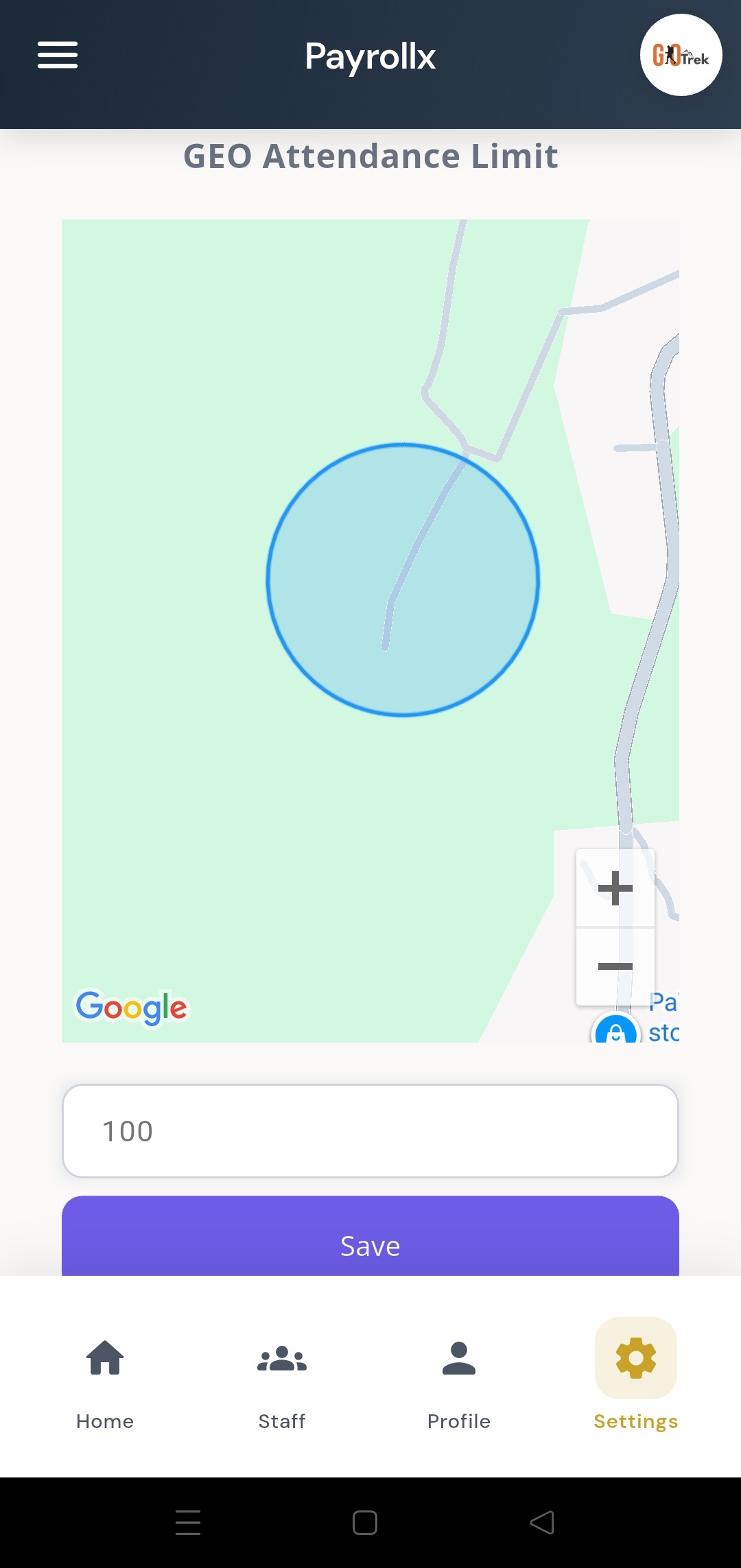
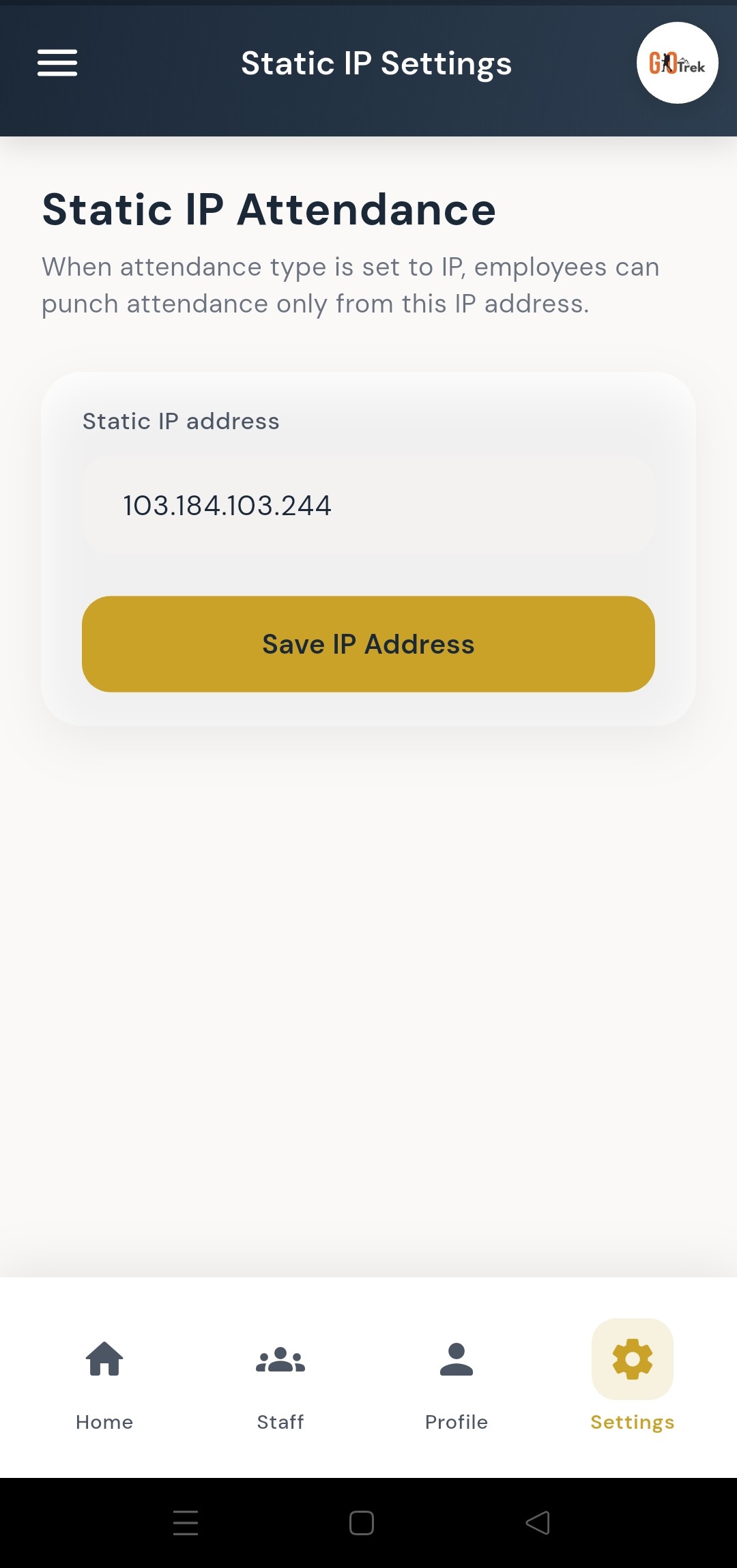
A: Settings control attendance rules. GEO attendance needs the employee to be inside your office location range. IP-based attendance needs the employee to punch from an allowed office internet IP. You can: Open company settings.; Add GEO / map location for geofence attendance.; Add static IP address for IP-based punch rules.; Choose the attendance type your company uses..
Q: How do I use Settings — GEO & IP attendance?
A: Open Settings. If you use GEO attendance, add your office location and allowed range. If you use IP attendance, add your office static IP. Save changes so employee punches follow these rules.
Feature modules
Home dashboard (id: dashboard)
Short: See your company status in one glance.
What it is: The home screen is your daily overview. It shows how many employees you have, today’s attendance, leave requests, expenses, and announcements.
What you can do:
- See total employees and quick HR shortcuts.
- Check how many people are present today.
- Open leave requests, expenses, and announcements fast.
- Jump to common tasks without searching menus.
How to use: Open the app after login. The first screen is Home. Tap any card to open that module.
Keywords: dashboard, home, overview, present today, quick access
Screenshots on this page:
Home dashboard with quick access cards
Company profile (id: profile)
Short: View and manage your employer profile.
What it is: Your company profile shows business name, contact person, phone, email, and address details used across PayrollX.
What you can do:
- View company name and your full name.
- Check phone, email, state, city, PIN, and address.
- Keep employer details up to date for HR records.
How to use: Open Profile from the bottom menu or sidebar. Review details and update them when needed from the linked profile screens.
Keywords: profile, company profile, employer details, address
Screenshots on this page:
Employer / company profile
Employee management (id: employees)
Short: Add, edit, search, and manage staff.
What it is: Employee management lets you create staff records, edit details, filter the list, and send login details so employees can open the Employee App.
What you can do:
- Add a new employee in simple steps (basic details, job details, and more).
- Edit an existing employee profile.
- View all employees in one list.
- Filter employees to find someone quickly.
- Send login details to the employee by email.
How to use: Go to Staff / Employees. Tap Add Employee and fill step 1 and step 2. Save. To change details later, open the employee and tap Edit. Use filter to search by name or department.
Keywords: add employee, edit employee, staff list, send login, filter employee
Screenshots on this page:
Manage employees list; Add new employee — step 1; Add new employee — step 2; Edit employee; Send login details by email; Filter employees
Attendance management (id: attendance)
Short: Review punches, calendar view, and fix attendance.
What it is: Attendance shows when employees punched in and out. You can open a calendar, check any date, add or edit punch times, and adjust attendance in bulk when needed.
What you can do:
- Open an employee attendance calendar month view.
- Tap a date to see punch in / punch out times.
- Add punch time if a punch is missing.
- See present, absent, half day, and leave status.
- Use bulk attendance tools for many employees at once.
How to use: Open Employees, choose a person, then Attendance. Use Calendar View to pick a date. If punch out is missing, add the correct time. For many staff at once, use Bulk Attendance.
Keywords: attendance, punch in, punch out, calendar, bulk attendance, half day, absent
Screenshots on this page:
Attendance calendar view; Open a date to see punches; Add punch time; Bulk attendance
Leave requests (id: leaves)
Short: Approve or reject employee leave from your phone.
What it is: When an employee applies for leave in the Employee App, you see the request here. You can approve, reject, filter by date or employee, and check due or pending leaves.
What you can do:
- View all leave requests in one list.
- Approve leave.
- Reject leave with a clear decision.
- Filter leaves by date.
- Filter leaves by employee name.
- See leaves that are due or already approved.
How to use: Open Leave Requests from Home or menu. Tap a request to review details. Choose Approve or Reject. Use filters when the list is long.
Keywords: leave, approve leave, reject leave, casual leave, sick leave, paid leave
Screenshots on this page:
Manage leave requests; Leave request details; Leave approved; Reject leave; Filter by employee; Filter by date
Holidays (id: holidays)
Short: Set company holidays and national holidays.
What it is: Holidays mark non-working days for attendance. You can add custom holidays (like Diwali) and also select national holidays that repeat every year.
What you can do:
- Add a custom holiday with name and date.
- View and manage your holiday list.
- Turn holidays on or off.
- Select national holidays (Republic Day, Independence Day, and more).
How to use: Open Settings → Holidays (or Holidays from menu). Tap Add Holiday for a custom date, or open National Holidays to select yearly public holidays.
Keywords: holiday, national holiday, week off, Diwali, Christmas
Screenshots on this page:
Manage holidays; Add a holiday; National holidays list
Departments (id: departments)
Short: Create and manage company departments.
What it is: Departments organize employees into teams such as Sales, HR, or Development. Every employee can be linked to a department.
What you can do:
- Add a new department.
- Edit a department name.
- View all departments.
How to use: Open Departments from settings or menu. Tap Add, enter the name, and save. Use Edit to rename later.
Keywords: department, team, organization
Screenshots on this page:
Manage departments; Add department; Update department
Designations (id: designations)
Short: Define job titles for your staff.
What it is: Designations are job titles like Manager, Executive, or Developer. They help you classify roles when adding employees.
What you can do:
- Add a designation.
- Edit a designation.
- Manage the full designation list.
How to use: Open Designations. Tap Add, type the title, and save. Assign a designation when you create or edit an employee.
Keywords: designation, job title, role
Screenshots on this page:
Manage designations; Add designation; Update designation
Shifts (id: shifts)
Short: Set working hours for your team.
What it is: Shifts define punch-in and punch-out windows (for example 9:00 AM to 6:00 PM). Attendance rules can use these shift times.
What you can do:
- Add a new shift with start and end time.
- Edit an existing shift.
- Manage all company shifts.
How to use: Open Shifts. Tap Add Shift, enter name and timings, then save. Edit anytime if office hours change.
Keywords: shift, working hours, punch time window
Screenshots on this page:
Manage shifts; Add shift; Edit shift
Office expenses (id: expenses)
Short: Track office spending and categories.
What it is: Expenses help you record office costs. You can create expense categories, add expense entries, and update them later.
What you can do:
- Add expense categories (travel, food, office supplies, and more).
- Add a new expense with amount and details.
- Manage and update expenses.
- Update category names when needed.
How to use: Open Office Expenses. First create categories if needed. Then add expenses under the right category. Use Manage to edit older entries.
Keywords: expense, reimbursement, office cost, expense category
Screenshots on this page:
Manage expenses; Add expense; Expense categories; Add expense category
Staff chat (id: chat)
Short: Message employees instantly from your phone.
What it is: Staff chat lets you talk one-to-one with any employee. Open Chat from Home, pick an employee, and send text or photos. You can reply to a message, long-press to edit or delete your own messages (within 24 hours), and get push notifications when an employee replies — even if the app is in the background.
What you can do:
- See all employees in a chat list with last message and unread highlights.
- Open a conversation and send text messages.
- Attach photos from camera or gallery.
- Swipe right (or long-press → Reply) to reply to a specific message.
- Edit or delete your own messages within 24 hours.
- Tap a reply quote to jump back to the original message.
- Scroll up to load older messages; date chips show Today / Yesterday / full dates.
- Get a push notification when an employee sends a new message.
How to use: On Home, tap Chat. Choose an employee from the list. Type a message and tap Send, or tap + to attach a photo. Swipe a message right to reply. Long-press your message for Edit, Delete, Copy, or Reply.
Keywords: chat, staff chat, message employee, reply, photo, push notification, WhatsApp style chat
Screenshots on this page:
Employee chat list; Chat conversation; Type a message; Attach photo (camera or gallery); Select a message; Message options (reply, edit, delete, copy); Reply to a message
Announcements (id: announcements)
Short: Share updates with your whole team.
What it is: Announcements let you send messages to employees — holidays notice, policy updates, or meeting reminders.
What you can do:
- Add a new announcement.
- Manage existing announcements.
- Update an announcement text later.
How to use: Open Announcements. Tap Add, write a clear message, and save. Employees can see it in their app.
Keywords: announcement, notice, company update
Screenshots on this page:
Manage announcements; Add announcement; Update announcement
Settings — GEO & IP attendance (id: settings)
Short: Control how employees are allowed to punch.
What it is: Settings control attendance rules. GEO attendance needs the employee to be inside your office location range. IP-based attendance needs the employee to punch from an allowed office internet IP.
What you can do:
- Open company settings.
- Add GEO / map location for geofence attendance.
- Add static IP address for IP-based punch rules.
- Choose the attendance type your company uses.
How to use: Open Settings. If you use GEO attendance, add your office location and allowed range. If you use IP attendance, add your office static IP. Save changes so employee punches follow these rules.
Keywords: settings, GEO, geofence, static IP, attendance type
Screenshots on this page:
Settings; Add GEO location for attendance; Add IP address for IP-based punch
End of PayrollX Employer App document.
For browser-based employer tools see Employer Web.
For staff punch and leave see Employee App.