PayrollX Employee App — full feature reference
Document title: PayrollX Employee App feature guide.
Product: PayrollX Employee Android application.
Audience: Employees and staff working for companies that use PayrollX.
Related products: PayrollX Employer App, PayrollX Employer Web portal.
Download: Google Play package com.payrollx.emp — https://play.google.com/store/apps/details?id=com.payrollx.emp.
The PayrollX Employee App is an Android mobile app for company staff. You can punch in and punch out for attendance, apply for leave, check your salary slip, chat with your employer, see holidays and announcements, update your profile photo, and view company details. Your employer manages approvals in the Employer App or web portal.
Who uses it: Employees, field staff, and office staff who work for a company that uses PayrollX.
Platform: Android (Google Play)
Login: Employees sign in with the login details sent by their employer (usually employee code/email and password). After login, the Home screen is the main dashboard.
Q&A
Q: What is the PayrollX Employee App?
A: It is the official Android app for employees to mark attendance, request leave, view salary, chat with your employer, and see company updates.
Q: Who should use this app?
A: Any staff member whose company uses PayrollX. Your employer creates your account and sends you login details.
Q: How do I mark attendance?
A: On Home, use Punch In when you start work and Punch Out when you finish. Depending on company settings, the app may ask for location (GEO) or a selfie.
Q: How do I apply for leave?
A: Open Leave Request, choose dates and leave type, then submit. Your employer approves or rejects it. You can track the status in the same screen.
Q: Can I see my salary in the app?
A: Yes. Open Salary Slip to view salary details shared by your employer for the selected month.
Q: Is this the same as the Employer App?
A: No. Employees use this Employee App. Owners and HR use the Employer App or Employer Web to manage staff and approvals.
Q: Where can I download it?
A: Download from Google Play: PayrollX Employee app (package com.payrollx.emp).
Q: Can I chat with my employer?
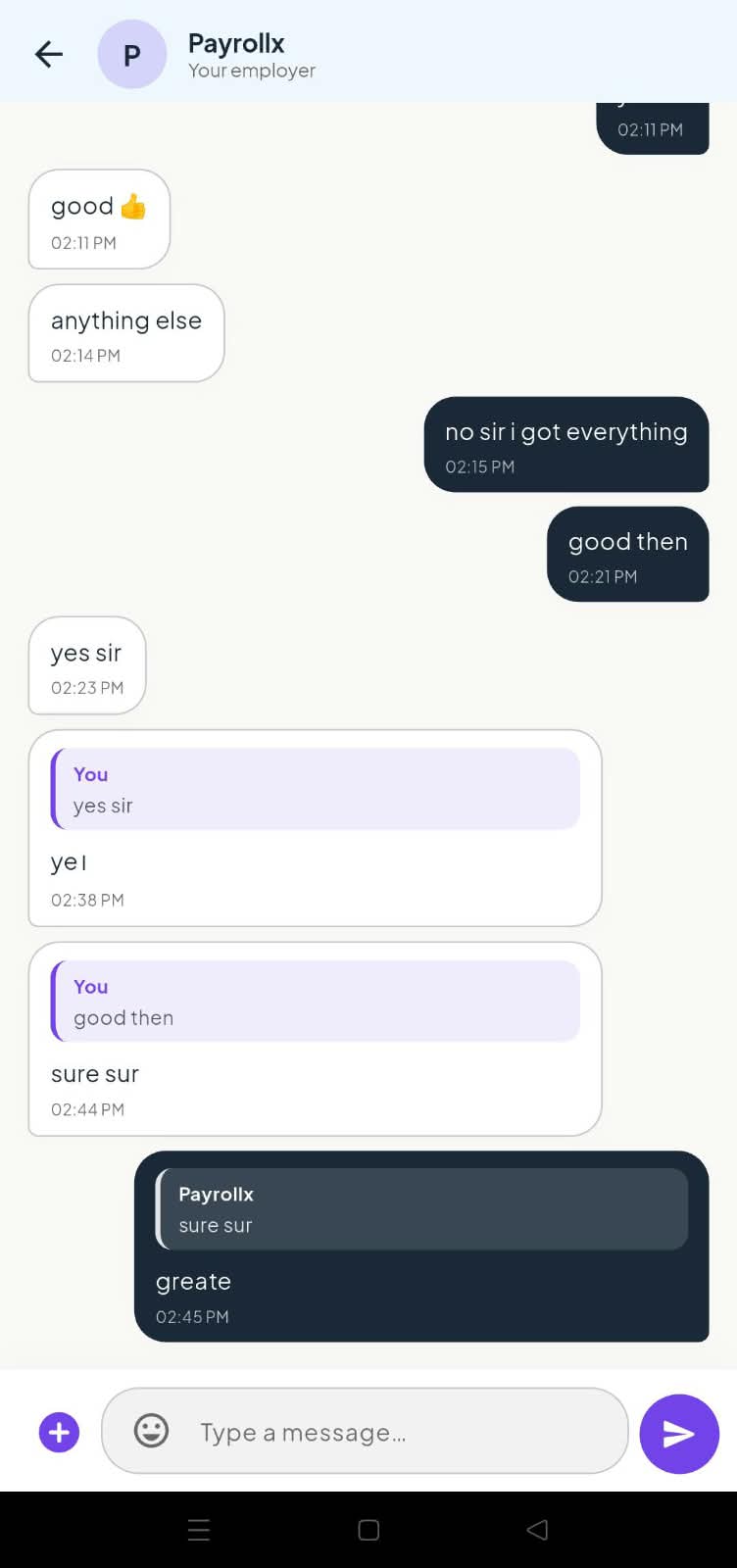
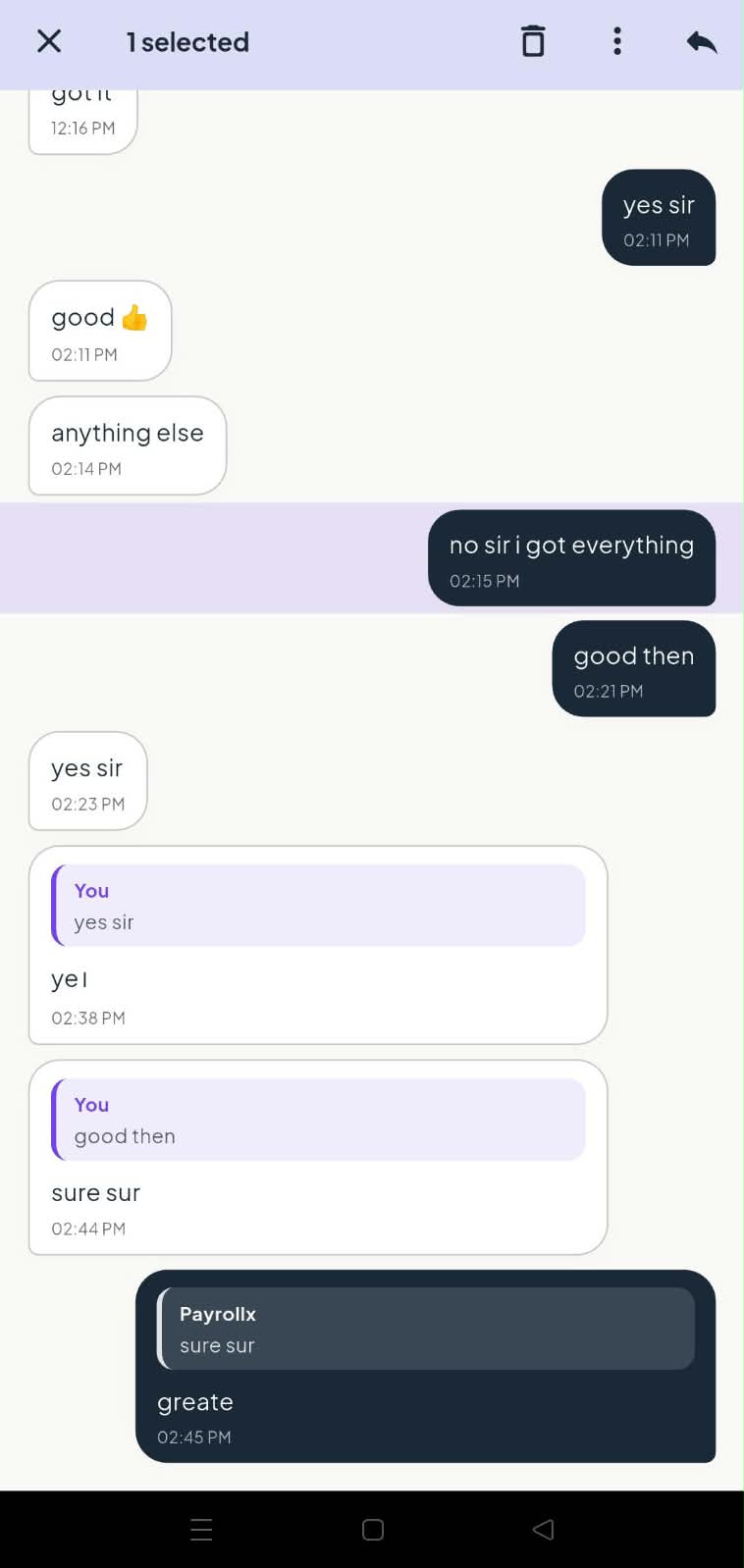
A: Yes. Open Chat from Home to message your employer — send text or photos, reply to messages, and edit or delete your own messages within 24 hours. You also get a push notification when your employer replies.
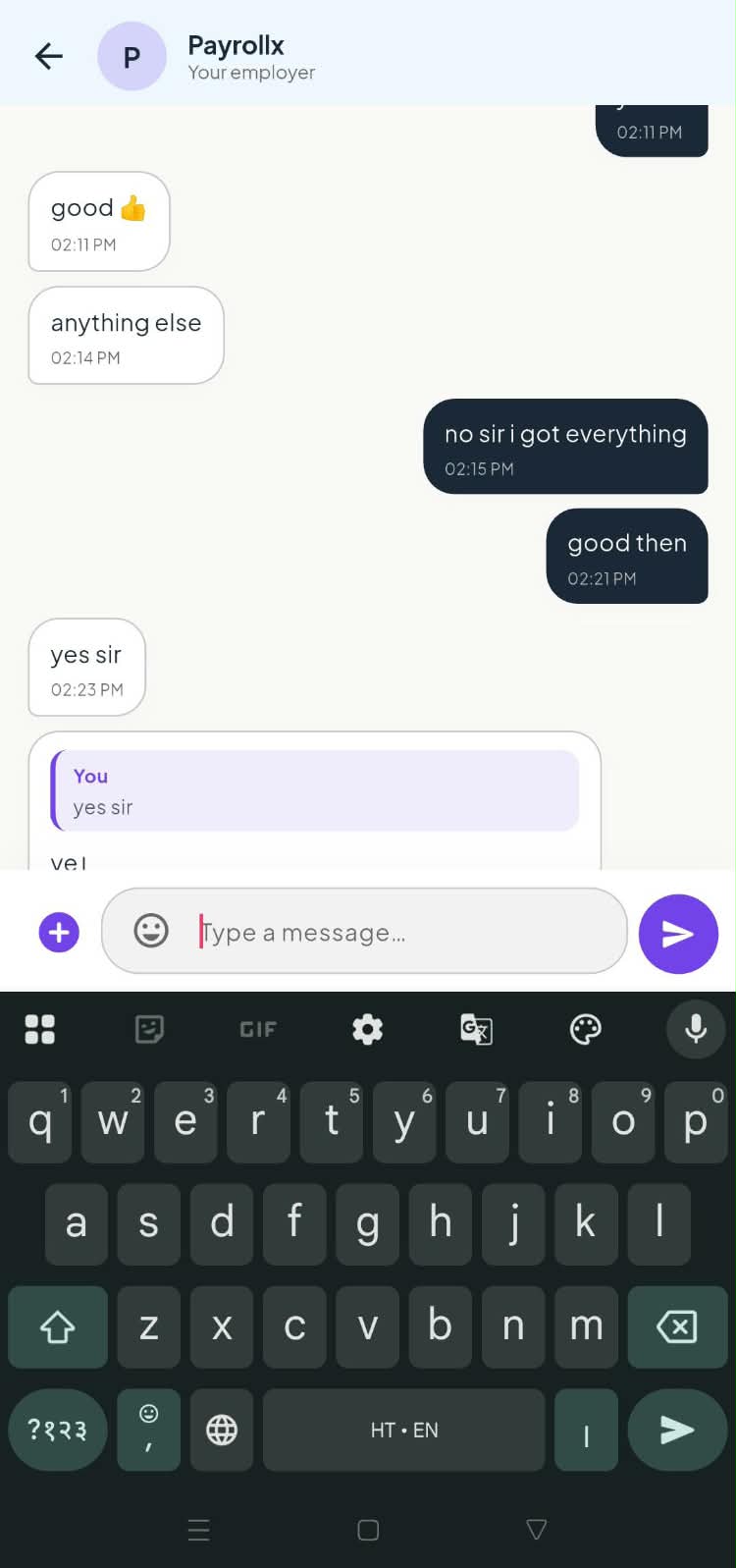
Q: How do I send a chat message?
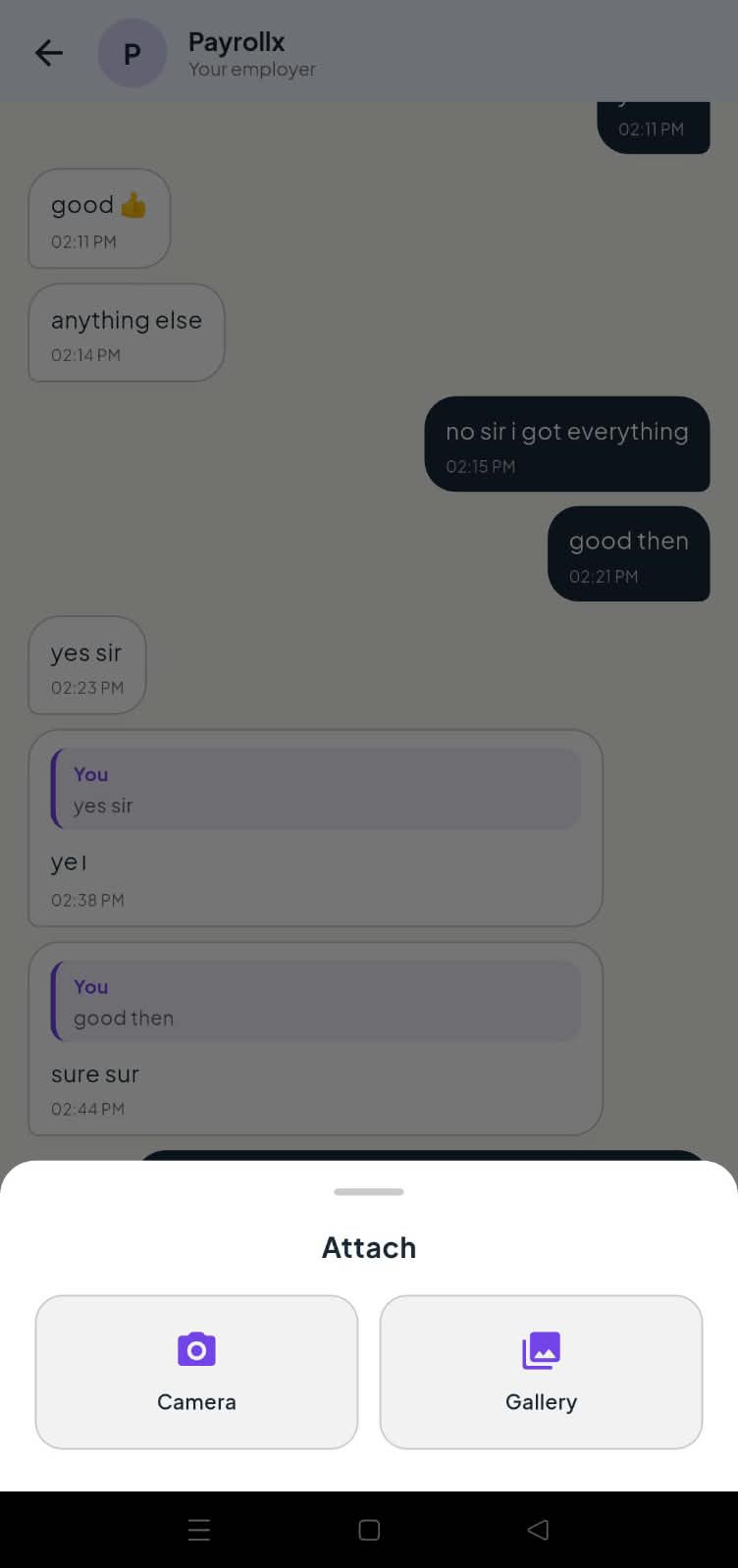
A: On Home, tap Chat. Type your message and tap Send. Tap + to attach a photo from camera or gallery.
Q: How do I reply to a message?
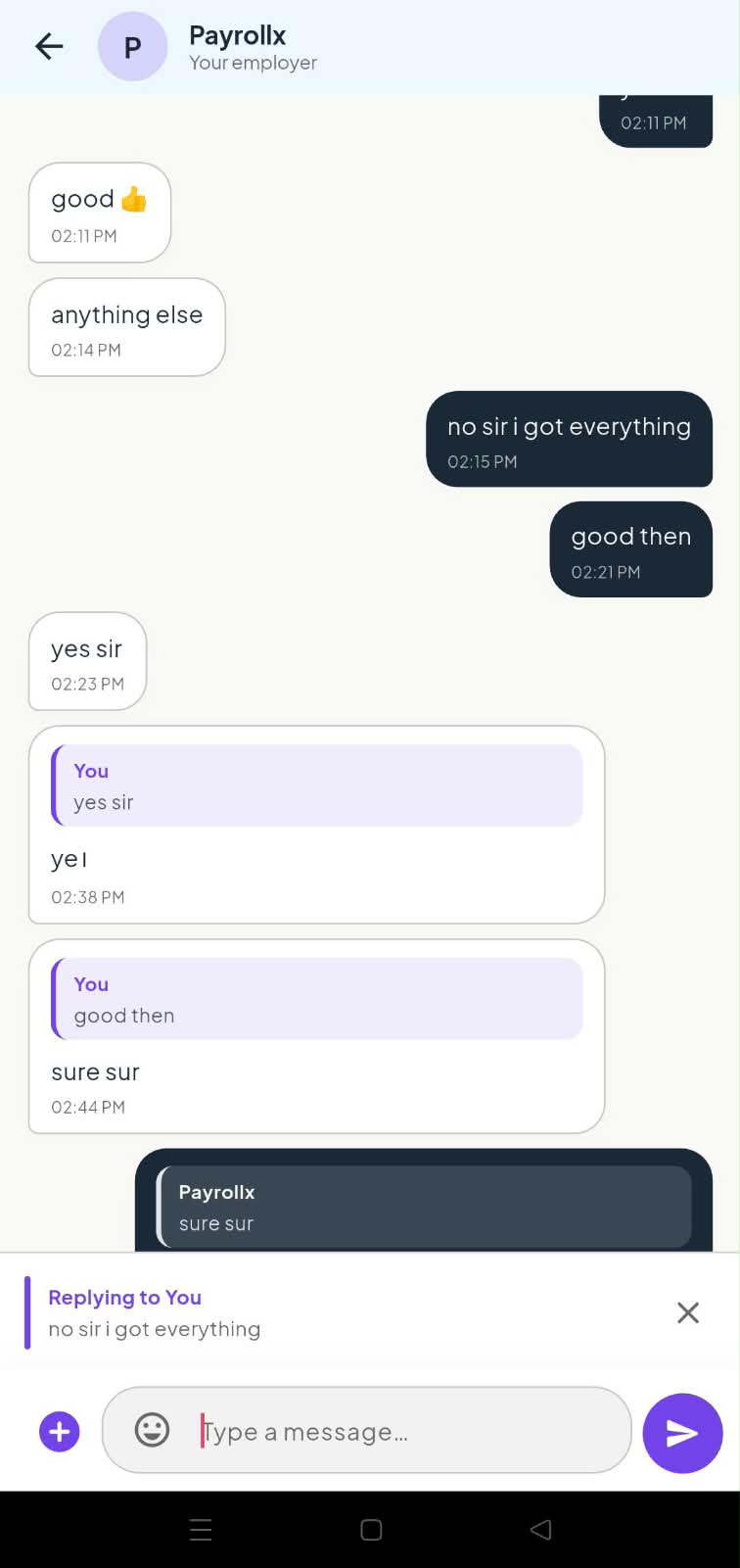
A: Swipe the message right, or long-press it and choose Reply. Tap the reply quote anytime to jump to the original message.
Q: Can I edit or delete my chat messages?
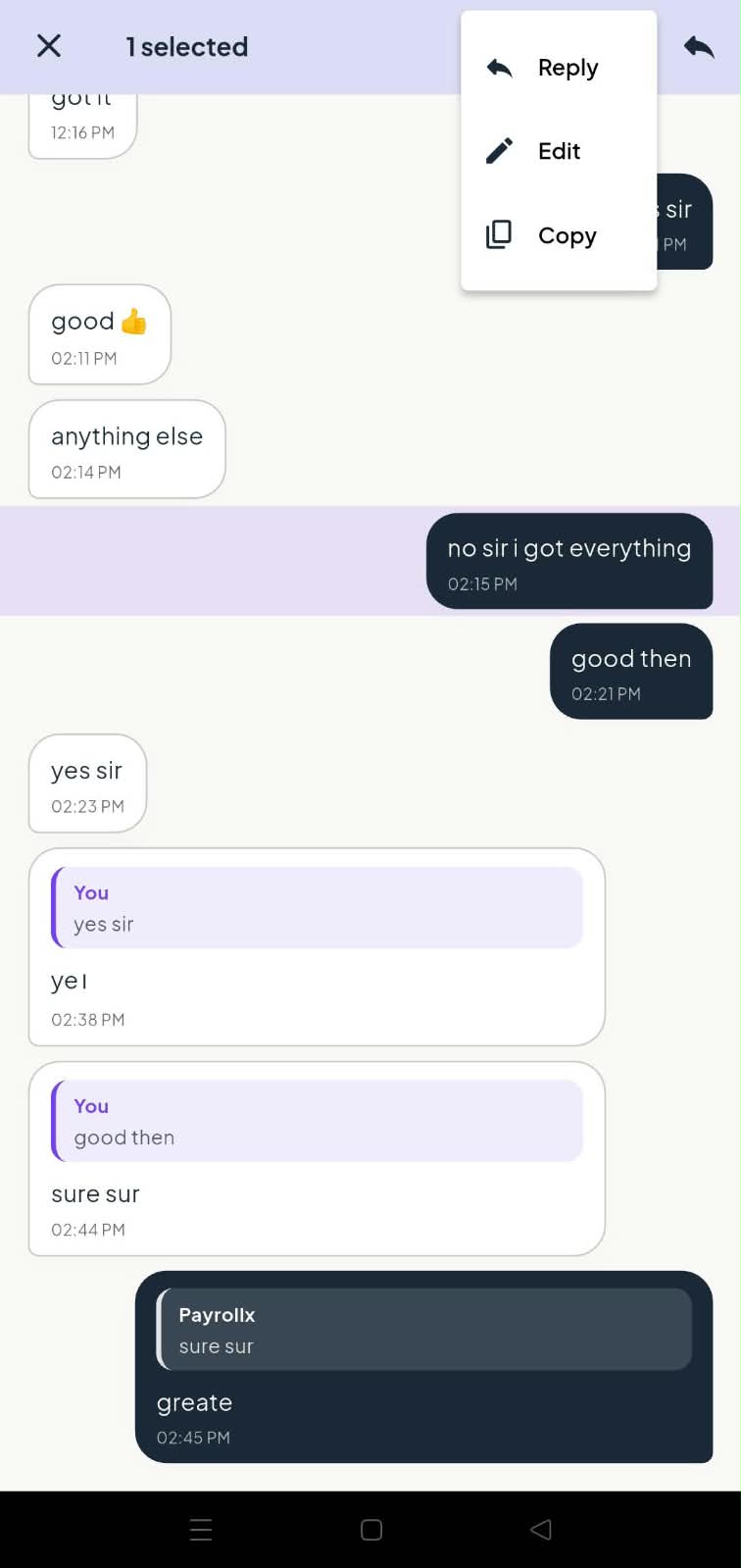
A: Yes, for your own messages within 24 hours. Long-press the message and choose Edit or Delete. After 24 hours those options are no longer available.
Q: Will I get notified when my employer messages me?
A: Yes. New employer chat messages send a push notification even if the app is closed. Tap the notification to open the chat.
Q: Can I chat with other employees?
A: No. Chat is only with your employer. For teammates, use the Team screen (call or WhatsApp actions if shown).
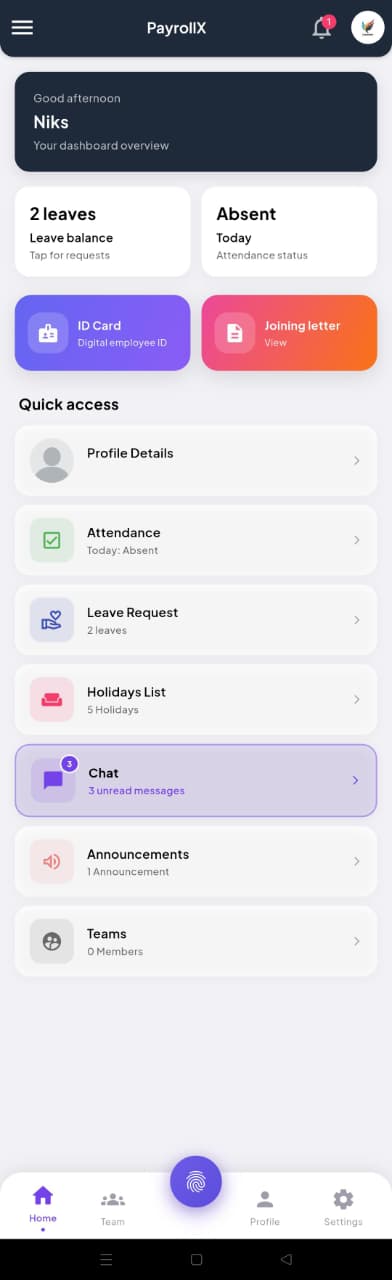
Q: What is Home screen in the Employee App?
A: Home is the first screen after login. It shows your name, today’s attendance actions, and shortcuts to important features like leave, salary, and profile. You can: See your welcome / dashboard overview.; Start Punch In or Punch Out for today.; Open common tools quickly from Home.; Check your current attendance status at a glance..
Q: How do I use Home screen?
A: Open the Employee App and sign in. You land on Home. Use the main buttons for Punch In / Punch Out, or open other modules from the menu or shortcuts.
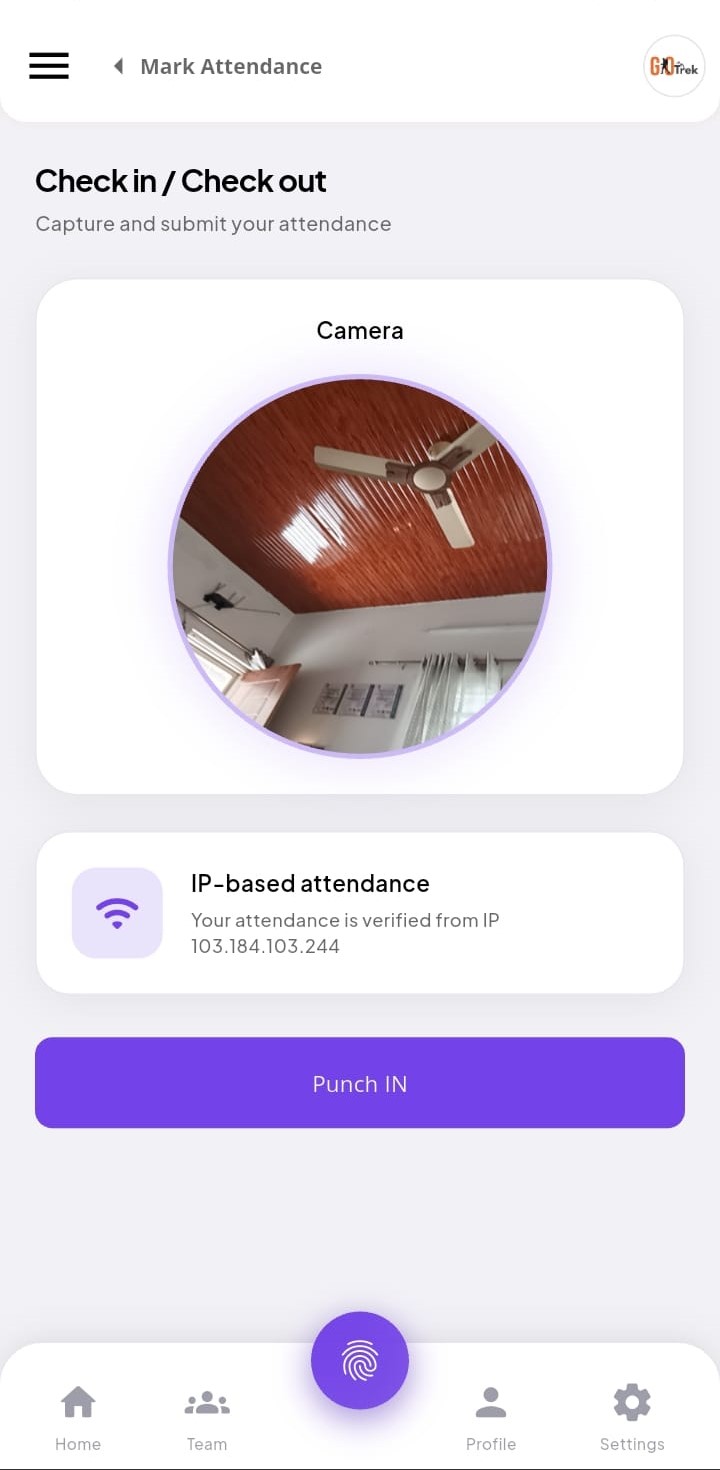
Q: What is Punch In in the Employee App?
A: Punch In records the time you start work. Your company may require you to be at the office location (GEO) or take a selfie before the punch is accepted. You can: Mark Punch In when you arrive / start duty.; Confirm location or selfie if your company asks for it.; See that today’s attendance has started..
Q: How do I use Punch In?
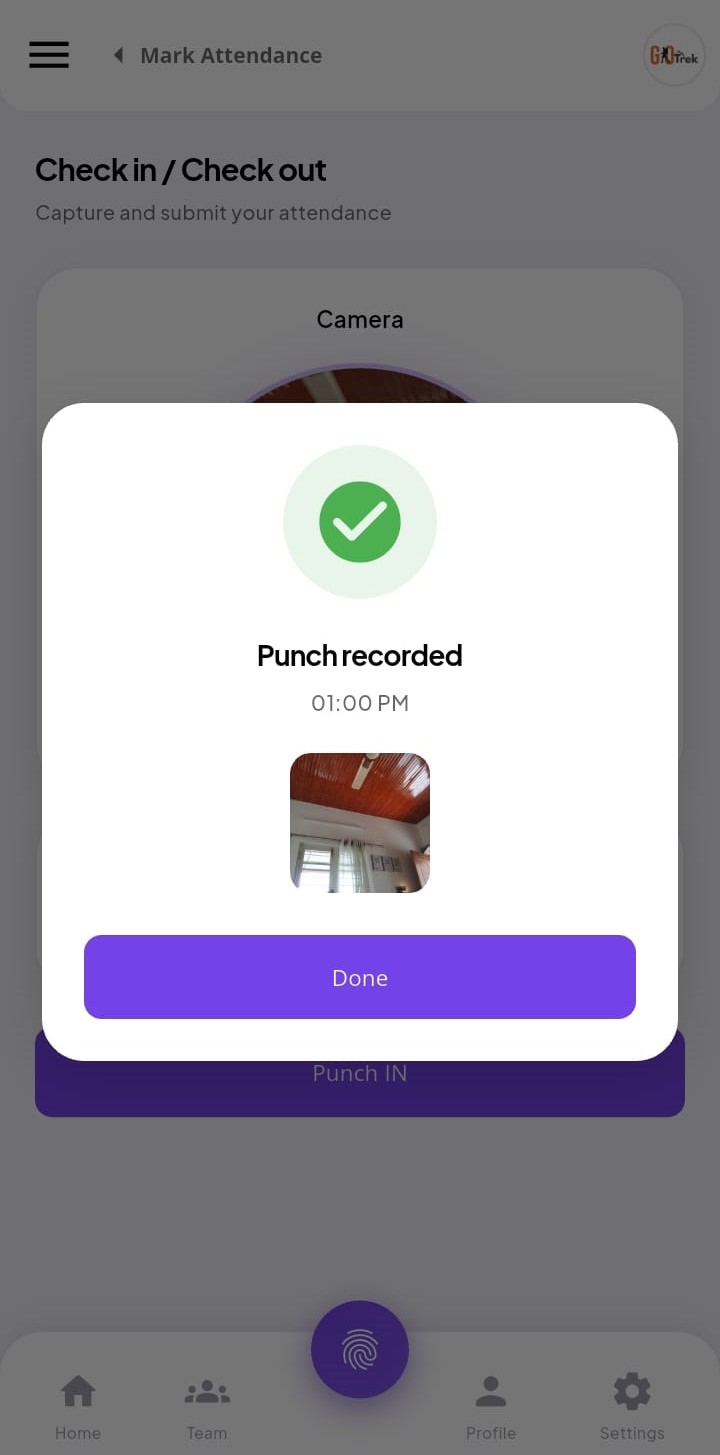
A: On Home, tap Punch In. Allow location/camera if asked. Confirm the punch. You should see a success message and your in-time for today.
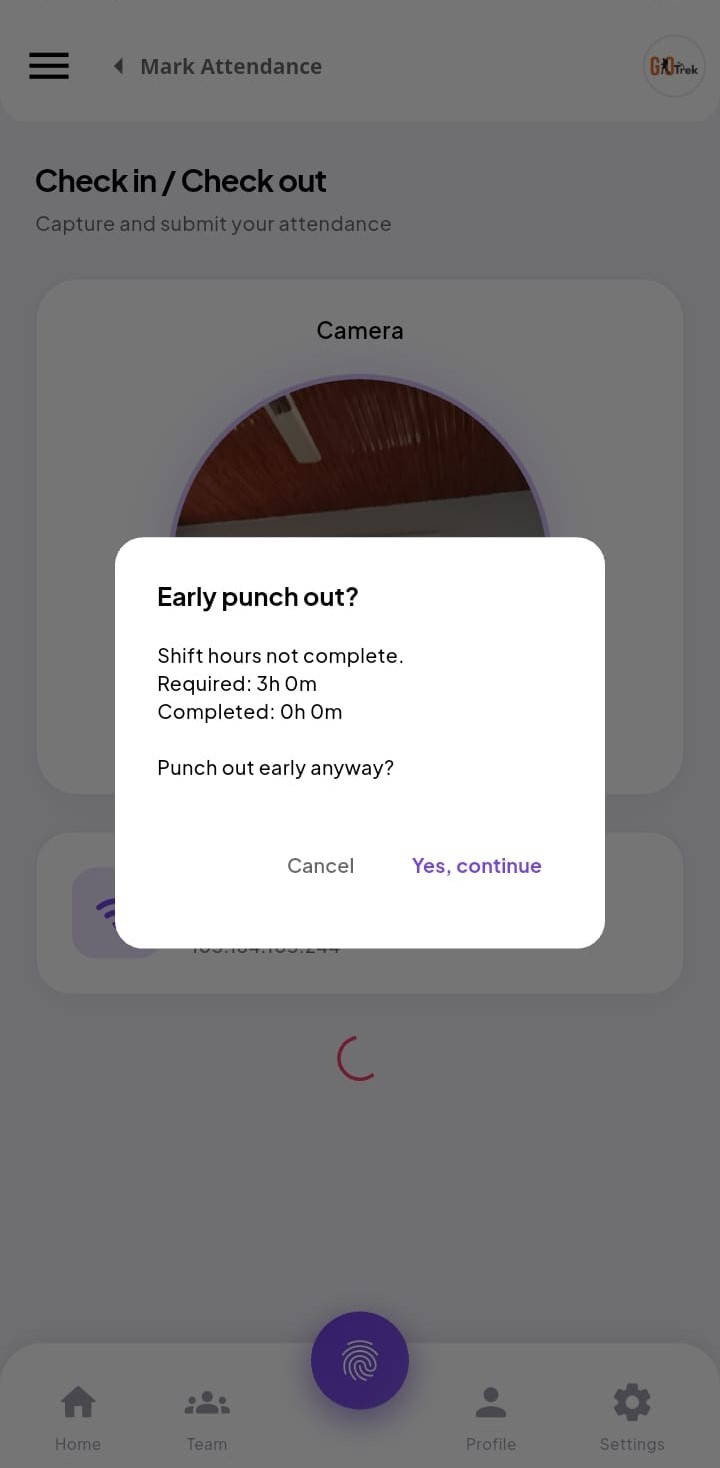
Q: What is Punch Out in the Employee App?
A: Punch Out records the time you finish work. If you punch out early, the app may ask you to confirm and add a short remark (for example: personal work or medical). You can: Mark Punch Out when you leave / finish duty.; Confirm early punch out if the app shows a warning.; Add a remark when asked why you are punching out early.; Complete the day so working hours can be calculated..
Q: How do I use Punch Out?
A: On Home, tap Punch Out. If you are early, confirm and type a remark if required. Then confirm the punch out.
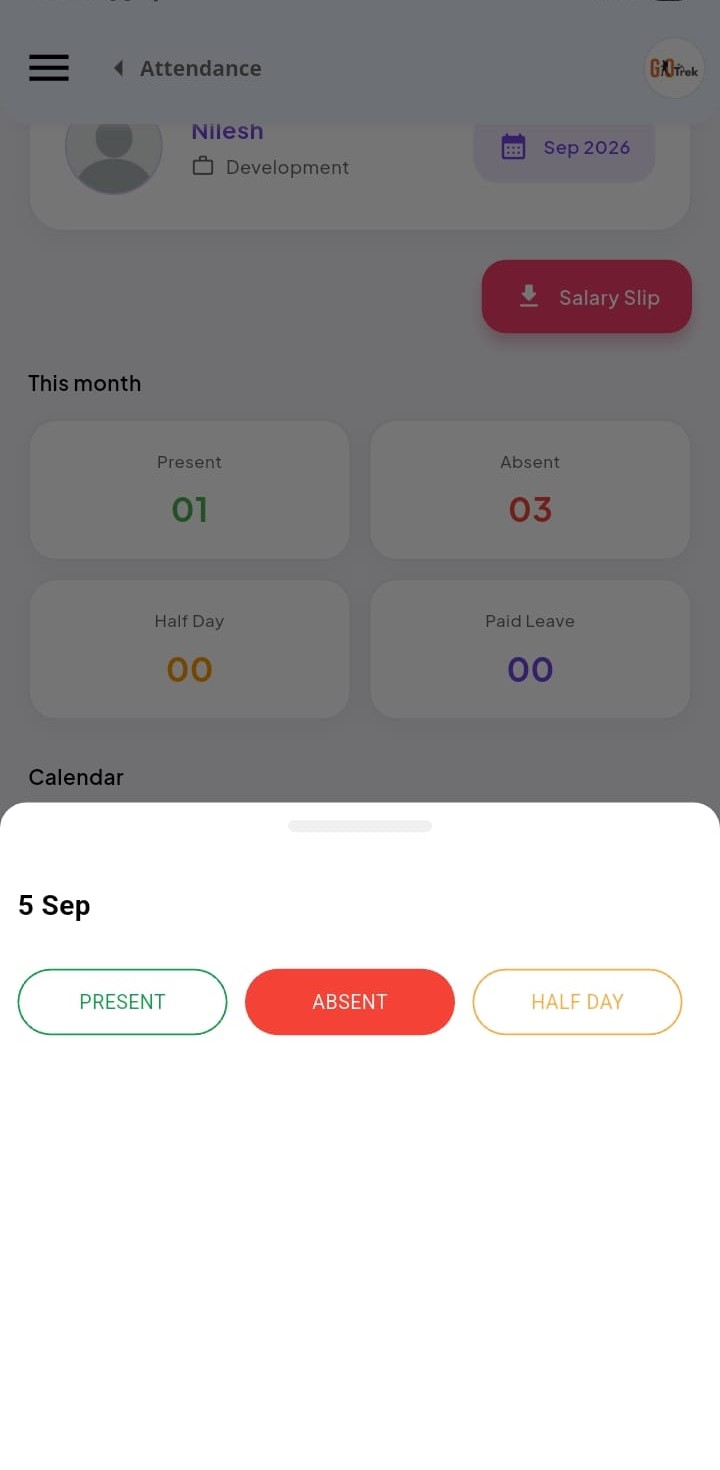
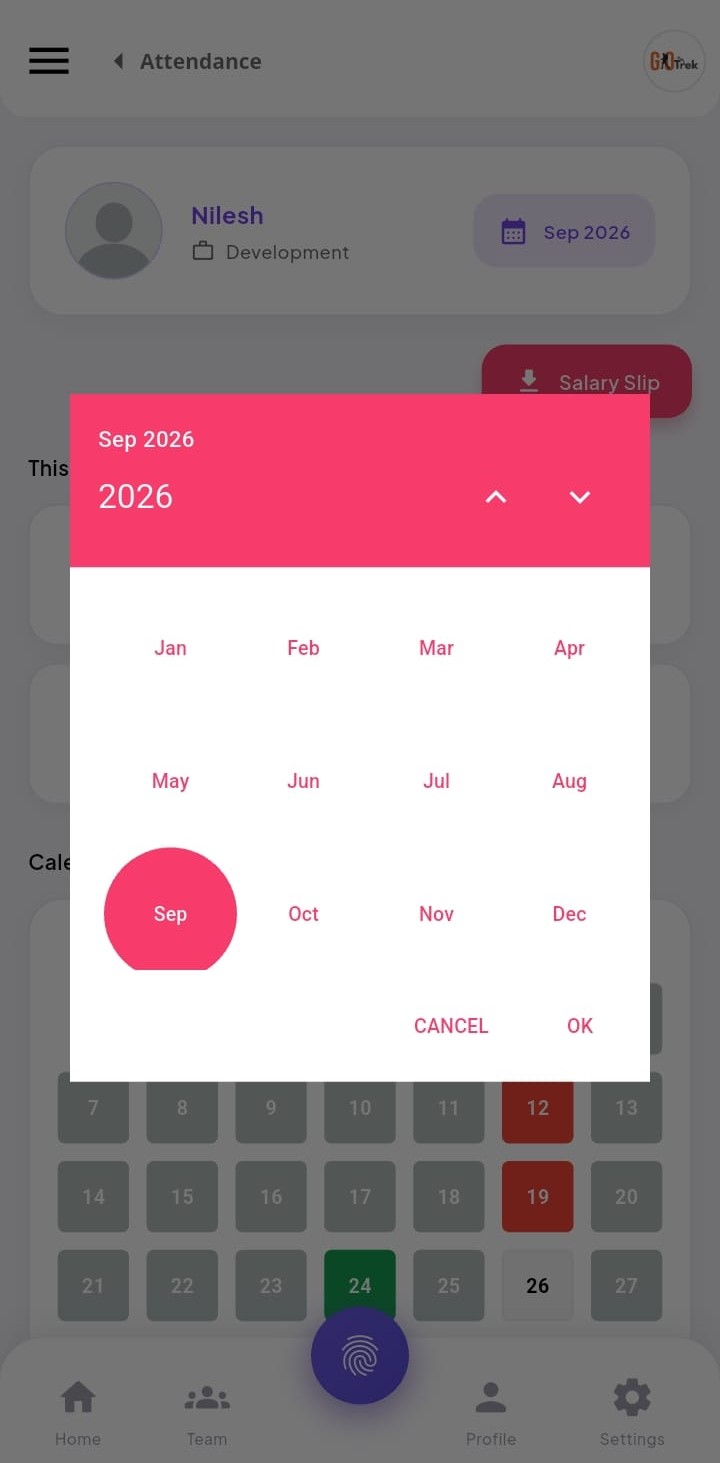
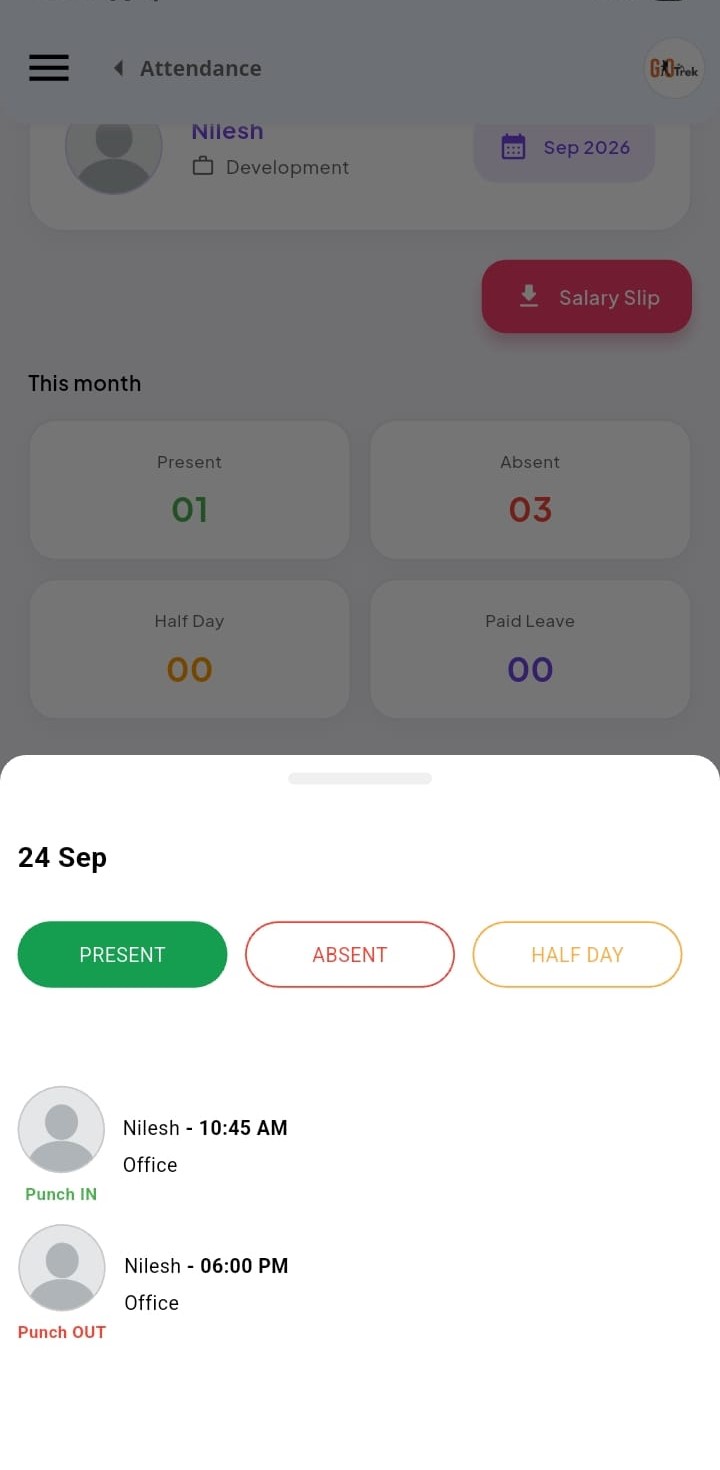
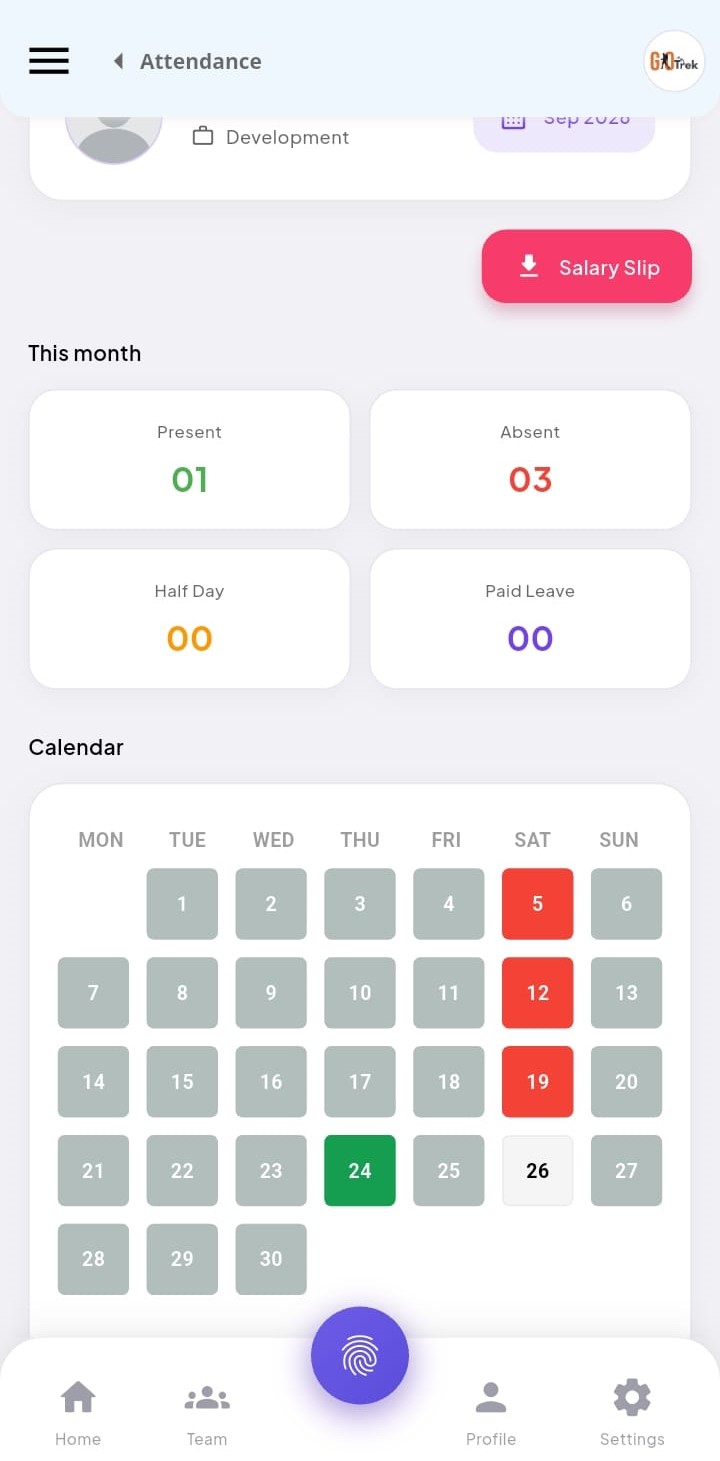
Q: What is Attendance history in the Employee App?
A: Attendance history shows your daily records — present, absent, half day, leave, and punch times. You can open different dates to review what was recorded. You can: View monthly or daily attendance.; Check punch in and punch out times.; See status like Present, Absent, or Half day.; Review older days if you need proof of attendance..
Q: How do I use Attendance history?
A: Open Attendance from Home or menu. Scroll the calendar or list. Tap a date to see punch details for that day.
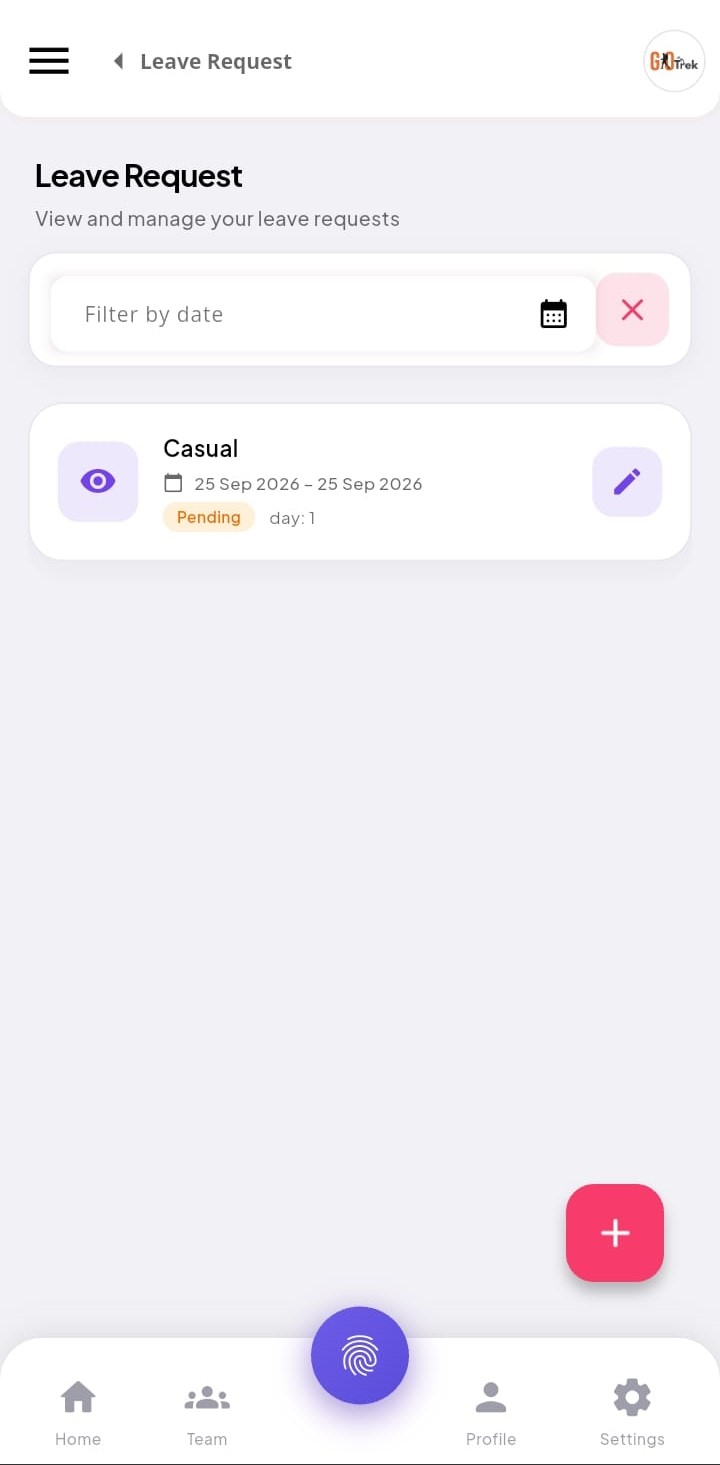
Q: What is Leave request in the Employee App?
A: Leave Request lets you apply for casual leave, sick leave, paid leave, or other leave types set by your company. After you submit, your employer approves or rejects it. You can: Create a new leave request with dates.; Choose leave type and add a reason if needed.; See pending, approved, or rejected leave.; Track older leave history..
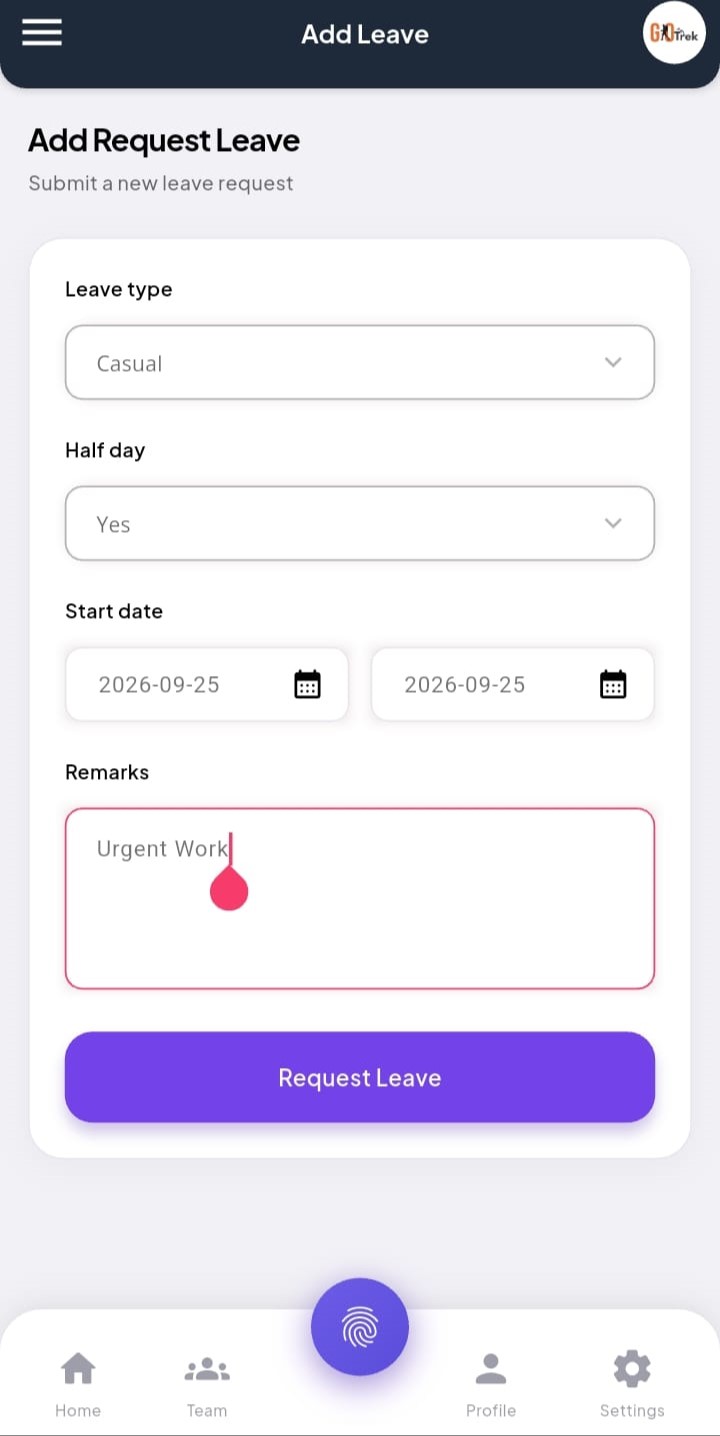
Q: How do I use Leave request?
A: Open Leave Request. Tap Add / Apply. Select from date, to date, leave type, and reason. Submit. Check the same screen later for Approve or Reject status.
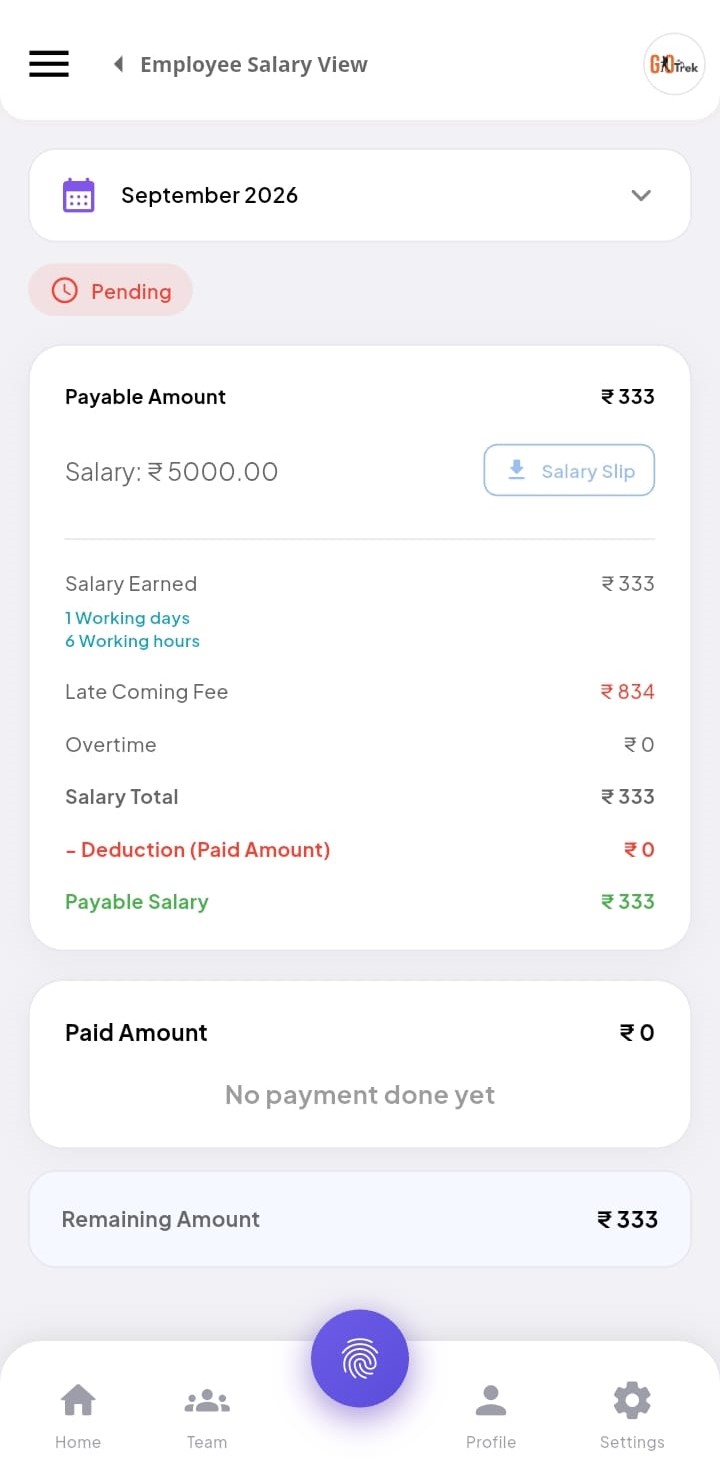
Q: What is Salary slip in the Employee App?
A: Salary Slip shows salary information shared by your employer — earnings, deductions, and payable amount for a month (when available). You can: Open salary slip for a selected month.; See earnings and deductions in simple view.; Check payable / net salary when published..
Q: How do I use Salary slip?
A: Open Salary Slip from menu or Home shortcuts. Choose the month if asked. Review the details on screen.
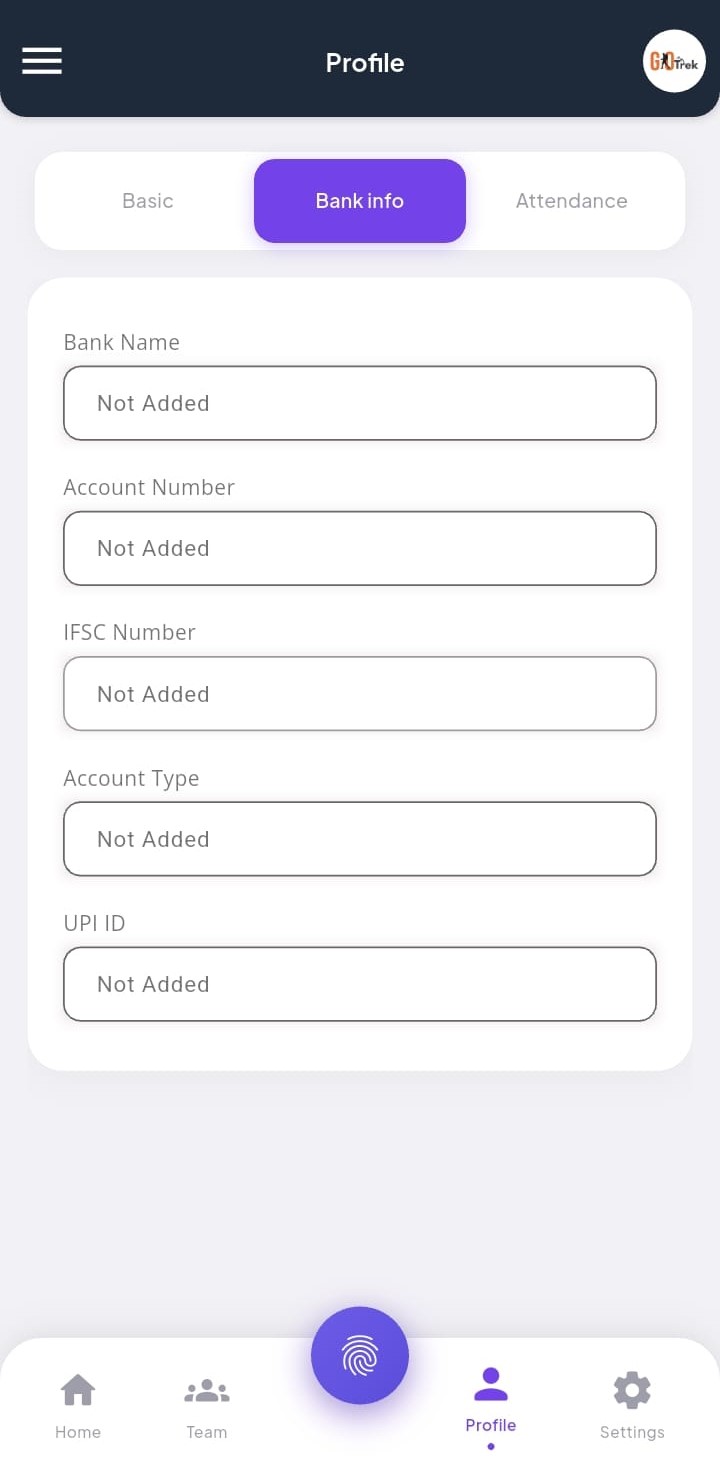
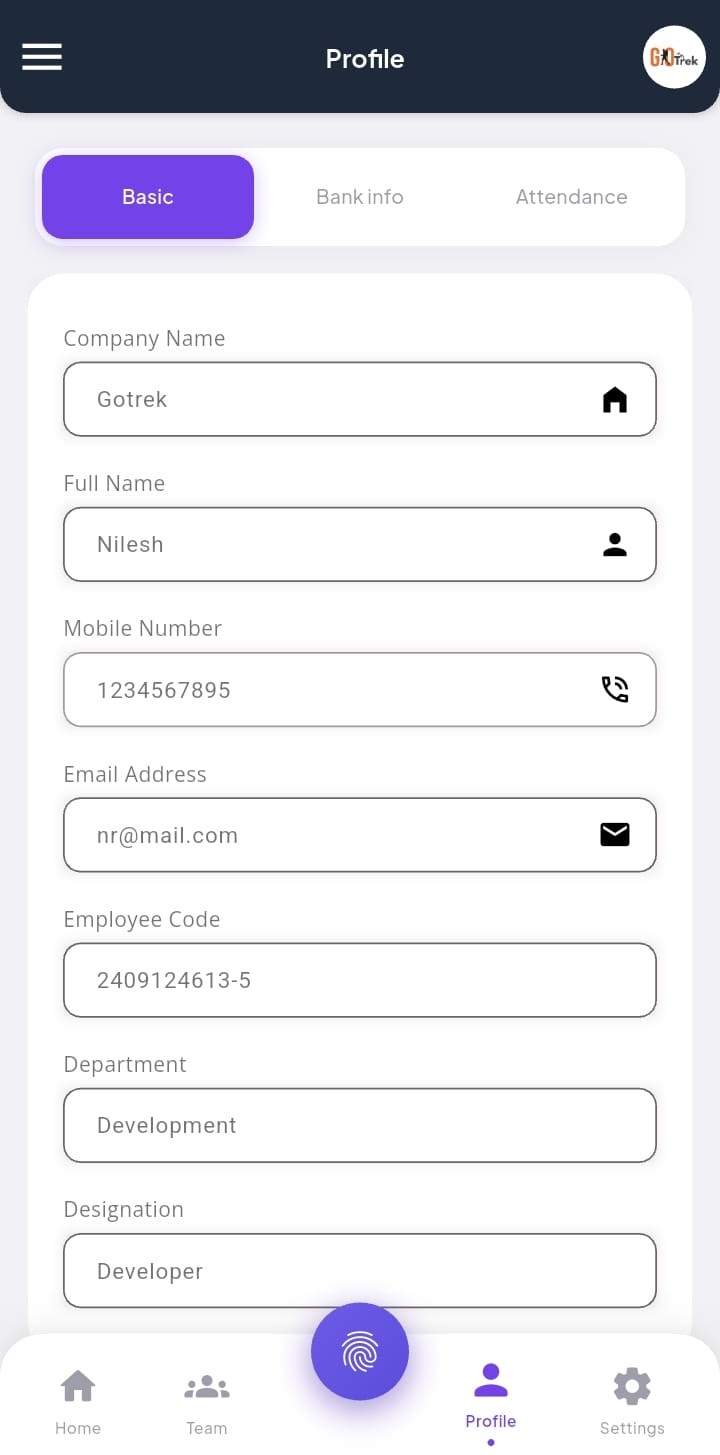
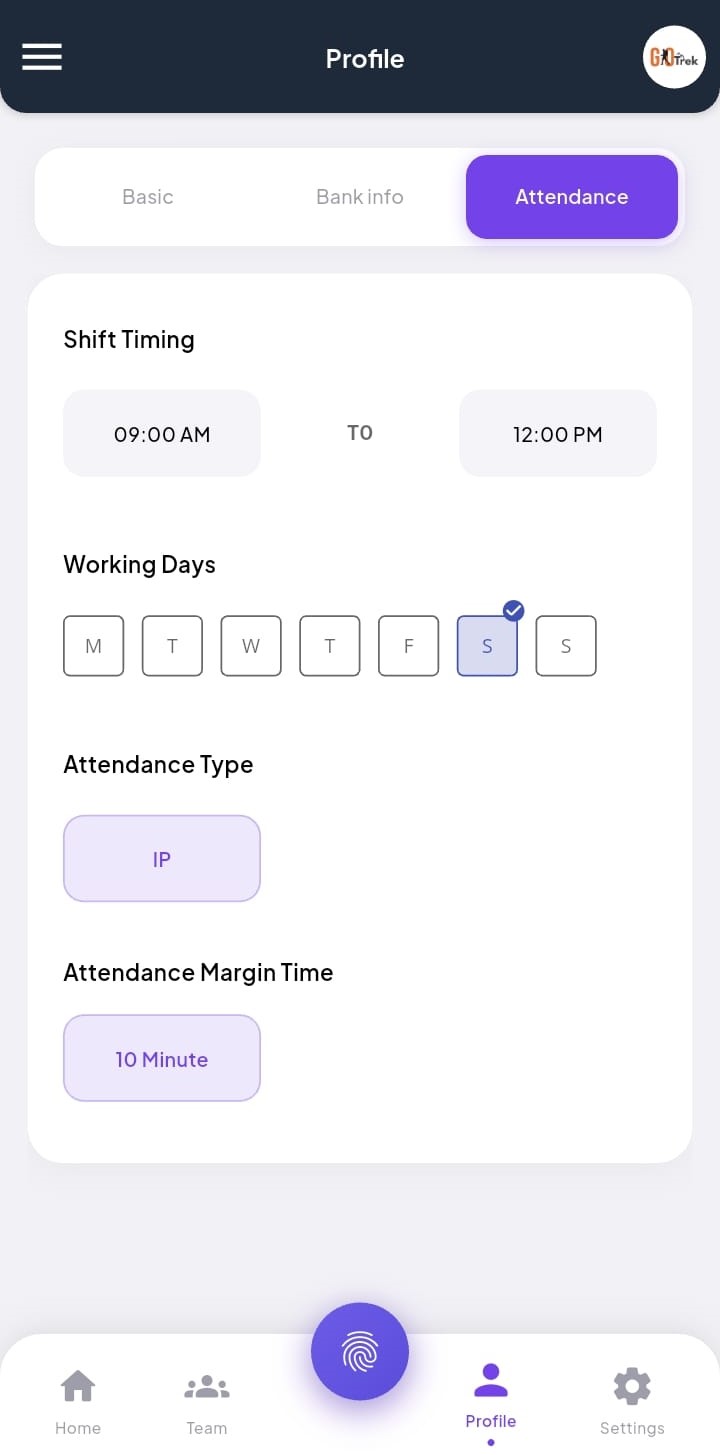
Q: What is Profile info in the Employee App?
A: Profile Info shows your personal and job details — name, code, department, designation, contact, and other information saved by your employer. You can: View your employee profile.; Check department, designation, and contact details.; Open related profile screens for more information..
Q: How do I use Profile info?
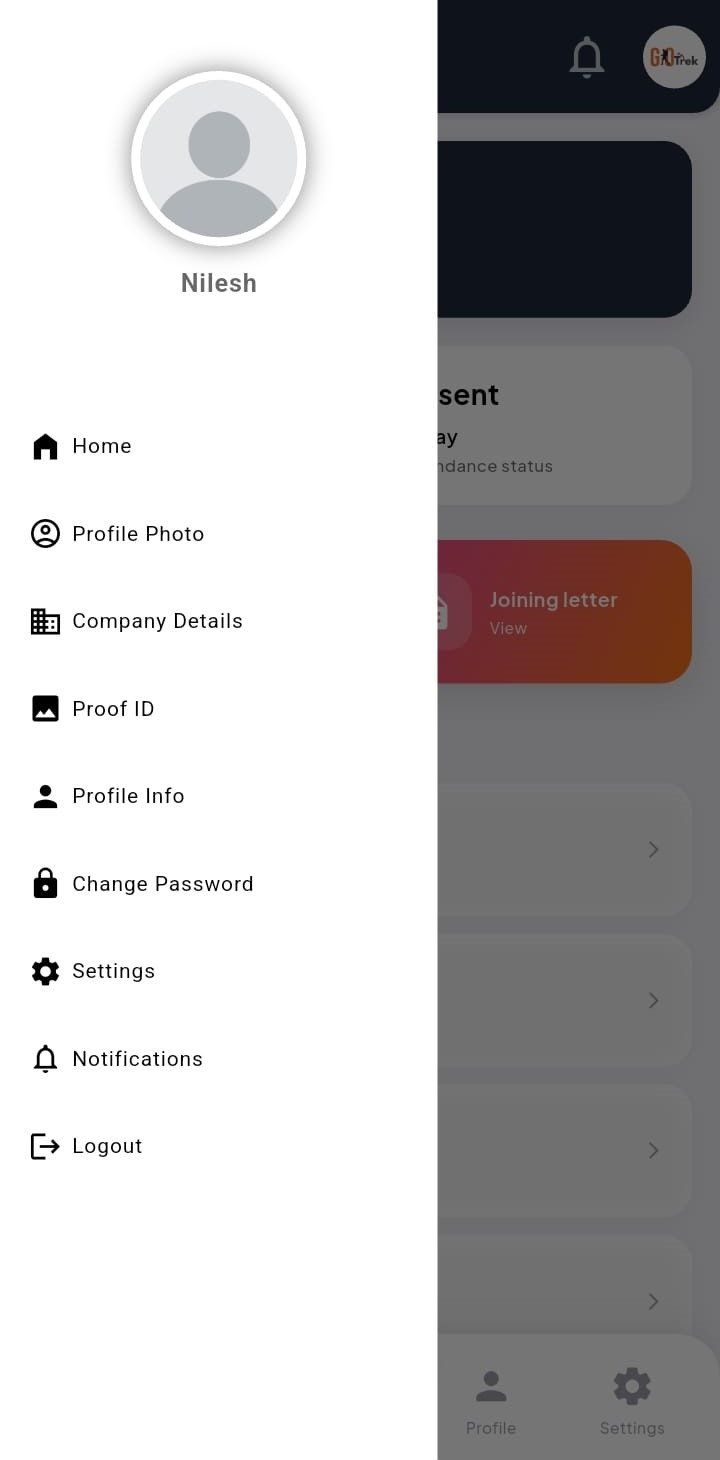
A: Open Profile from the bottom menu or sidebar. Swipe or open tabs to see full details.
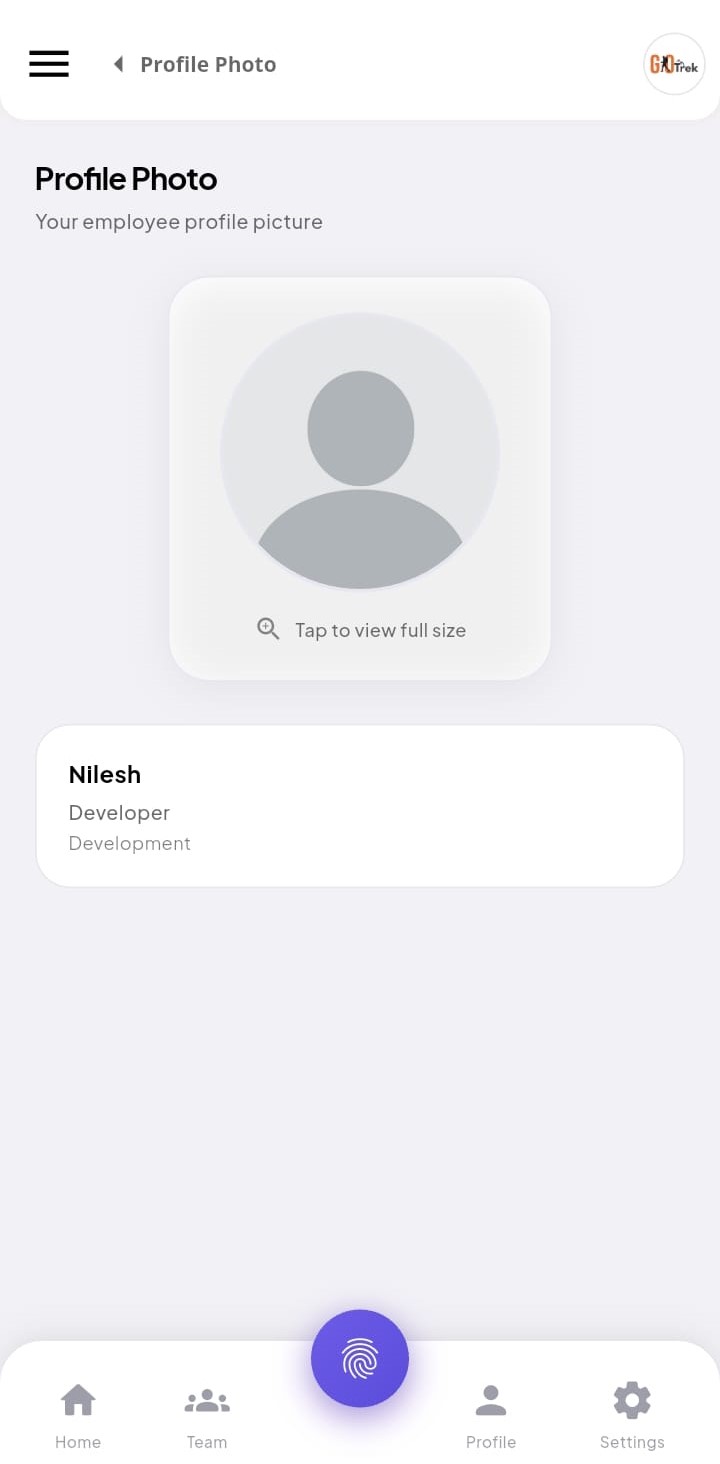
Q: What is Profile photo in the Employee App?
A: Profile Photo lets you upload or change the picture shown on your employee profile. You can: Upload a new profile photo.; Replace an old photo..
Q: How do I use Profile photo?
A: Open Profile Photo (or Profile → Photo). Choose camera or gallery, crop if asked, and save.
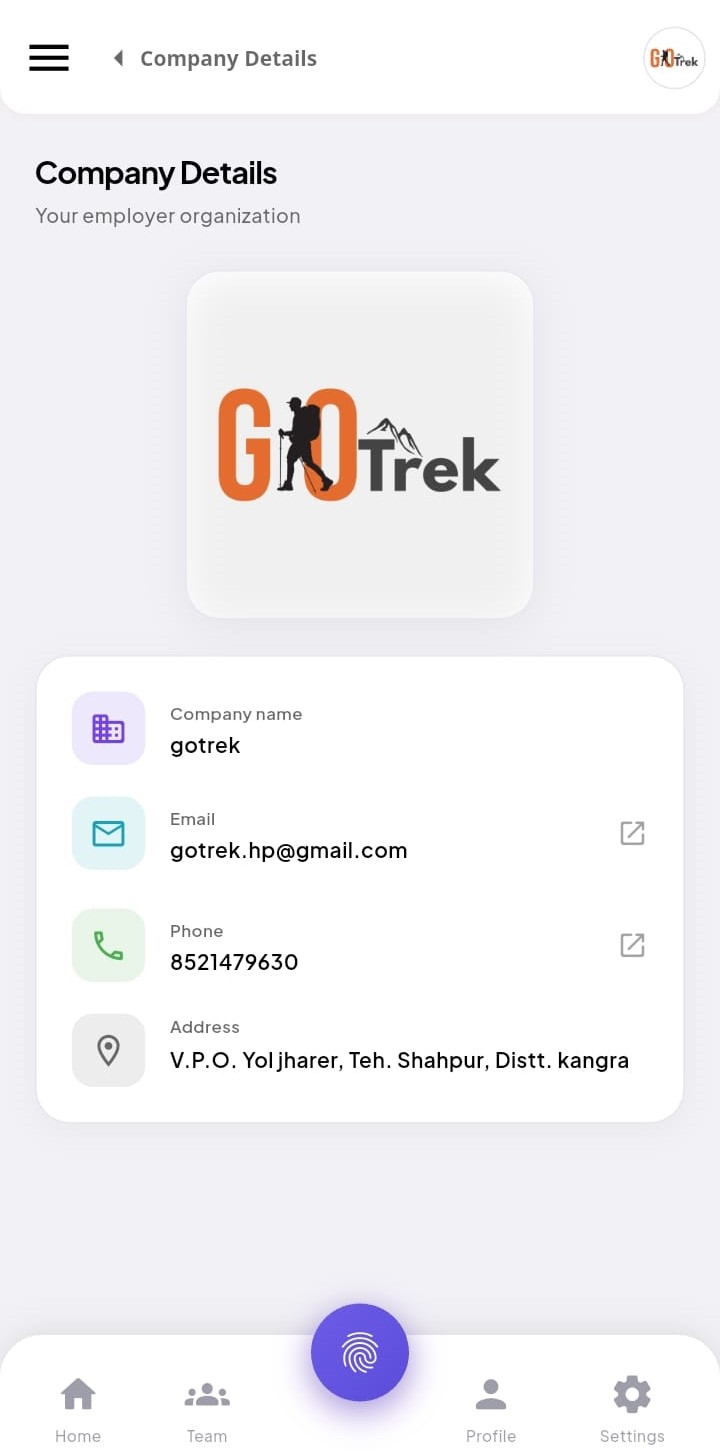
Q: What is Company details in the Employee App?
A: Company Details shows basic information about the company you work for — useful when you need office contact or company name from the app. You can: View company name and related details.; Confirm which employer account you are logged into..
Q: How do I use Company details?
A: Open Company Details from menu or settings area. Read the information on screen.
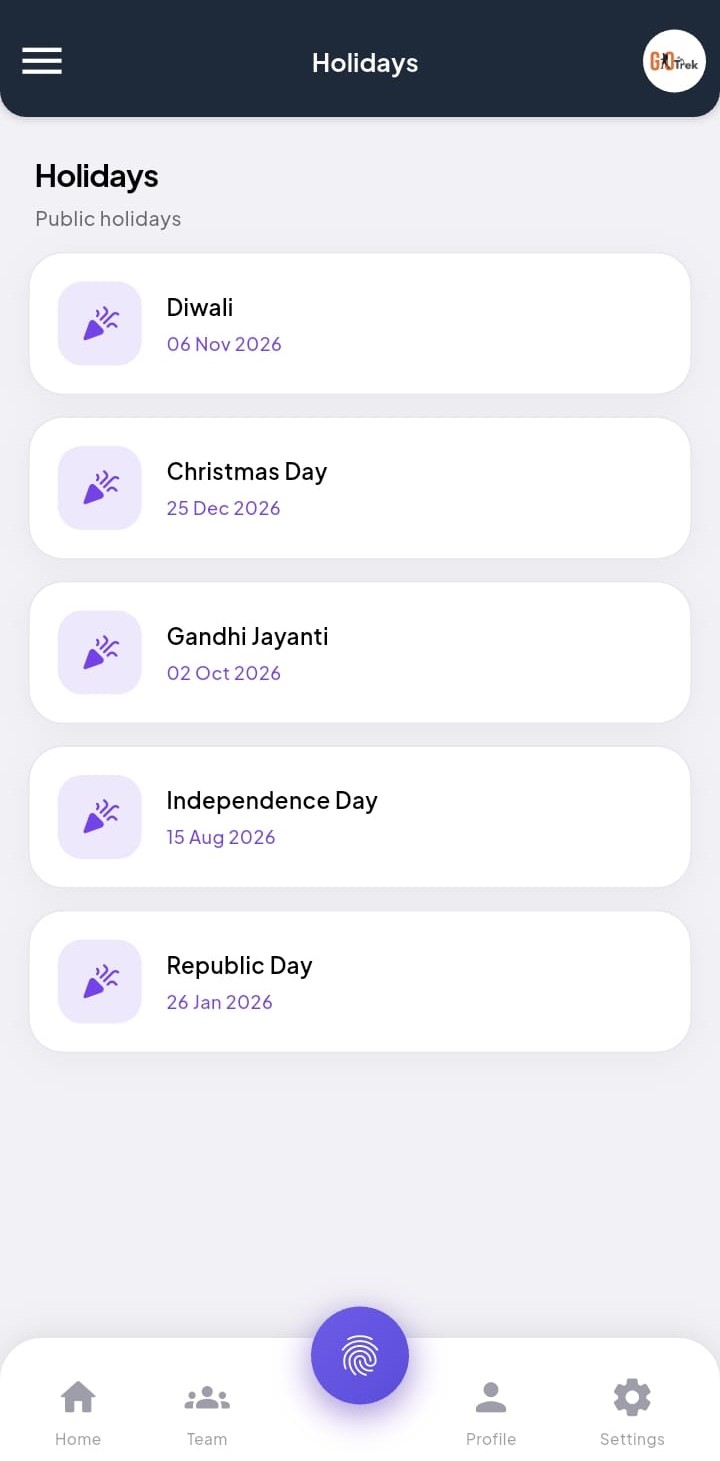
Q: What is Holidays list in the Employee App?
A: Holidays List shows non-working days set by your employer, such as national holidays or custom company holidays. You can: View upcoming and past holidays.; Check holiday names and dates..
Q: How do I use Holidays list?
A: Open Holidays List from menu. Scroll to see all holidays shared by your company.
Q: What is Chat with employer in the Employee App?
A: Chat opens a direct conversation with your employer. Send text or photos, reply to a message, and manage your own messages (edit or delete within 24 hours). You get a push notification when your employer sends a new message — even if the app is in the background. You can: Open Chat from Home and talk to your employer.; Send text messages.; Attach photos from camera or gallery.; Swipe right (or long-press → Reply) to reply to a message.; Edit or delete your own messages within 24 hours.; Tap a reply quote to jump to the original message.; Scroll up to load older messages; date chips mark each day.; Receive push notifications for new employer messages..
Q: How do I use Chat with employer?
A: On Home, tap Chat. Type a message and tap Send, or tap + to attach a photo. Swipe a message right to reply. Long-press your message for Edit, Delete, Copy, or Reply.
Q: What is Announcements in the Employee App?
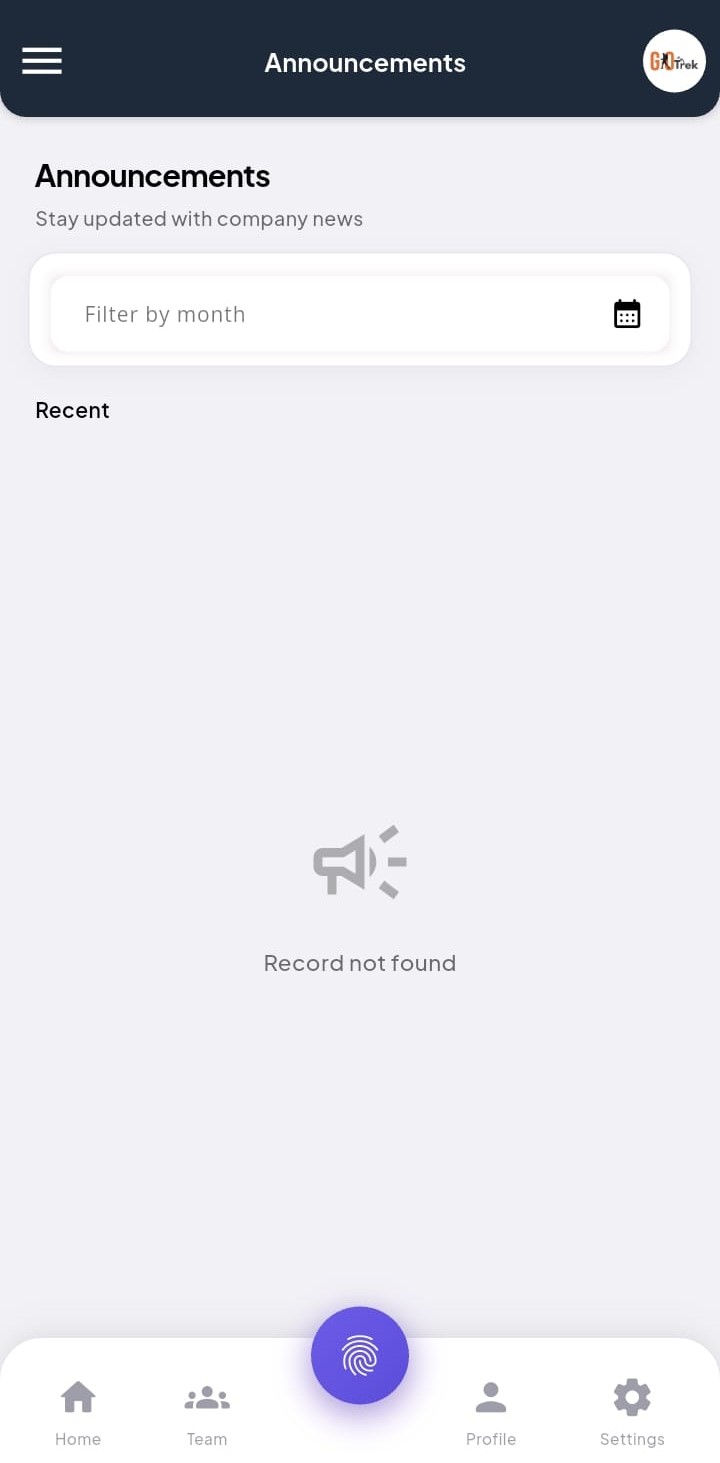
A: Announcements are updates posted by your employer — notices, policy changes, meeting reminders, or holiday messages. You can: Read company announcements.; Stay updated without asking HR every time..
Q: How do I use Announcements?
A: Open Announcements from Home or menu. Tap a message to read the full text.
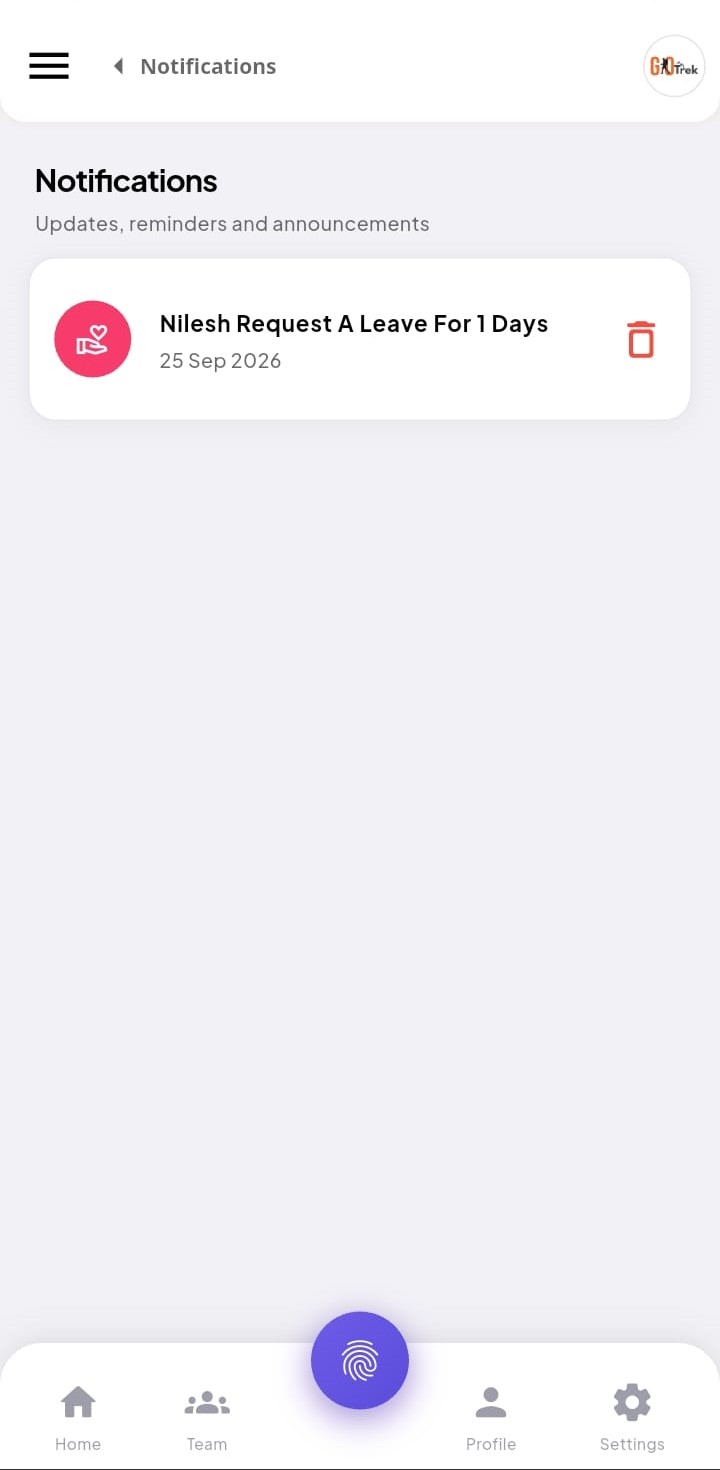
Q: What is Notifications in the Employee App?
A: Notifications show important alerts such as leave approved/rejected and other HR updates pushed to your phone. You can: Open the notification list.; See leave decision alerts and other updates..
Q: How do I use Notifications?
A: Tap the notification icon or open Notifications from menu. Tap an item to open related details.
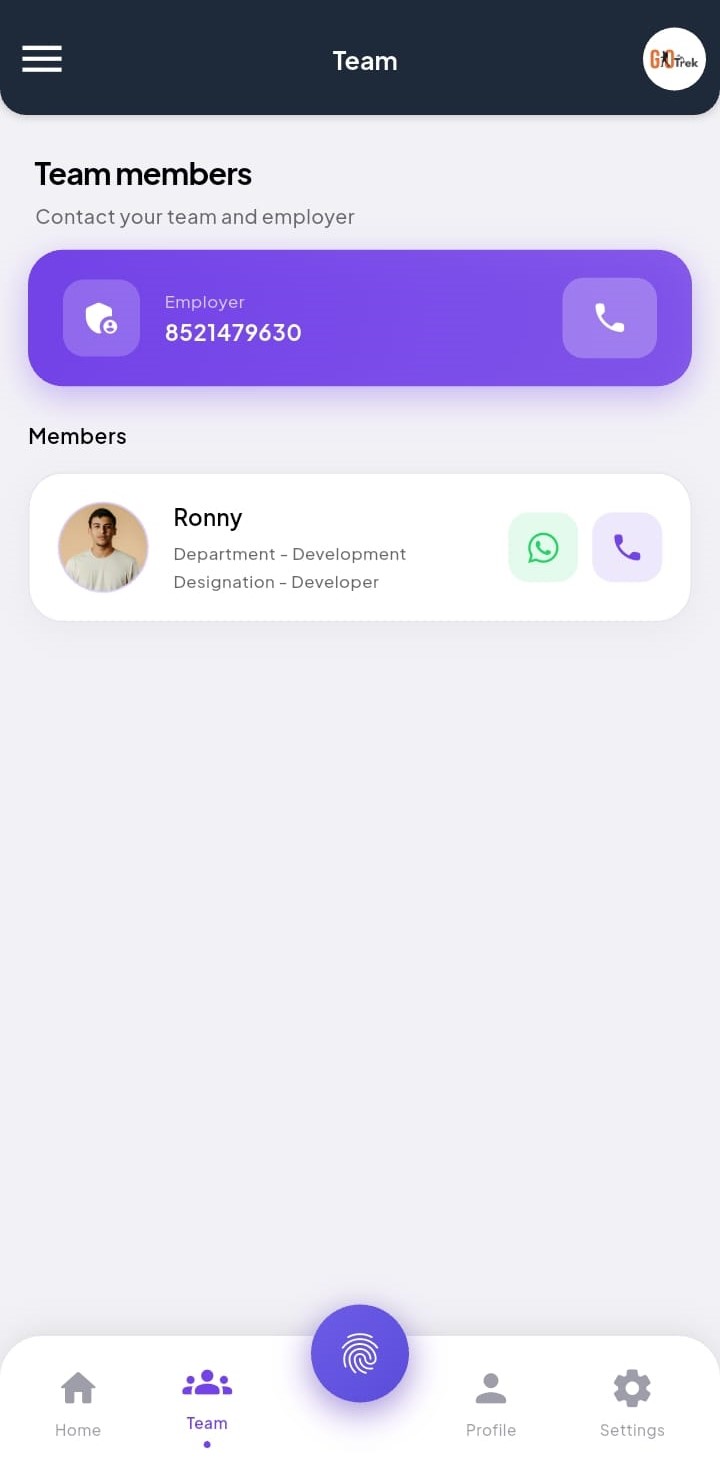
Q: What is Team in the Employee App?
A: Team shows colleagues linked to your company account, so you can view basic team presence information when enabled by your employer. You can: Browse team members.; Find colleagues in your organization list..
Q: How do I use Team?
A: Open Team from menu. Scroll the list of employees shared with you.
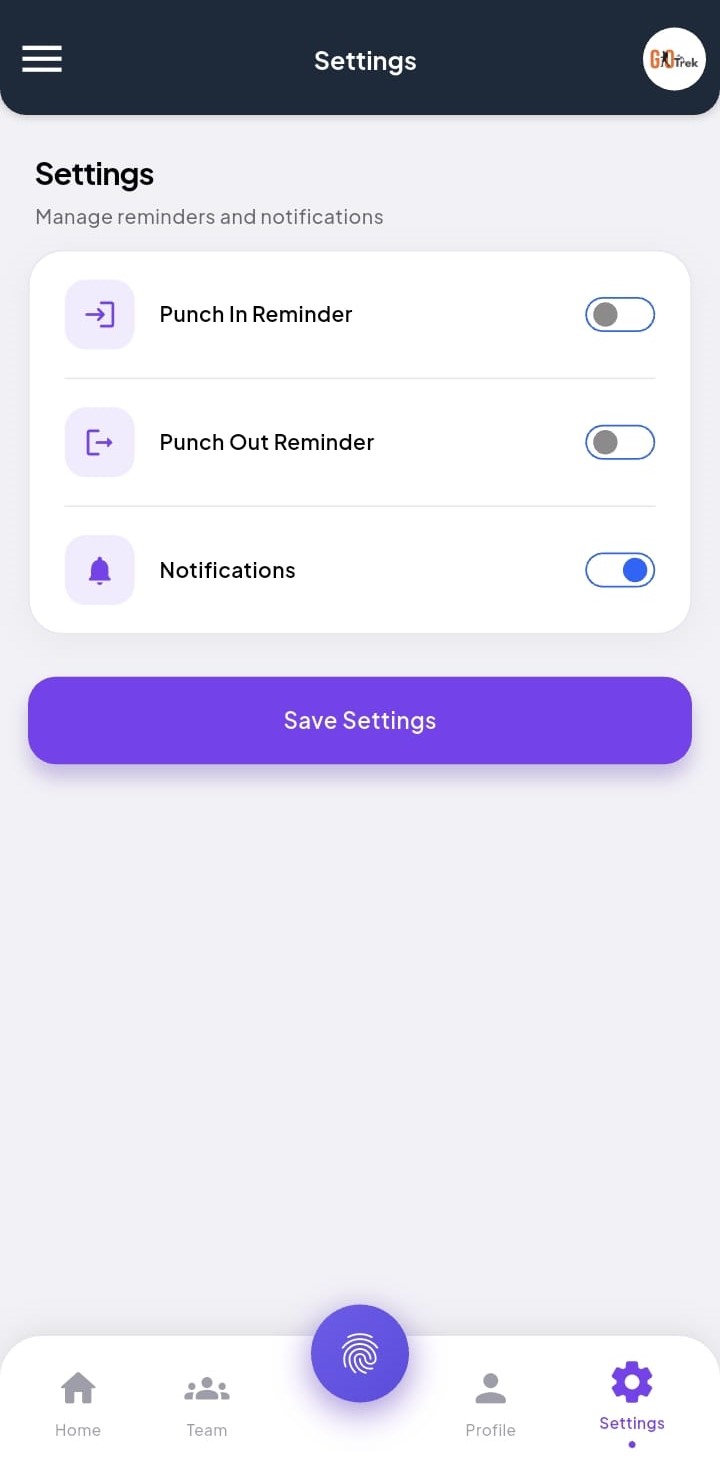
Q: What is Settings in the Employee App?
A: Settings holds account and app options such as password change and other preferences available to employees. You can: Open Settings.; Go to Change Password and other account tools..
Q: How do I use Settings?
A: Open Settings from the menu. Choose the option you need, for example Change Password.
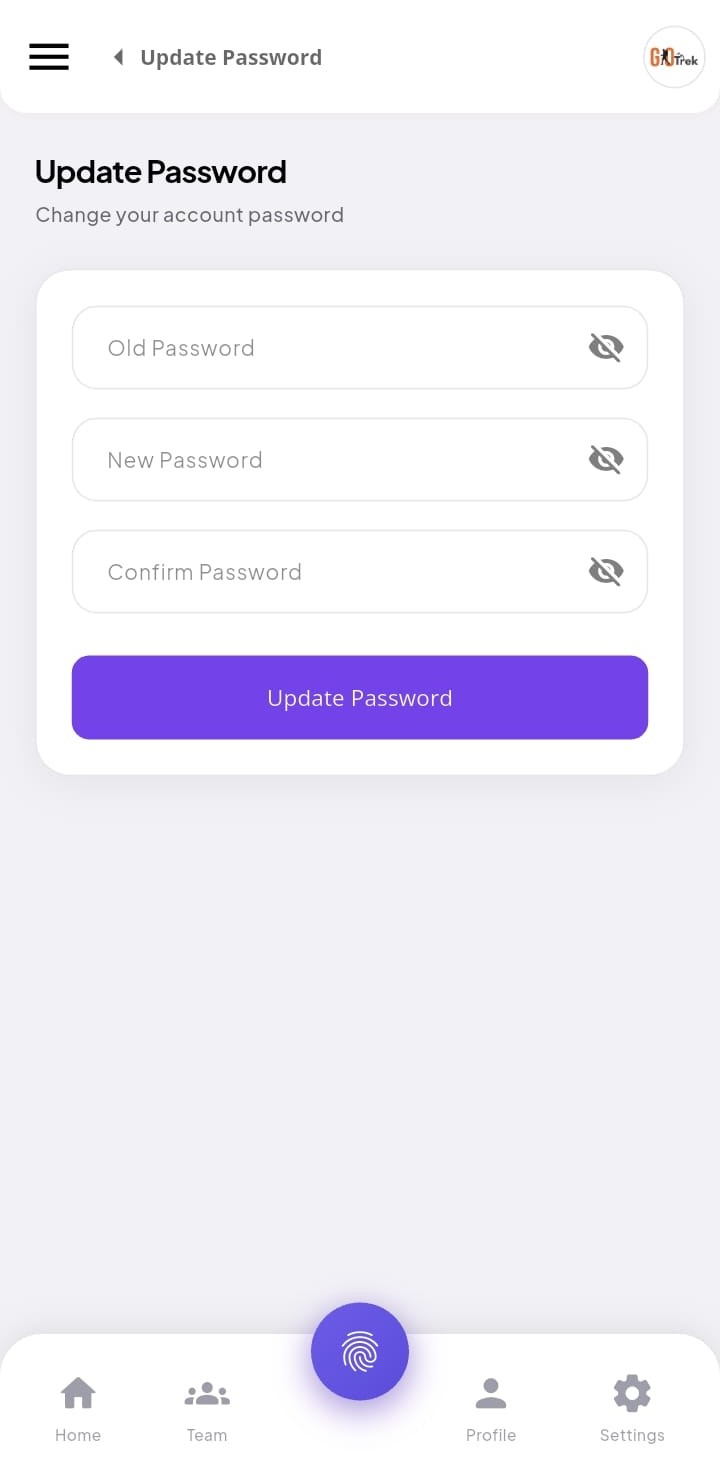
Q: What is Change password in the Employee App?
A: Change Password lets you set a new password for the Employee App login. Use a strong password and keep it private. You can: Enter current password.; Set a new password and confirm it.; Save so next login uses the new password..
Q: How do I use Change password?
A: Go to Settings → Change Password. Enter old password, new password, and confirm. Tap Save / Update.
Feature modules
Home screen (id: home)
Short: Your daily starting point for punch and quick actions.
What it is: Home is the first screen after login. It shows your name, today’s attendance actions, and shortcuts to important features like leave, salary, and profile.
What you can do:
- See your welcome / dashboard overview.
- Start Punch In or Punch Out for today.
- Open common tools quickly from Home.
- Check your current attendance status at a glance.
How to use: Open the Employee App and sign in. You land on Home. Use the main buttons for Punch In / Punch Out, or open other modules from the menu or shortcuts.
Keywords: home, dashboard, employee home, welcome
Screenshots on this page:
Home dashboard; Home with punch actions
Punch In (id: punch-in)
Short: Start your work day with a punch in.
What it is: Punch In records the time you start work. Your company may require you to be at the office location (GEO) or take a selfie before the punch is accepted.
What you can do:
- Mark Punch In when you arrive / start duty.
- Confirm location or selfie if your company asks for it.
- See that today’s attendance has started.
How to use: On Home, tap Punch In. Allow location/camera if asked. Confirm the punch. You should see a success message and your in-time for today.
Keywords: punch in, check in, start attendance, selfie punch, GEO punch
Screenshots on this page:
Punch In; Punch In confirmation
Punch Out (id: punch-out)
Short: End your work day with a punch out.
What it is: Punch Out records the time you finish work. If you punch out early, the app may ask you to confirm and add a short remark (for example: personal work or medical).
What you can do:
- Mark Punch Out when you leave / finish duty.
- Confirm early punch out if the app shows a warning.
- Add a remark when asked why you are punching out early.
- Complete the day so working hours can be calculated.
How to use: On Home, tap Punch Out. If you are early, confirm and type a remark if required. Then confirm the punch out.
Keywords: punch out, check out, early punch out, remarks
Screenshots on this page:
Punch Out; Early punch out confirm; Punch out remark
Attendance history (id: attendance)
Short: See your past punches and day status.
What it is: Attendance history shows your daily records — present, absent, half day, leave, and punch times. You can open different dates to review what was recorded.
What you can do:
- View monthly or daily attendance.
- Check punch in and punch out times.
- See status like Present, Absent, or Half day.
- Review older days if you need proof of attendance.
How to use: Open Attendance from Home or menu. Scroll the calendar or list. Tap a date to see punch details for that day.
Keywords: attendance, history, present, absent, half day, working hours
Screenshots on this page:
Attendance overview; Attendance details; Day status; Punch times
Leave request (id: leave)
Short: Apply for leave and track approval.
What it is: Leave Request lets you apply for casual leave, sick leave, paid leave, or other leave types set by your company. After you submit, your employer approves or rejects it.
What you can do:
- Create a new leave request with dates.
- Choose leave type and add a reason if needed.
- See pending, approved, or rejected leave.
- Track older leave history.
How to use: Open Leave Request. Tap Add / Apply. Select from date, to date, leave type, and reason. Submit. Check the same screen later for Approve or Reject status.
Keywords: leave, apply leave, casual leave, sick leave, paid leave, leave status
Screenshots on this page:
Leave request list; Apply for leave
Salary slip (id: salary)
Short: View your salary details for the month.
What it is: Salary Slip shows salary information shared by your employer — earnings, deductions, and payable amount for a month (when available).
What you can do:
- Open salary slip for a selected month.
- See earnings and deductions in simple view.
- Check payable / net salary when published.
How to use: Open Salary Slip from menu or Home shortcuts. Choose the month if asked. Review the details on screen.
Keywords: salary, salary slip, payslip, earnings, deductions
Screenshots on this page:
Salary slip
Profile info (id: profile)
Short: View your employee profile and ID details.
What it is: Profile Info shows your personal and job details — name, code, department, designation, contact, and other information saved by your employer.
What you can do:
- View your employee profile.
- Check department, designation, and contact details.
- Open related profile screens for more information.
How to use: Open Profile from the bottom menu or sidebar. Swipe or open tabs to see full details.
Keywords: profile, employee profile, employee code, designation
Screenshots on this page:
Profile info; Profile details; More profile details
Profile photo (id: profile-photo)
Short: Update your photo used in the app.
What it is: Profile Photo lets you upload or change the picture shown on your employee profile.
What you can do:
- Upload a new profile photo.
- Replace an old photo.
How to use: Open Profile Photo (or Profile → Photo). Choose camera or gallery, crop if asked, and save.
Keywords: profile photo, avatar, upload photo
Screenshots on this page:
Update profile photo
Company details (id: company)
Short: See your employer / company information.
What it is: Company Details shows basic information about the company you work for — useful when you need office contact or company name from the app.
What you can do:
- View company name and related details.
- Confirm which employer account you are logged into.
How to use: Open Company Details from menu or settings area. Read the information on screen.
Keywords: company details, employer info, office
Screenshots on this page:
Company details
Holidays list (id: holidays)
Short: See company holidays for the year.
What it is: Holidays List shows non-working days set by your employer, such as national holidays or custom company holidays.
What you can do:
- View upcoming and past holidays.
- Check holiday names and dates.
How to use: Open Holidays List from menu. Scroll to see all holidays shared by your company.
Keywords: holiday, holidays list, national holiday, off day
Screenshots on this page:
Holidays list
Chat with employer (id: chat)
Short: Message your employer directly from the app.
What it is: Chat opens a direct conversation with your employer. Send text or photos, reply to a message, and manage your own messages (edit or delete within 24 hours). You get a push notification when your employer sends a new message — even if the app is in the background.
What you can do:
- Open Chat from Home and talk to your employer.
- Send text messages.
- Attach photos from camera or gallery.
- Swipe right (or long-press → Reply) to reply to a message.
- Edit or delete your own messages within 24 hours.
- Tap a reply quote to jump to the original message.
- Scroll up to load older messages; date chips mark each day.
- Receive push notifications for new employer messages.
How to use: On Home, tap Chat. Type a message and tap Send, or tap + to attach a photo. Swipe a message right to reply. Long-press your message for Edit, Delete, Copy, or Reply.
Keywords: chat, employer chat, message employer, reply, photo, push notification
Screenshots on this page:
Chat with employer; Type a message; Attach photo (camera or gallery); Select a message; Message options (reply, edit, delete, copy); Reply to a message
Announcements (id: announcements)
Short: Read messages from your company.
What it is: Announcements are updates posted by your employer — notices, policy changes, meeting reminders, or holiday messages.
What you can do:
- Read company announcements.
- Stay updated without asking HR every time.
How to use: Open Announcements from Home or menu. Tap a message to read the full text.
Keywords: announcement, notice, company message
Screenshots on this page:
Announcements
Notifications (id: notifications)
Short: Get alerts for leave and HR updates.
What it is: Notifications show important alerts such as leave approved/rejected and other HR updates pushed to your phone.
What you can do:
- Open the notification list.
- See leave decision alerts and other updates.
How to use: Tap the notification icon or open Notifications from menu. Tap an item to open related details.
Keywords: notification, alert, leave approved, push notification
Screenshots on this page:
Notifications
Team (id: team)
Short: See teammates in your company.
What it is: Team shows colleagues linked to your company account, so you can view basic team presence information when enabled by your employer.
What you can do:
- Browse team members.
- Find colleagues in your organization list.
How to use: Open Team from menu. Scroll the list of employees shared with you.
Keywords: team, colleagues, employees list
Screenshots on this page:
Team list
Settings (id: settings)
Short: App settings and account options.
What it is: Settings holds account and app options such as password change and other preferences available to employees.
What you can do:
- Open Settings.
- Go to Change Password and other account tools.
How to use: Open Settings from the menu. Choose the option you need, for example Change Password.
Keywords: settings, preferences, account
Screenshots on this page:
Settings
Change password (id: change-password)
Short: Update your login password securely.
What it is: Change Password lets you set a new password for the Employee App login. Use a strong password and keep it private.
What you can do:
- Enter current password.
- Set a new password and confirm it.
- Save so next login uses the new password.
How to use: Go to Settings → Change Password. Enter old password, new password, and confirm. Tap Save / Update.
Keywords: change password, reset password, login password
Screenshots on this page:
Change password
End of PayrollX Employee App document.
For HR managers and owners see Employer App.
For desktop employer tools see Employer Web.
.jpeg)
.jpeg)